
In Metro ERP, you can change the salesperson when creating an invoice by following these steps:
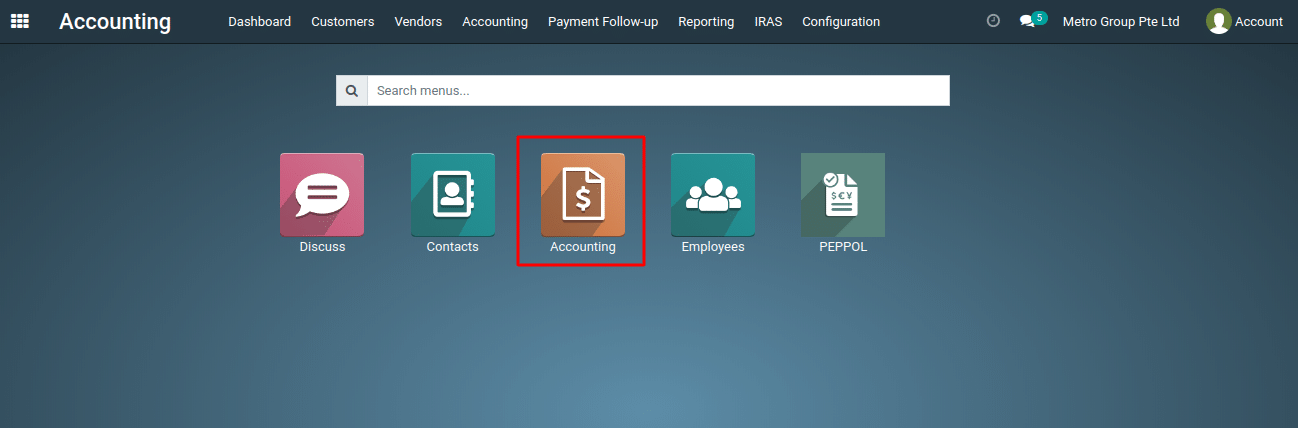
1) Once logged in, navigate to the “Accounting” module by clicking on its icon in the main dashboard or by using the application menu.
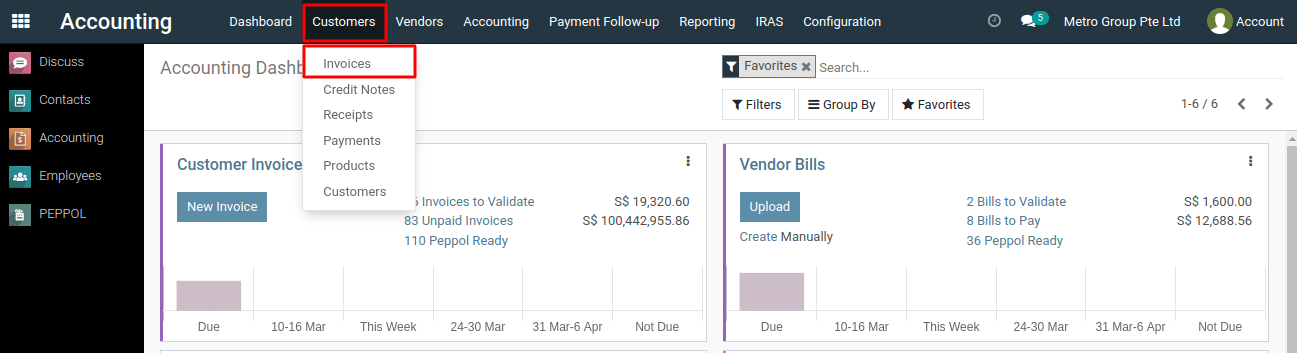
2) Click on ‘Customers’ > ‘Invoices’ menu.
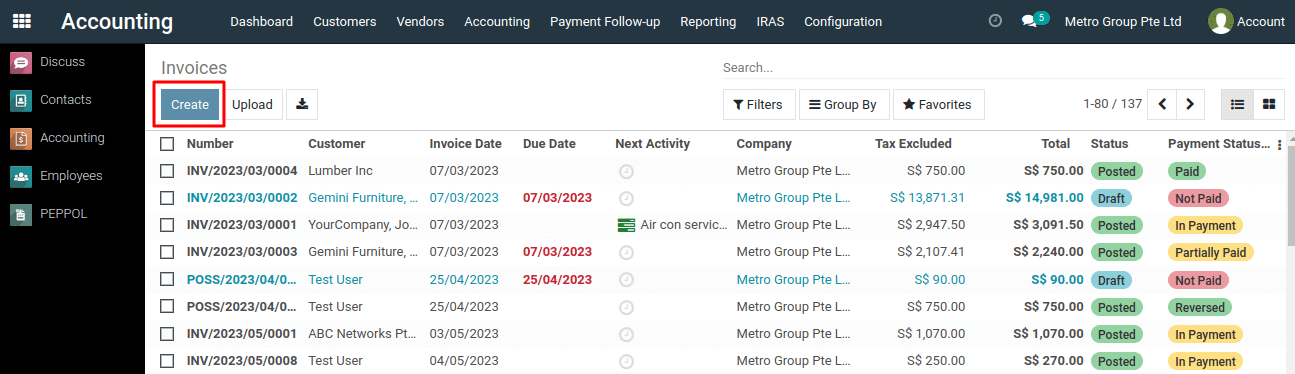
3) Click on ‘Create’ button to start creating a new invoice.
4)
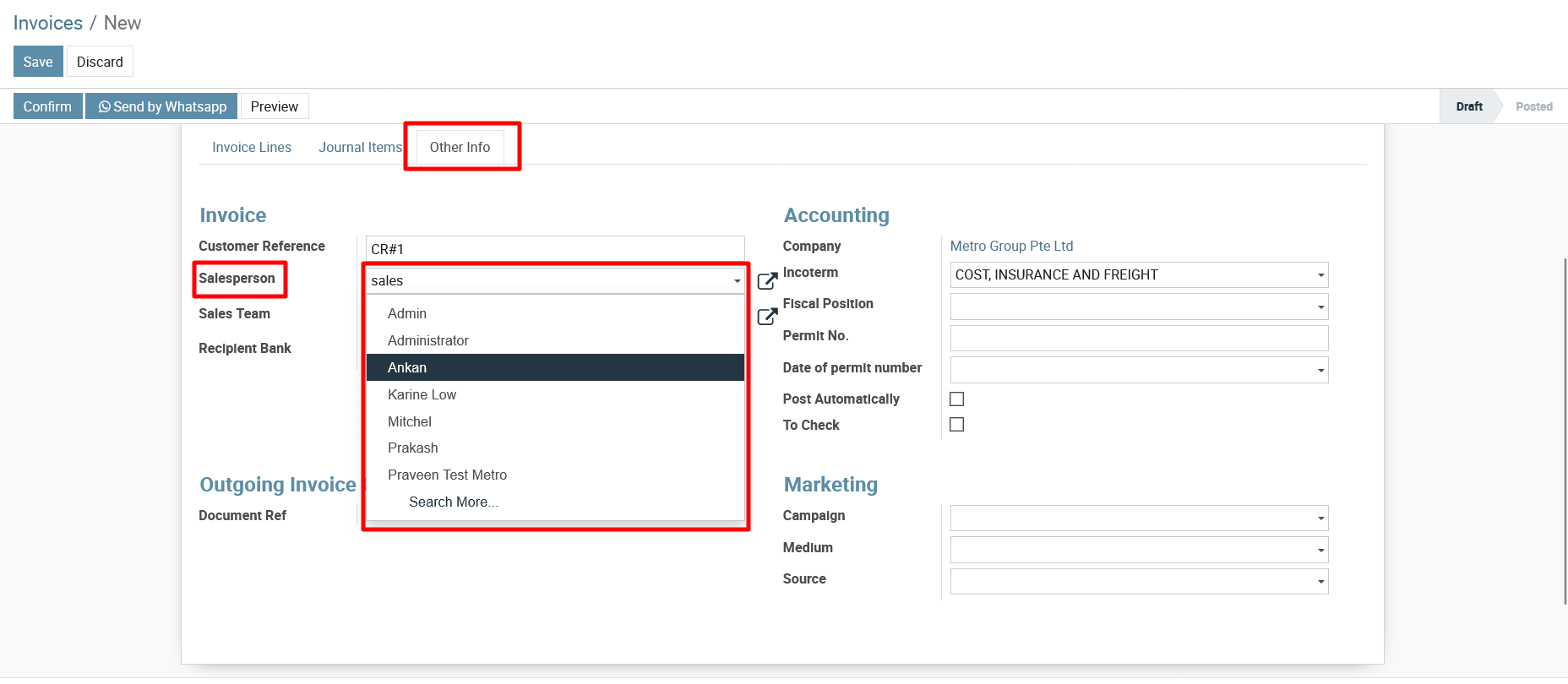
Select “Other Info” Tab .
Click on the field and select the desired salesperson from the dropdown list.
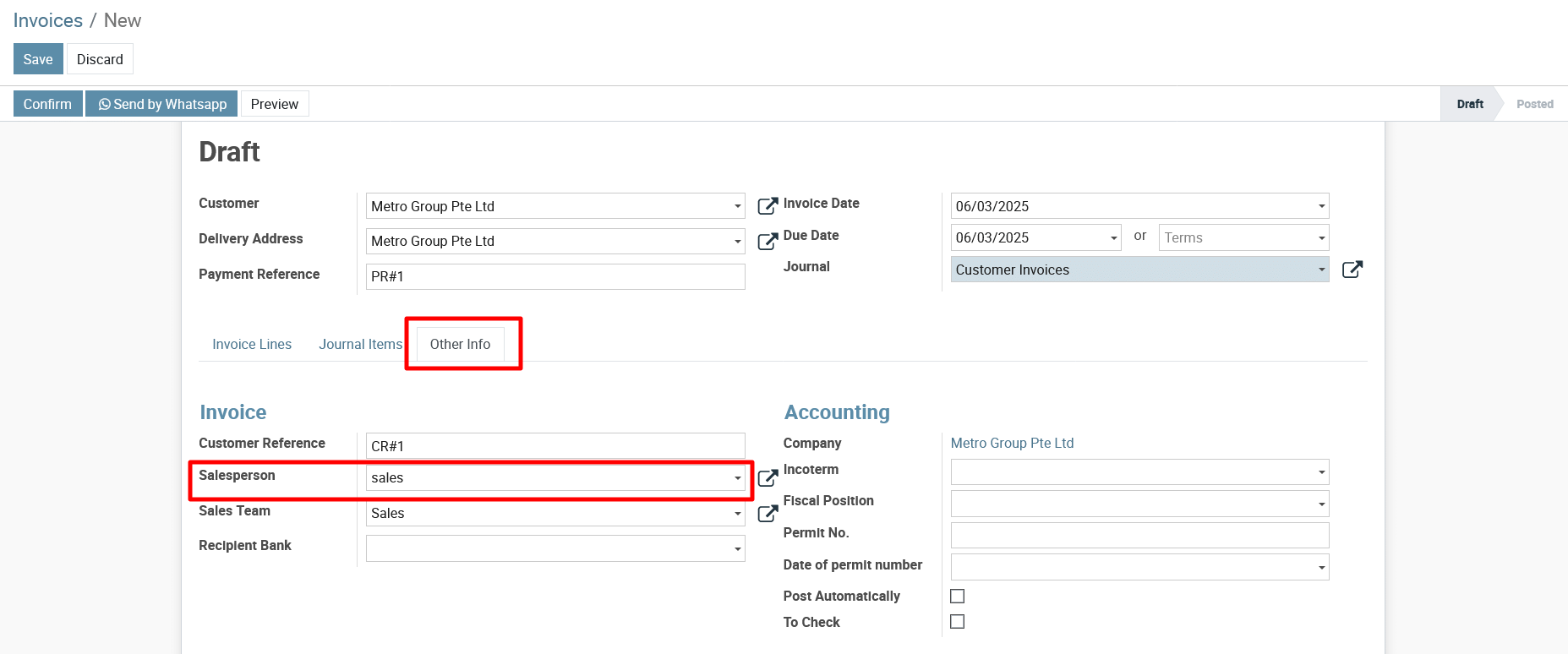
Now, change the Salesperson from “Sales” To “Ankan”
Save
- Once you’ve set the correct salesperson, click Save and proceed with validation if necessary.
To get more details to change the salesperson when creating an invoice in Metro ERP Accounting System, please do contact us at support@metrogroup.solutions