
Setting up Assistro in Metro Accounting System requires installing and configuring the Assistro module. Assistro is an AI-powered chatbot or assistant designed to help businesses automate support and interactions. Below are the steps to set it up:
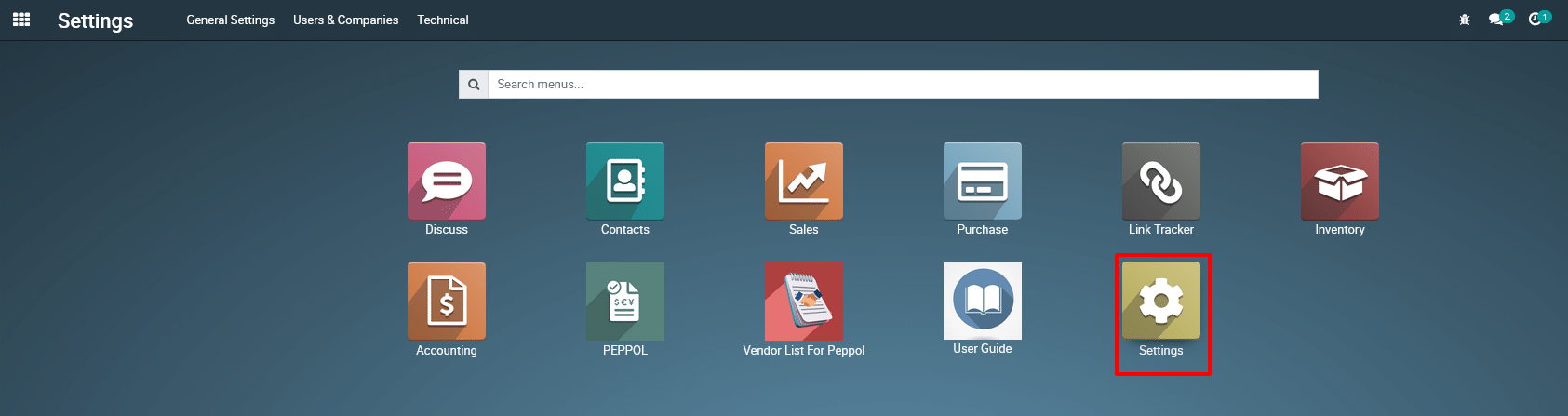
1) Go to the Settings application by clicking on its icon in the main dashboard or by using the application menu.
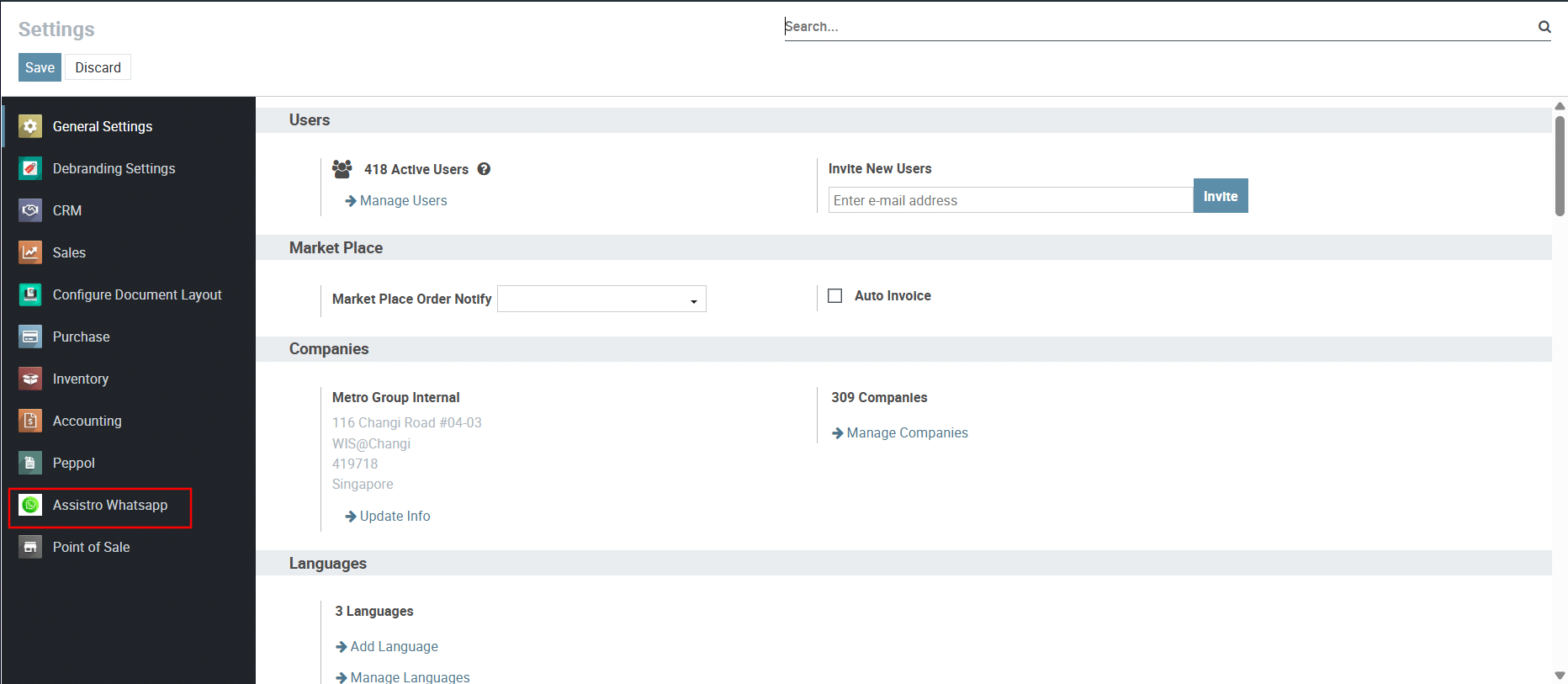
2) Navigation Pane (Left Side)
- This contains various menu items, including General Settings, Sales, Reports Configuration, Purchase, Inventory, Accounting, and Assistro Whatsapp.
- You are currently in the Assistro Whatsappsettings section.
3) Main Settings Area
The screenshot appears to be from Metro module for integrating WhatsApp messaging via a third-party service called Assistro. Here’s a detailed breakdown of the elements visible in the interface:
Section: Assistro WhatsApp Configuration
This section provides fields for setting up WhatsApp messaging using Assistro’s API.
-
URL:
-
This is the API endpoint for Assistro, which needs to be entered (e.g., https://api.assistro.com).
-
This allows Metro to communicate with Assistro’s WhatsApp messaging services.
-
-
Client ID:
-
A unique identifier for authentication with Assistro’s API.
-
In this case, it is set to 10.
-
-
Client Secret:
-
A sensitive key required for authentication.
-
Needs to be entered manually (hidden for security).
-
-
Redirect URL:
-
This is the callback URL where Assistro will send the authentication response after OAuth authorization.
-
The format should be something like:
https://yourdomain.com/callback
-
-
Auth Code:
-
A one-time authorization code generated after authentication.
-
This is needed to obtain the access token.
-
-
Access Token:
-
The OAuth access token is auto-filled after authorization.
-
It is used to authenticate API requests.
-
-
Refresh Token:
-
The OAuth refresh token is also auto-filled.
-
It is used to get a new access token when the current one expires.
-
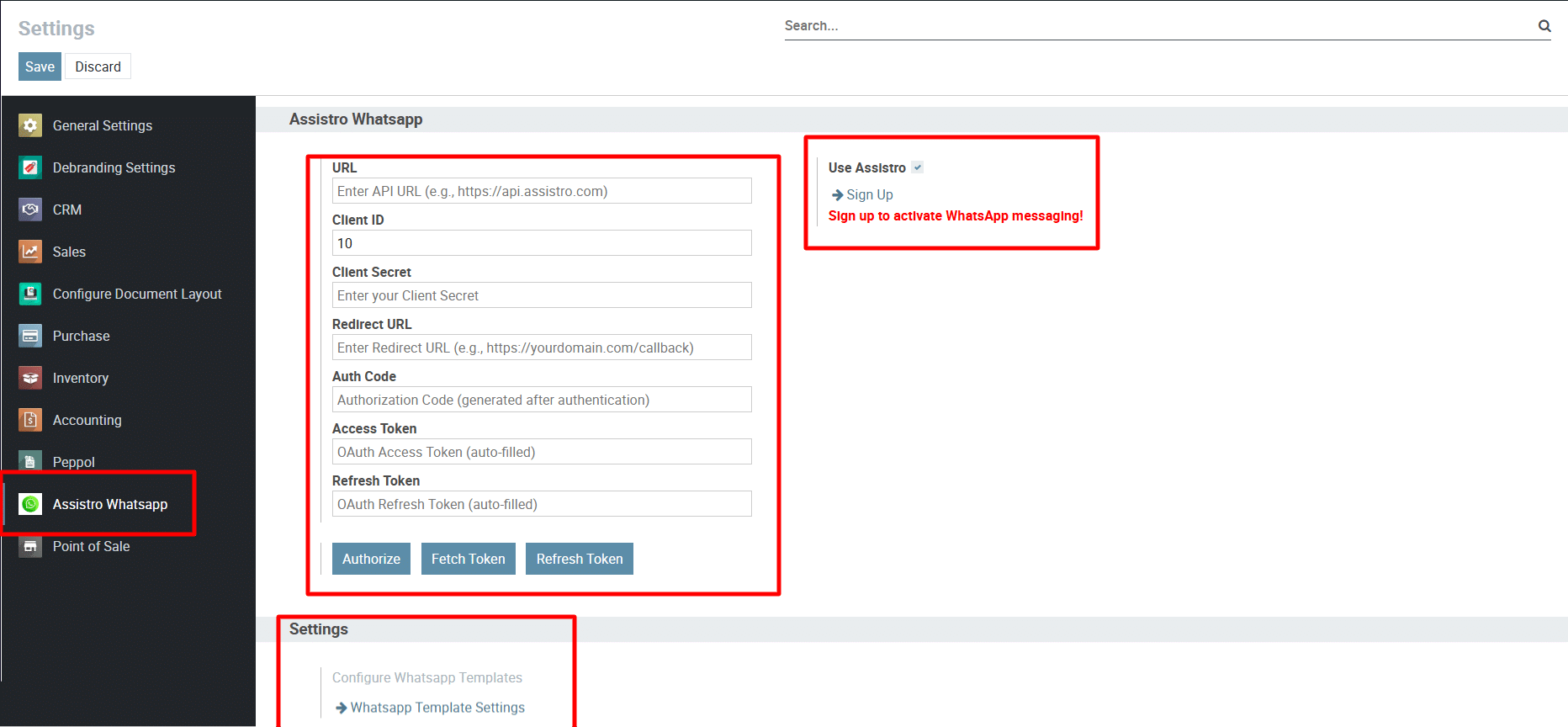
At the bottom, there are three buttons for different authentication steps:
-
Authorize: Starts the OAuth authorization process.
-
Fetch Token: Retrieves an access token using the authorization code.
-
Refresh Token: Requests a new access token using the refresh token.
Right Section: Assistro Sign-Up
-
There’s an option “Use Assistro” (checkbox) which is checked, meaning the feature is enabled.
-
A “Sign Up” link is provided to register for Assistro’s services.
-
A red warning message states: “Sign up to activate WhatsApp messaging!”
-
This indicates that the service is not yet active and requires registration.
To get more details how to assistro setup in Metro Accounting System please do contact us at support@metrogroup.solutions