
To import multiple-pricelists in Metro ERP’s Sales App, follow these steps:
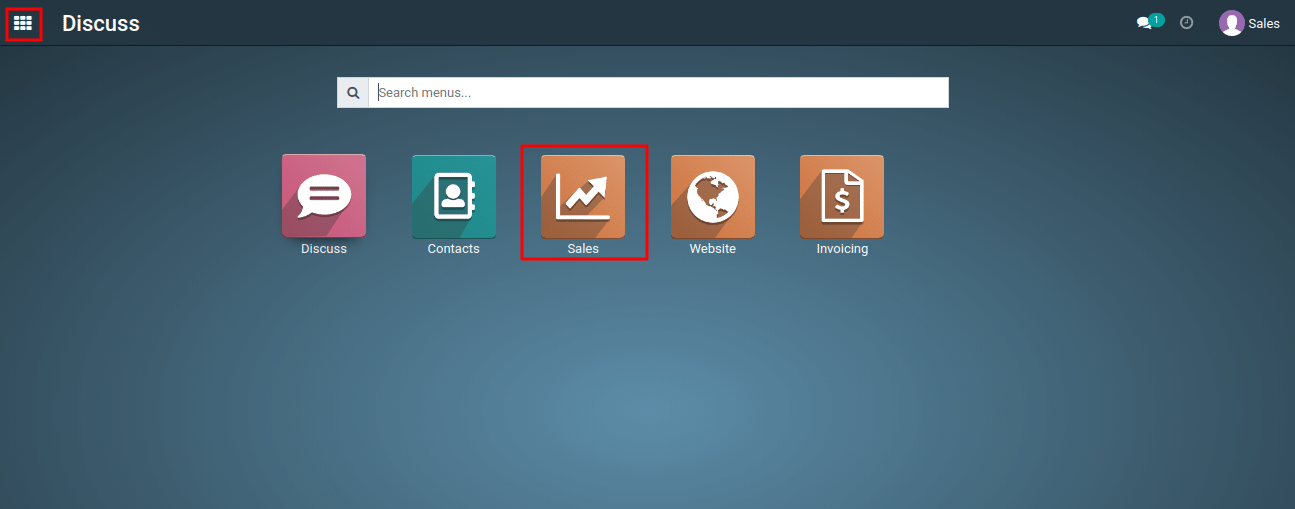
1) Go to the “Sales” module by clicking on its icon in the main dashboard or using the application menu.
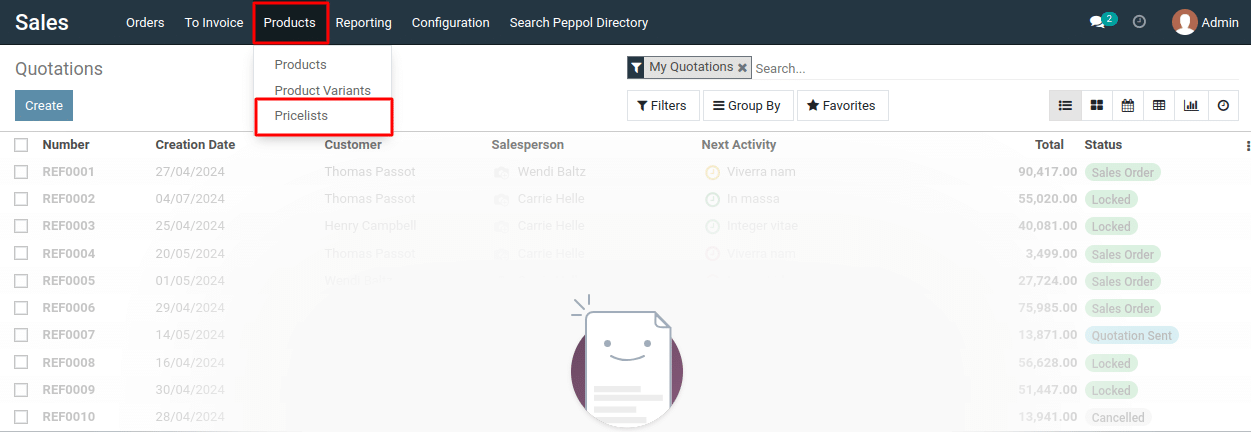
2) Navigate to the “Products > Pricelists” menu.
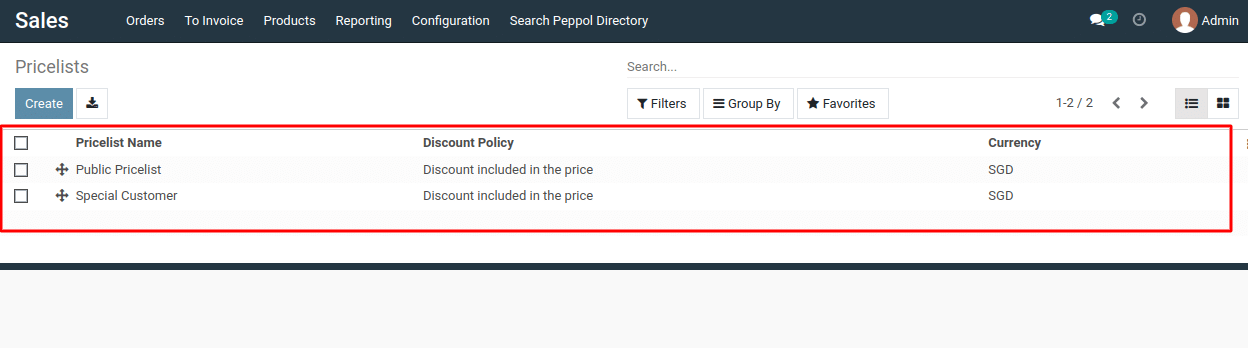
3) Here, you’ll find a list of all existing price lists within your Sales application.
4) Prepare Your Excel File for Import
To import your price lists, create an Excel file with the following headers in the first row:
-
Price
List Name:
Enter the desired name for your new price list. -
Currency:
Specify the currency used for the prices in this price list (e.g.,
USD, EUR, SGD). -
Applicable
To:
Choose the category of products this price list applies to. This
could be “Products. -
Fixed
Price:
Enter the fixed price for each product included in this price list. -
Product
Name:
Identify the product you want to include in this price list.
Click Here to download sample file.

5)
Once your Excel file is ready. Click
on “Favorites.” Select
“Import Records.” button.

6)
Importing Your Price List Data
-
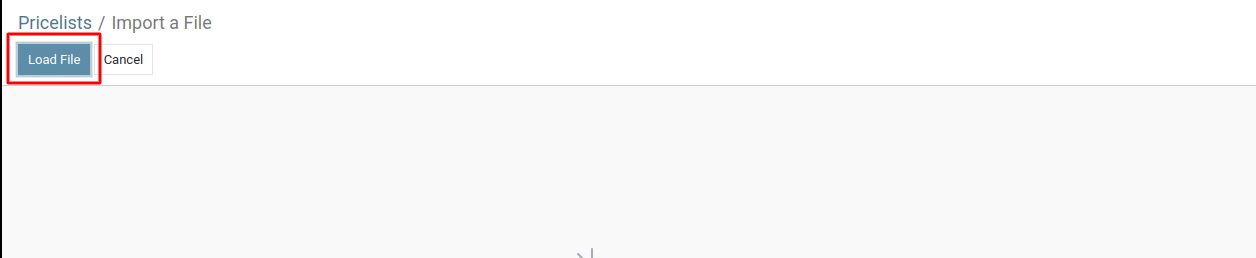
Click
on the “Load File” button. -
A
file selection window will appear on your screen. -
Locate
the Excel file you prepared with your price list data on your local
computer. -
Select
the file and click “Open”.
Metro ERP automatically identify the headers in your Excel file and
map them to the appropriate import fields.
Before the actual import, Metro ERP offers a “Test” button. Clicking on this button allows you to verify if the system can correctly read and process your data. If the test is successful, you’ll typically see a message like “Everything seems valid.” Afterward, click on the Import button. 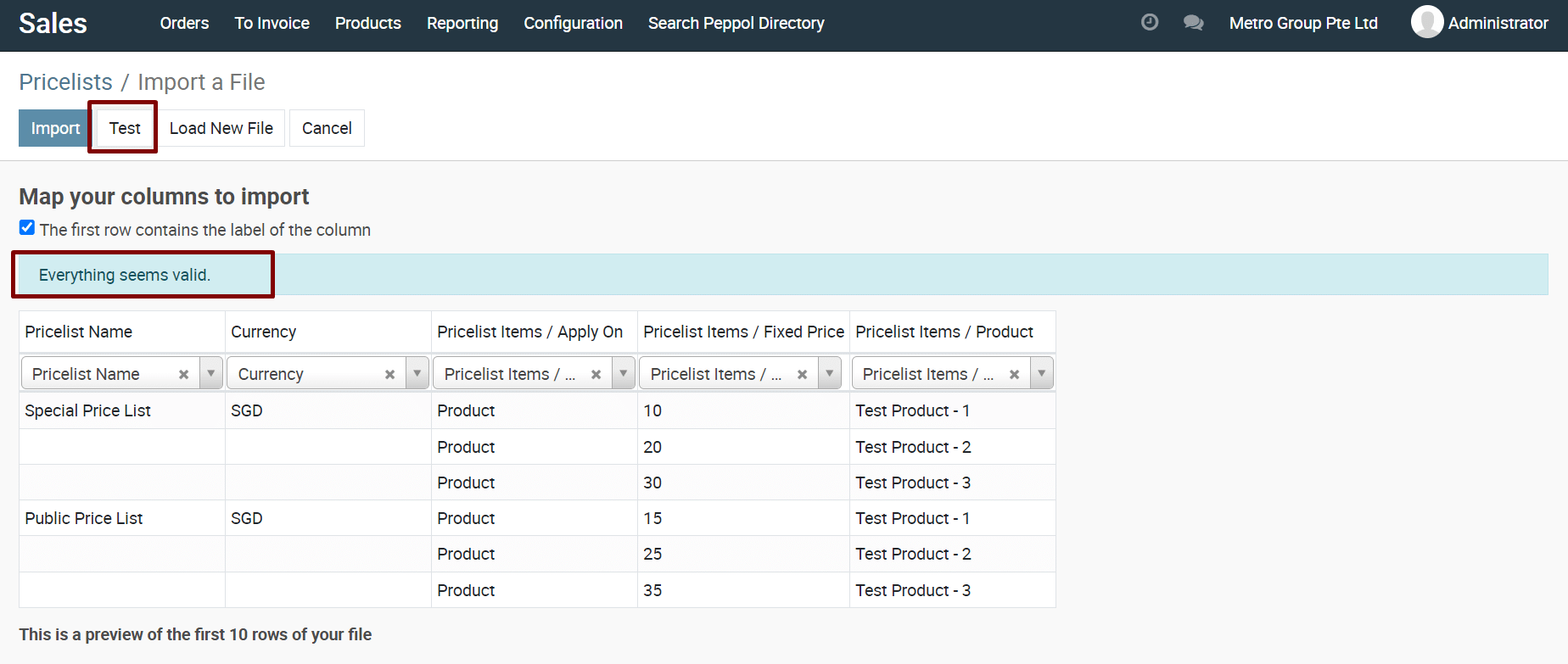
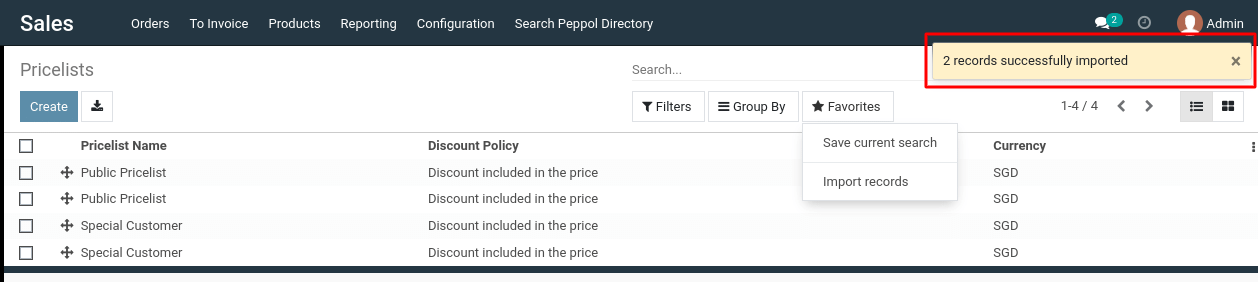
After the import is complete, Metro ERP should display a confirmation message indicating records successfully imported. You can then verify your price lists within the system to confirm they were imported correctly.
To get more details how to import pricelist in sales application, please do contact us at support@metrogroup.solutions