
To apply Table Configuration options in the report
in Metro ERP’s Sales App, follow these steps:
1) Go to the “Sales” module.
2) Under the “Configuration” menu, select ‘Settings.
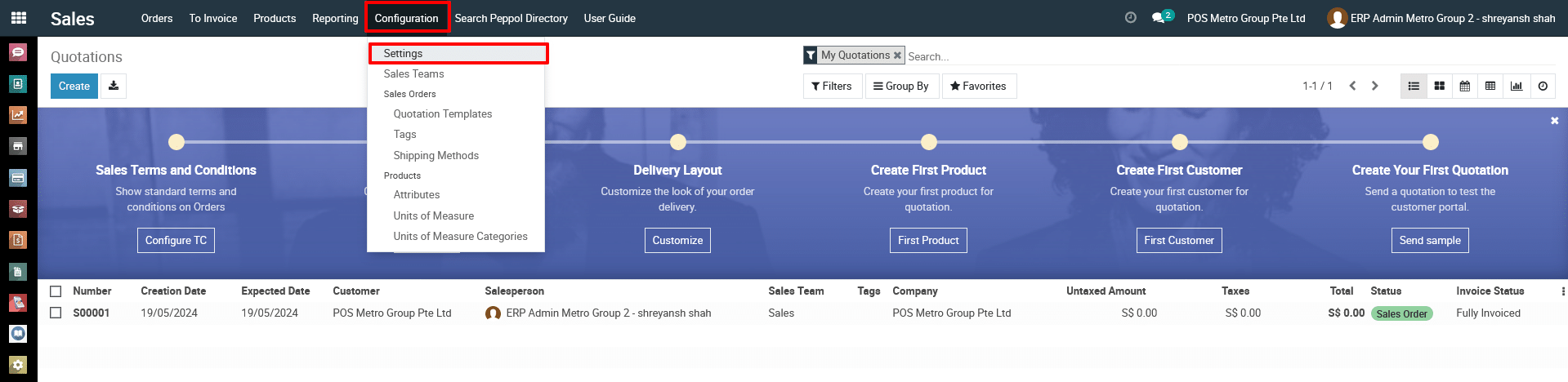
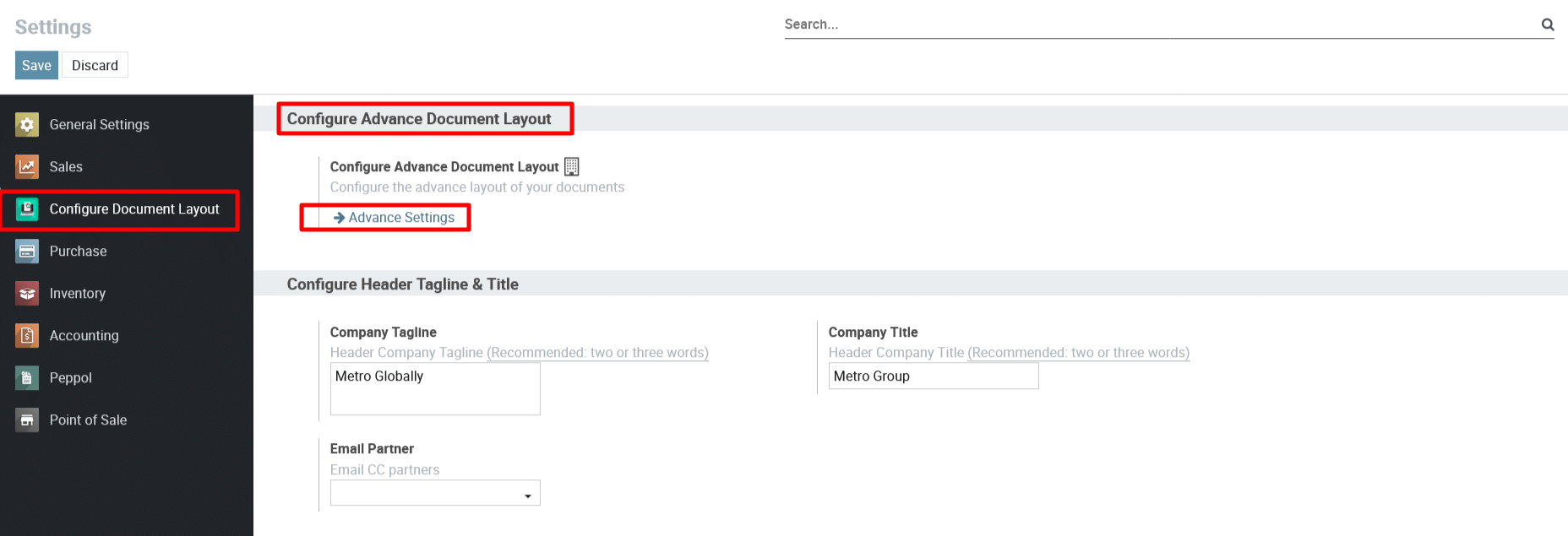
3) Now, navigate to Sales >> Configuration >> Setting >> Configure Document Layout. Now, click on the Advance Settings link under the Configure Advance Document Layout
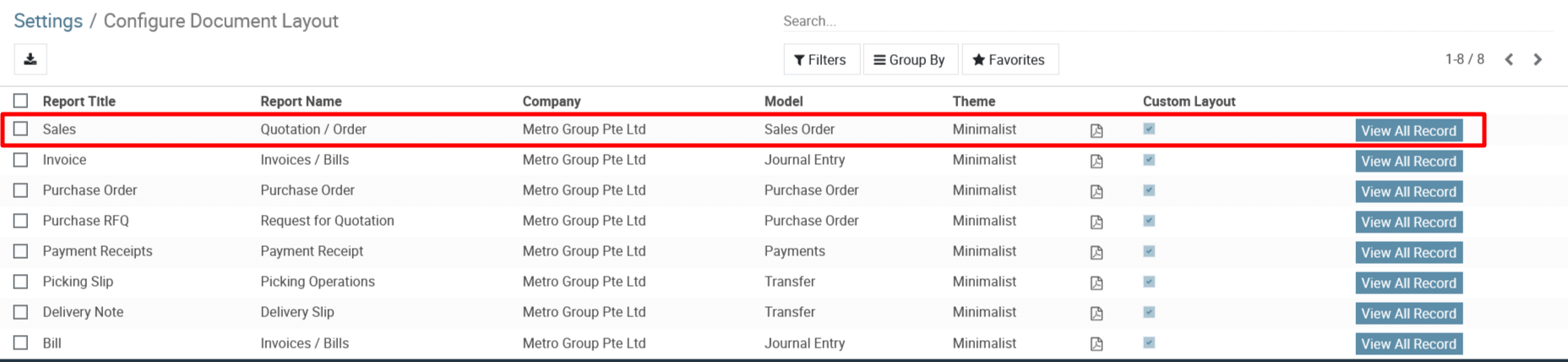
4} Click on the quotation and view the quotation Custom Layout.
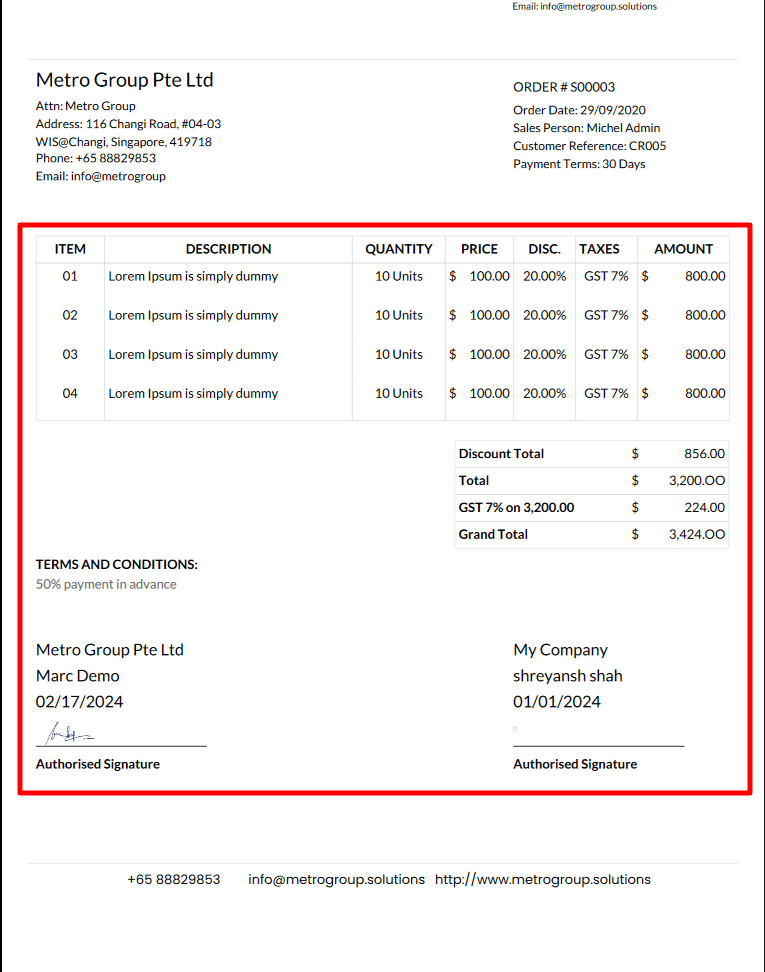
Enable all option:
The enable all options checkbox under the Table Configuration section.
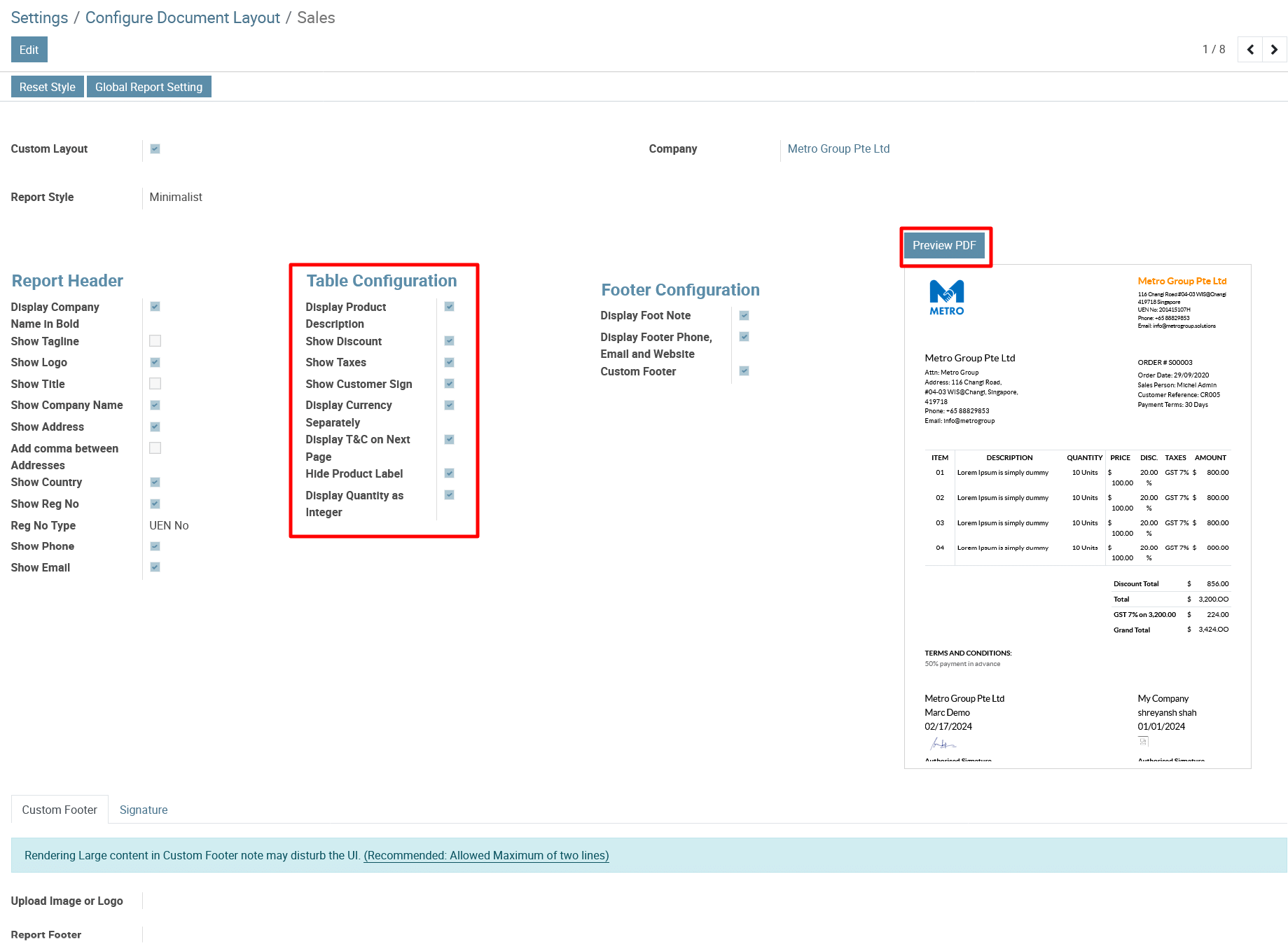
5) Now, Click on the Preview PDF button and view the Report Preview.
Disable all option:
The disable all options checkbox under the Table Configuration section.
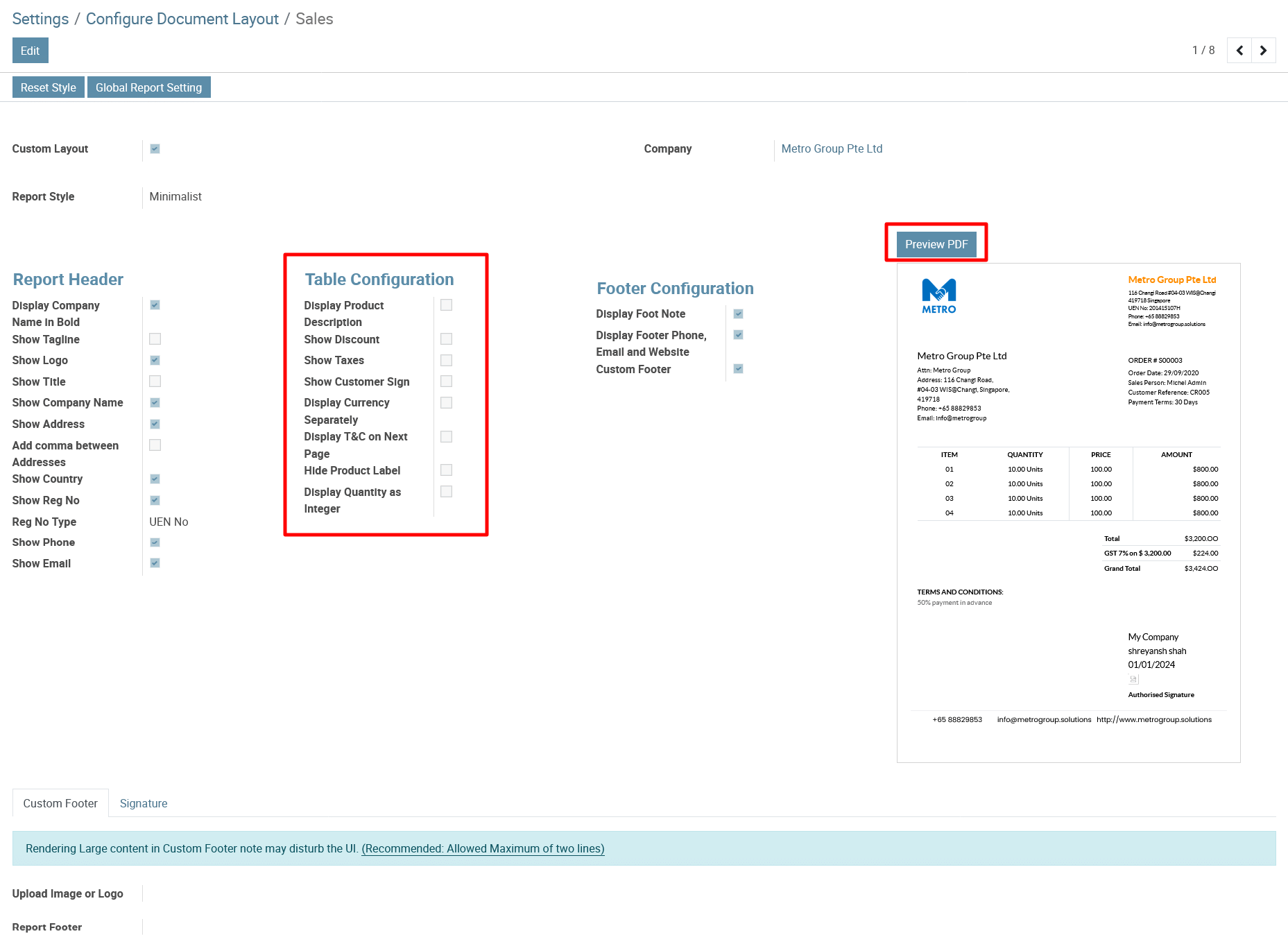
6) Now, Click on the Preview PDF button and view the Report Preview.
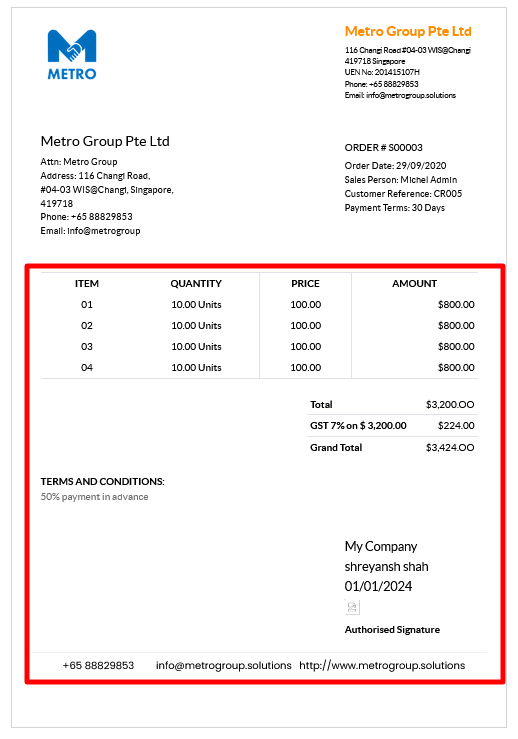
Table Configuration
- Table Heading Text Color: Users can easily enable the option to customize the Table Heading Text Color, ensuring it is displayed in the report.
- Table Heading Background Color: Users can choose to customize the color of the Table Heading Background according to their preferences.
- Table Odd Parity Color: Users possess the capability to adjust the color of the Table Odd Parity according to their preferences.
- Table Even Parity Color: Users can effortlessly activate the option to customize the Table Even Parity Text Color, ensuring its display in the report.
- Display Product Image: The user has the option to enable the Product Image feature, ensuring it is displayed in the report.
- Display Product Description: The user has the option to enable the “Product Description” feature, ensuring it is displayed in the report.
- Show Discount: Users can conveniently enable the “Show Discount” option, ensuring it is displayed in the report.
- Show Taxes: The user has the option to enable the “Show Taxes” feature, ensuring it is displayed in the report.
- Show Customer Sign: The user has the option to enable the “Show Sign” feature, ensuring it is displayed in the report.
- Show Display Currency Separately: The user has the option to enable the “Currency Separately” feature, ensuring it is displayed in the report.
- Show
Display T&C on Next Page: The user has the option to enable the ”
Display T&C on Next Page” feature, ensuring it is displayed in the report.
- Hide Product Label: The user has the option to enable the ”
Hide Product Label” feature, ensuring it is hidden in the report.
- Show Display Quantity as Integer: The user has the option to disable the ”
Quantity as Integer
” feature, ensuring it is displayed in the report.
To get more details on how to apply Table Configuration options in the report, please do contact us at support@metrogroup.solutions