
1) Log
in to your Metro ERP system using your credentials.
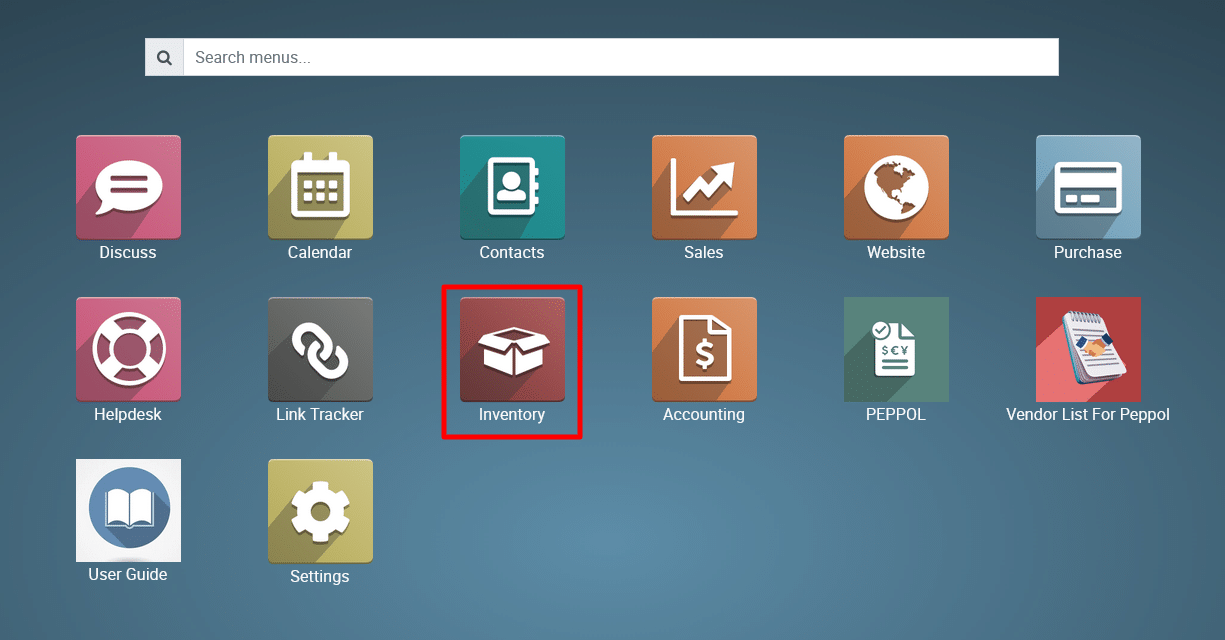
2) Navigate
to the Inventory Module.
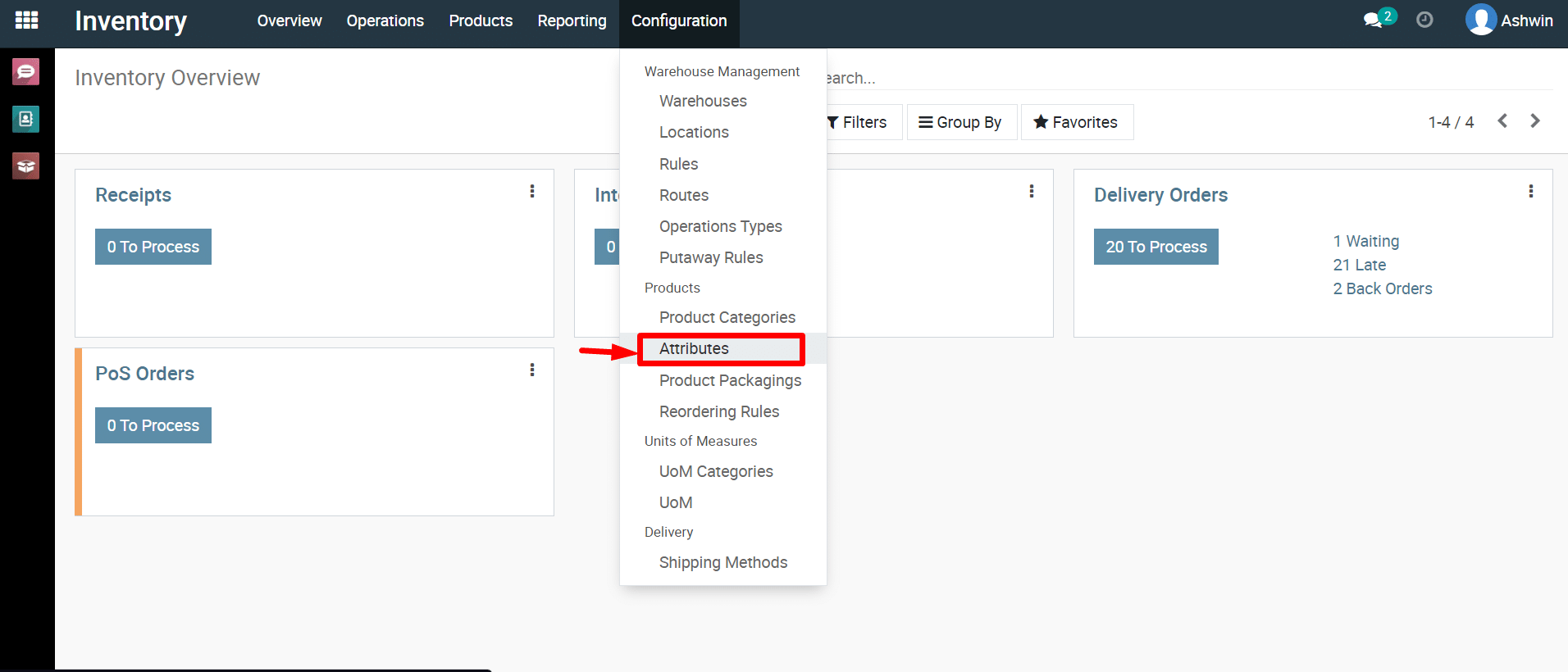
3) Click
on Configuration and then select ‘Attributes’.
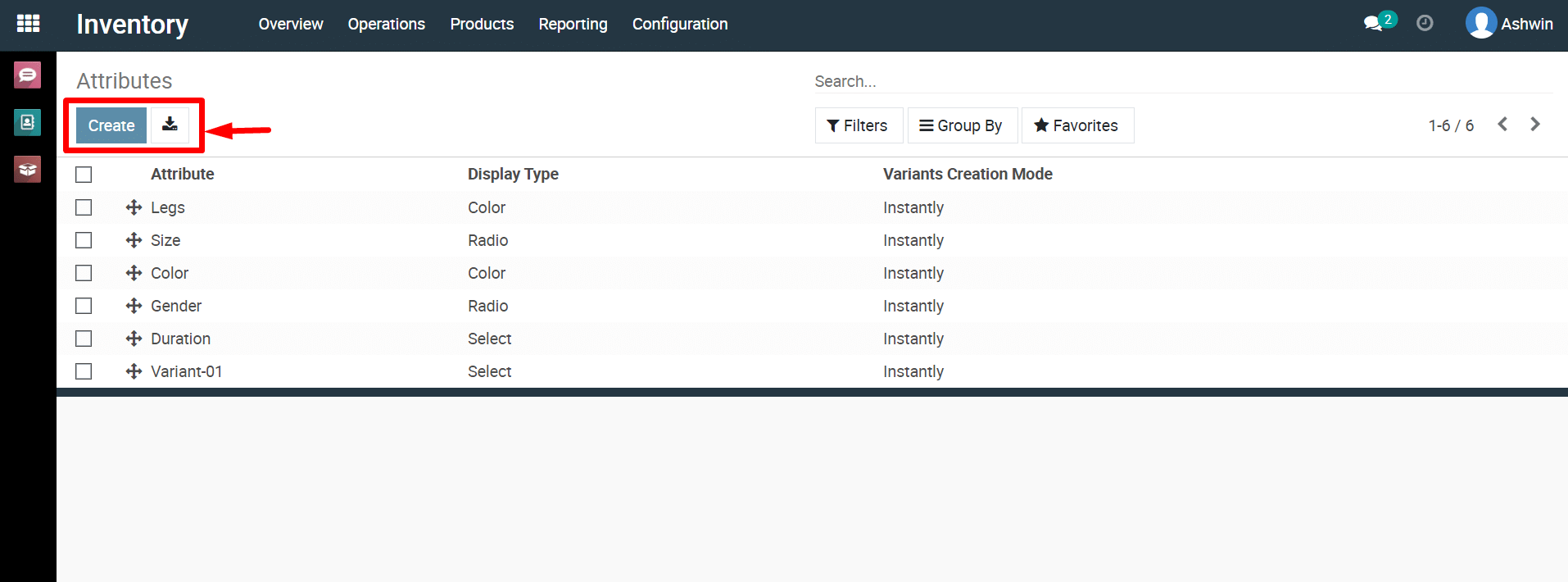
4) Click
on the ‘Create’ button to create a new ‘Attributes’.
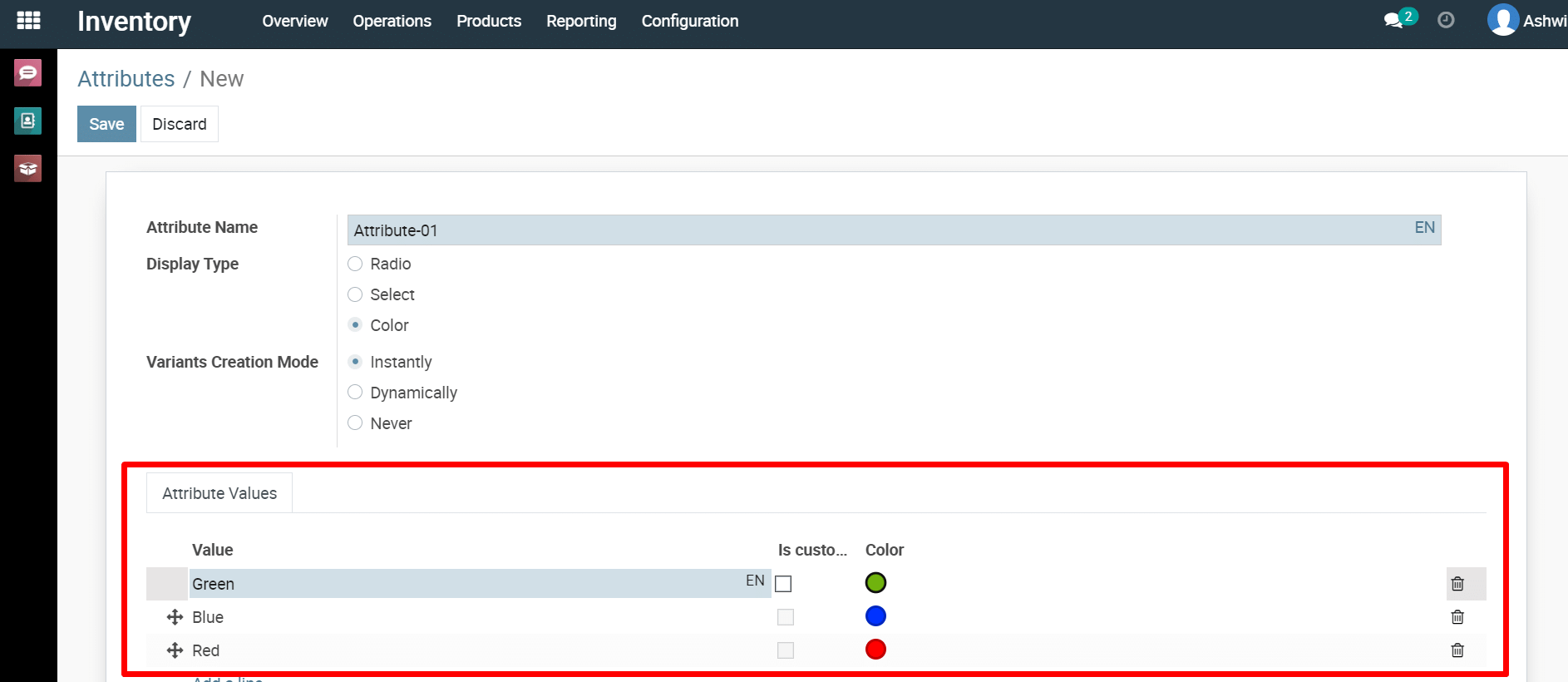
5) Now,
you need to fill in the details such as the Name, then select the
display type, and after that, you can add new attributes below the
‘add line’
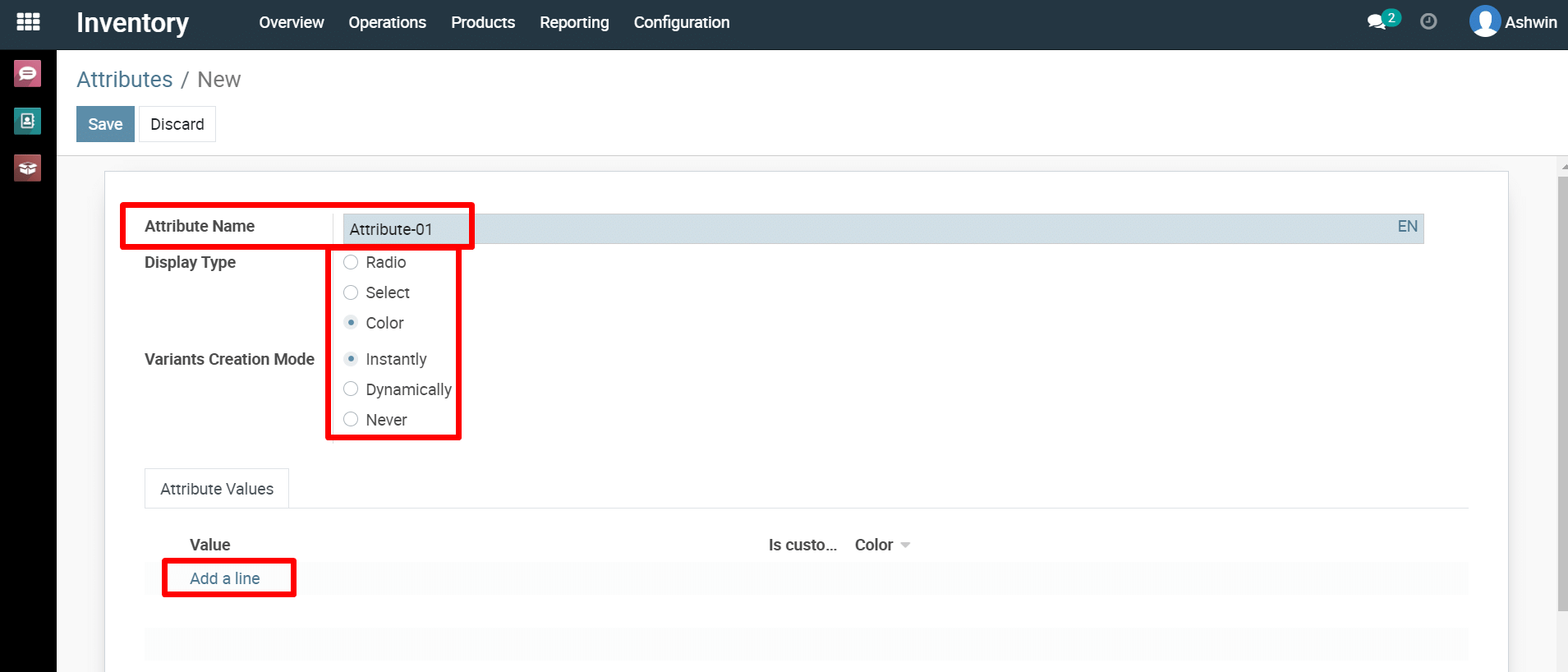
6) Below,
you can see an example. I have selected ‘color.’ You can configure it
according to your requirements.
7) Click
the ‘Save’ button to save your product attributes.
To configure attributes for products, please do contact us at support@metrogroup.solutions