
To perform this action, first login to your Metro ERP Application.
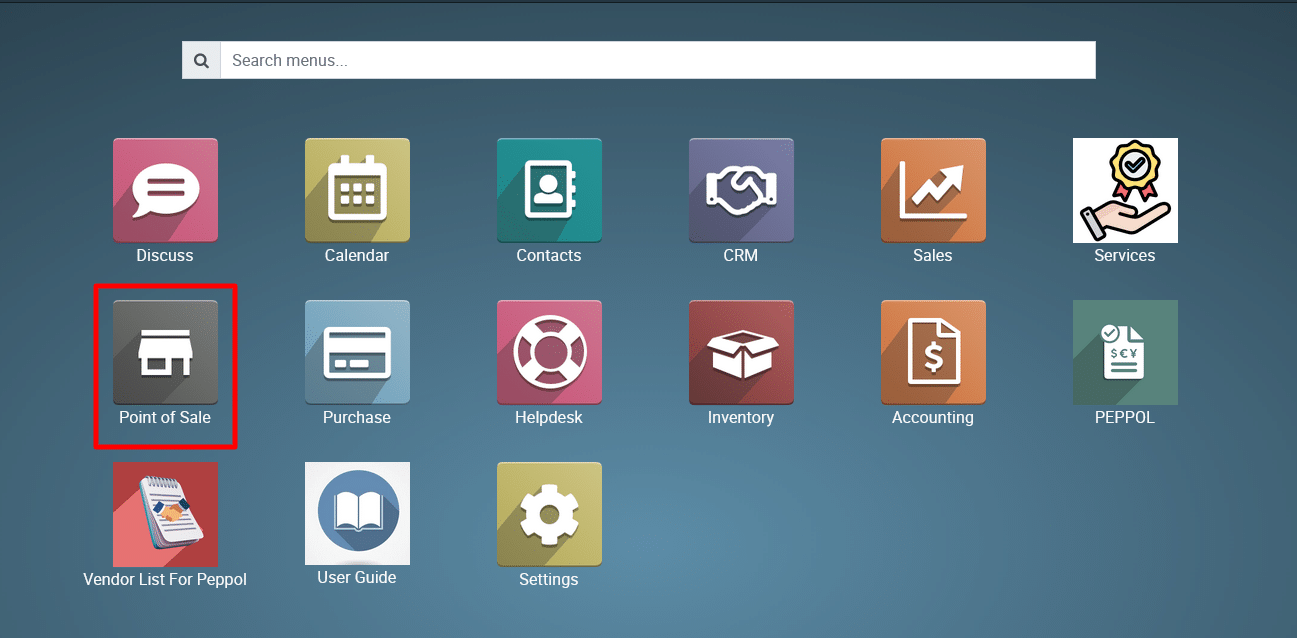
1) Access the PoS Module:
Go to the dashboard and select the Point of Sale (PoS) module.
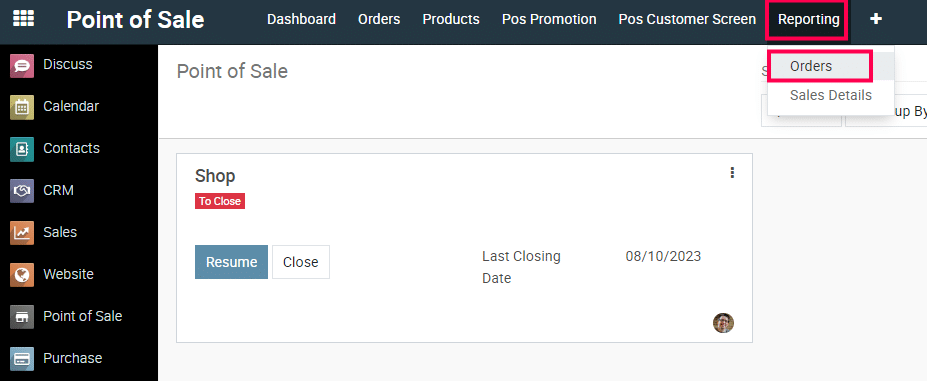
2) Navigate to Point of Sale > Reporting > Orders
3) Click on “Pivot” view.

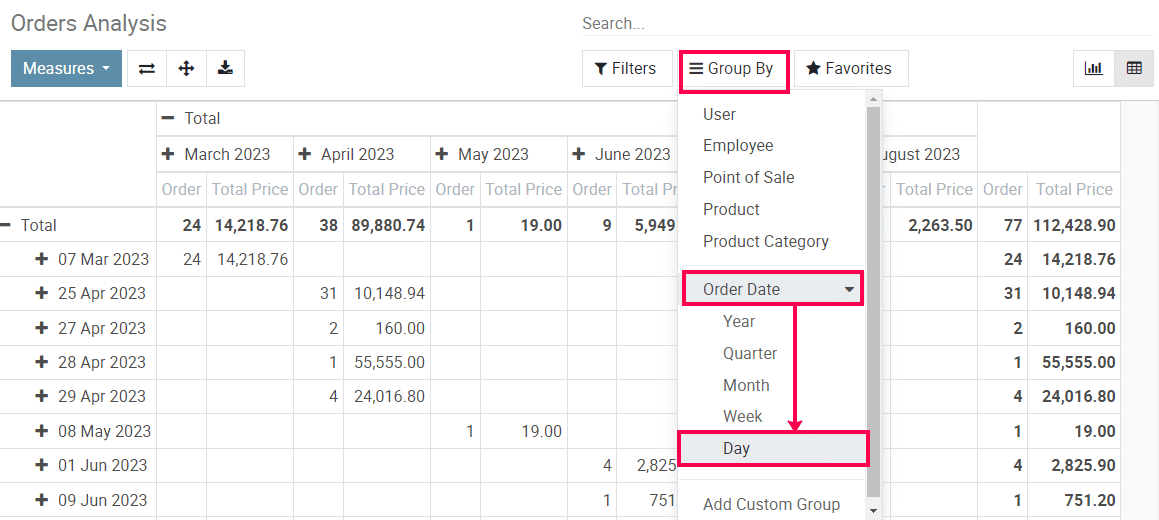
4) In the Order Analysis page, click on “Group-by → Oder Date → Day”
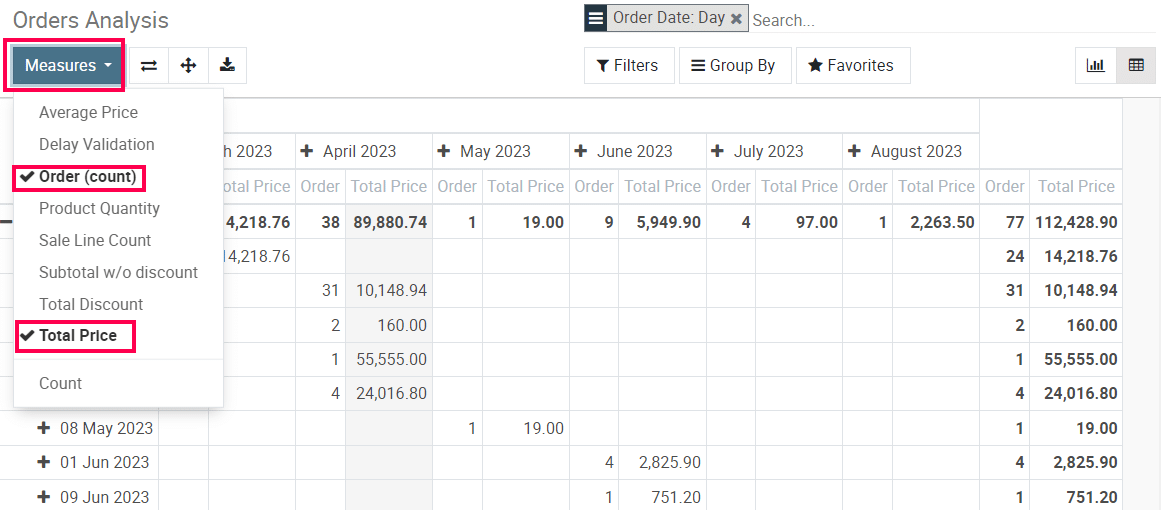
5) Click on “Measure” and only check the field you want. For an example “Order(Count) & Total”
6) Now filter by particular month if you want to see any month data
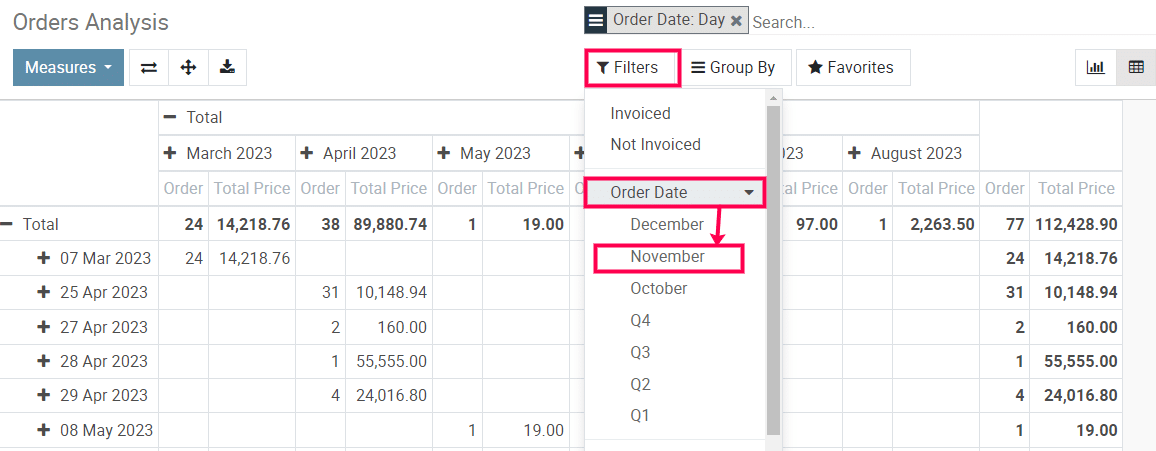
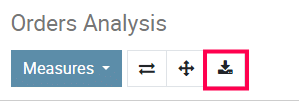
7) You will get a report for sales done each day. Now export it.
To get more details how to generate sales reports, please do contact us at support@metrogroup.solutions