
When a customer pays slightly less than the invoice amount due to bank charges, you can write off the remaining balance to a Bank Charges account and mark the invoice as fully paid.
Example
Invoice Total: S$50.00
Customer Payment Received: S$40.00
Bank Charges / Short Payment: S$10.00
Remaining Balance: S$10.00
1) Go to the “Accounting” module by clicking on its icon in the main dashboard or using the application menu.
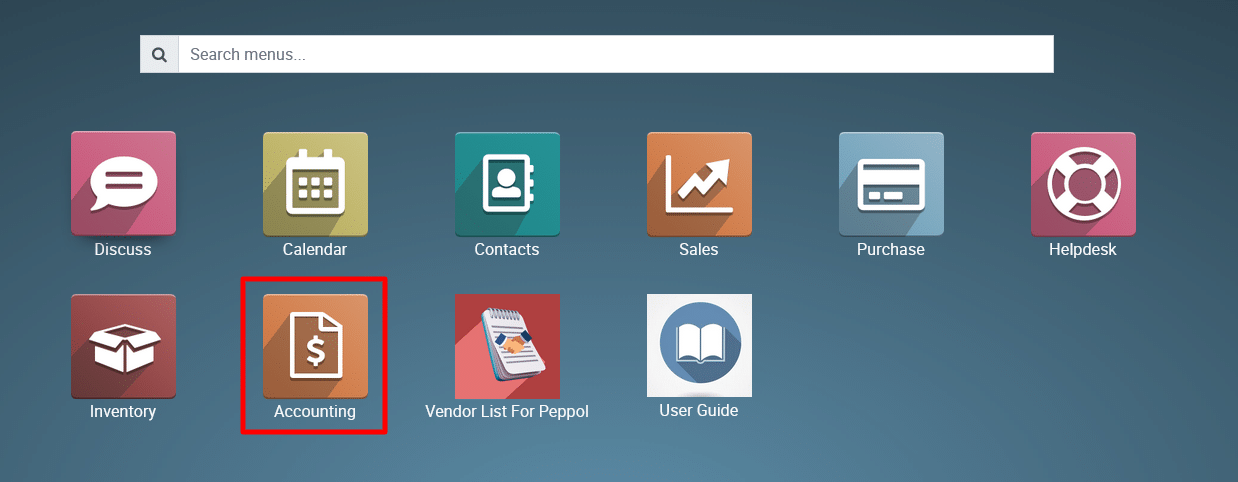
Step 1: Open the Customer Invoice
Navigate to:
Accounting → Customers → Invoices
Open the invoice that has the outstanding balance.
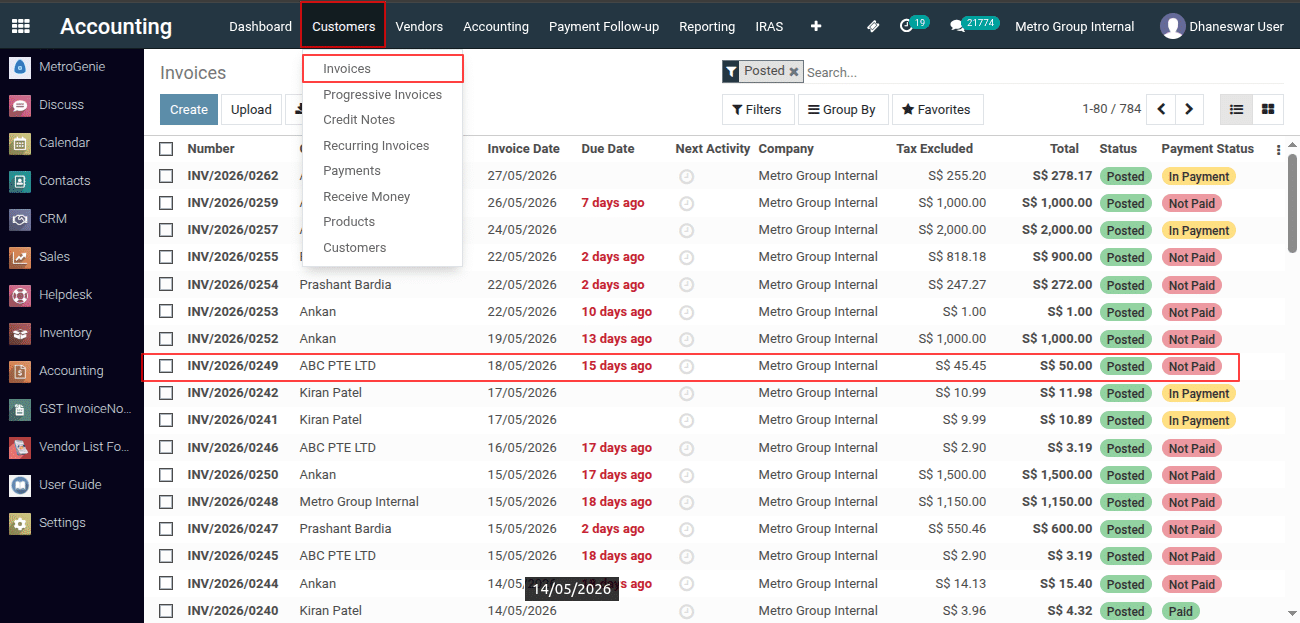
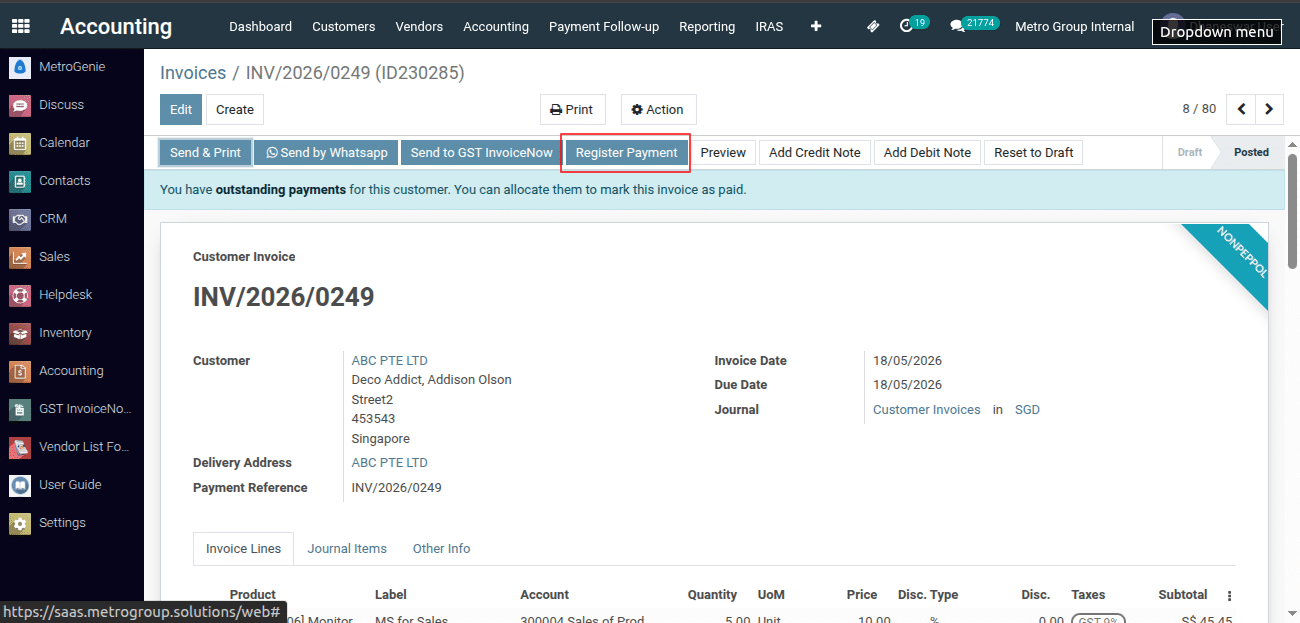
Step 2: Register the Customer Payment
Click the Register Payment button.
Step 3: Enter the Payment Amount
Enter the actual amount received from the customer.
Example:
S$40.00
Step 4: Mark the Invoice as Fully Paid
When ERP detects a payment difference, the Payment Difference section will appear.
Select:
✓ Mark as Fully Paid
Step 5: Select the Write-Off Account
In the Post Difference In field, select the appropriate expense account:
- Bank Charges
- Bank Charges Expense
- Finance Charges
(Depending on your company’s chart of accounts.)
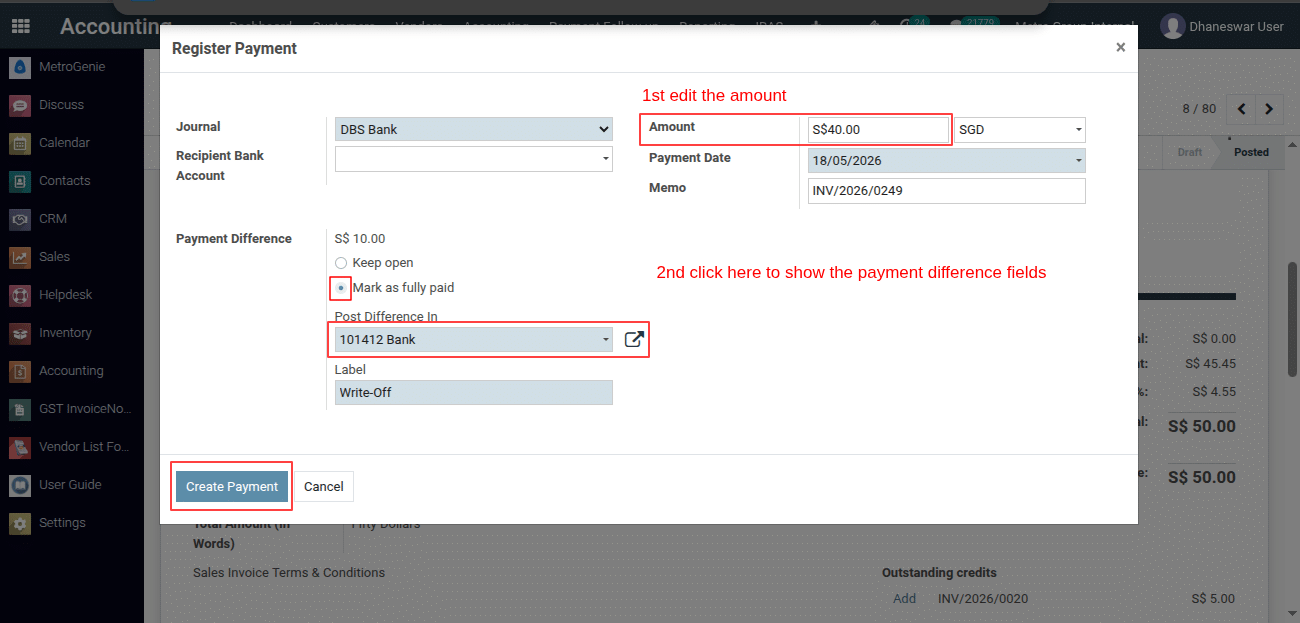
Step 6: Create the Payment
Click Create Payment.
System will:
- Record the received payment amount.
- Post the remaining difference to the selected Bank Charges account.
- Mark the invoice as Fully Paid.
To get more details, how do I write off a small outstanding balance as bank charges and mark an invoice as fully paid in Metro ERP , Please do contact us at support@metrogroup.solutions