
In Metro, to create Exchange Gain/Loss accounts in Metro’s Chart of Accounts, follow these steps:
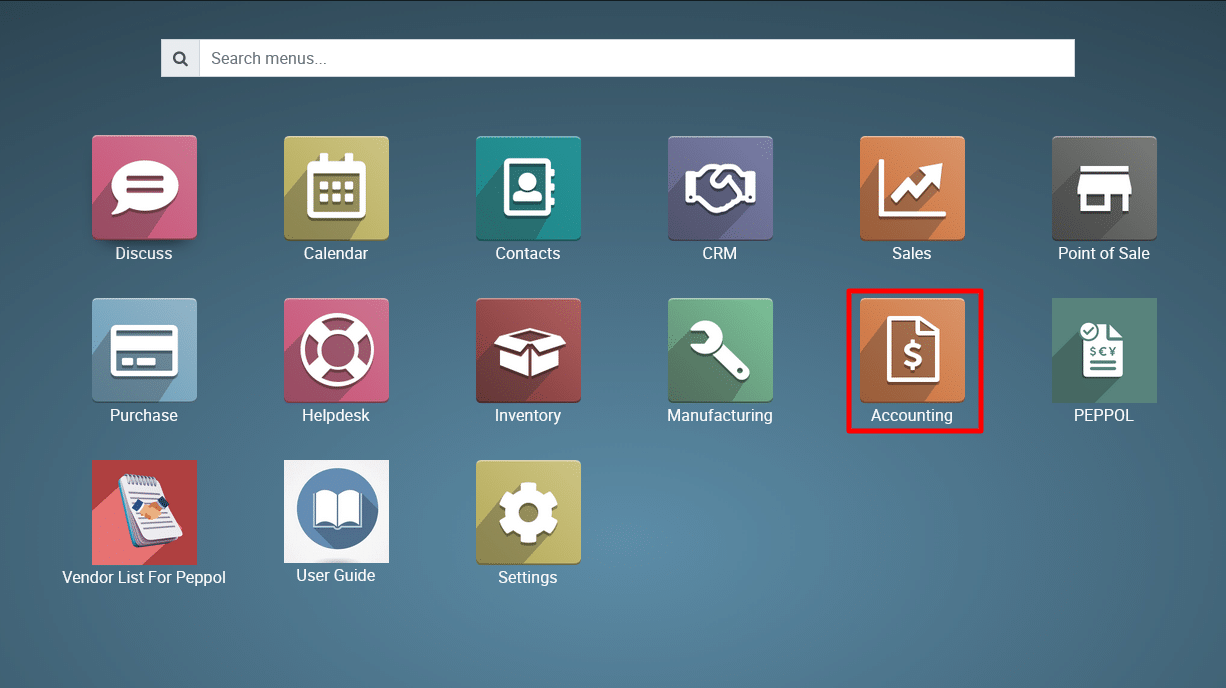
1) Go to the ‘Accounting’ module.
2) Adding or Deleting Charts of Account.
While you can edit existing accounts within the initial onboarding stage, adding or deleting charts of account isn’t available here. To manage these actions, navigate to the main Charts of Account section within your accounting software. Here’s the typical path: Click Here
Create two separate accounts:
-
One for Exchange Gain
-
One for Exchange Loss
A. For Exchange Gain:
| Field | Value |
|---|---|
| Account Name | Exchange Gain |
| Account Code | 769000 (you can use custom code) |
| Type | Income |
| Default Taxes | Leave blank |
| Allow Reconciliation | ✅ Enable (Optional) |
B. For Exchange Loss:
| Field | Value |
|---|---|
| Account Name | Exchange Loss |
| Account Code | 669000 (custom as needed) |
| Type | Expense |
| Default Taxes | Leave blank |
| Allow Reconciliation | ✅ Enable (Optional) |
Configure Currency Gain/Loss Accounts
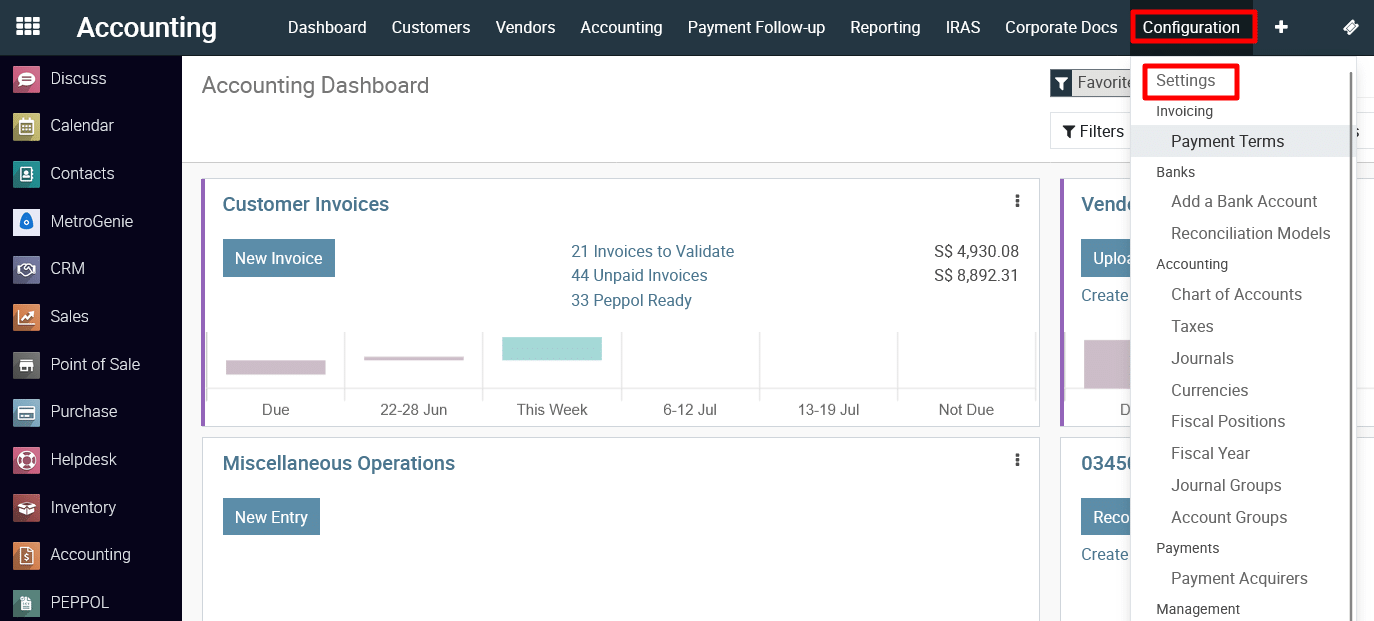
3) Once the accounts are created: Go to Accounting > Configuration > Settings
4) Search
Currency.
In the Gain Account, select your Exchange Gain account
In the Loss Account, select your Exchange Loss account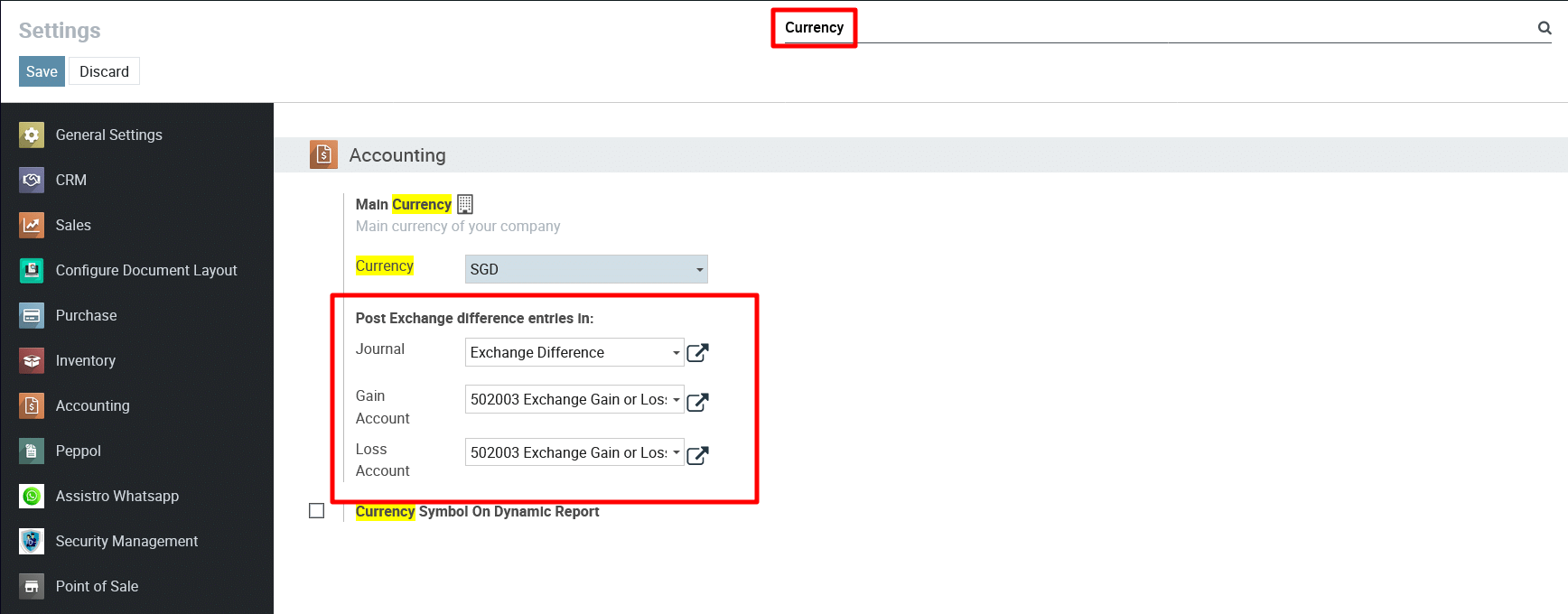
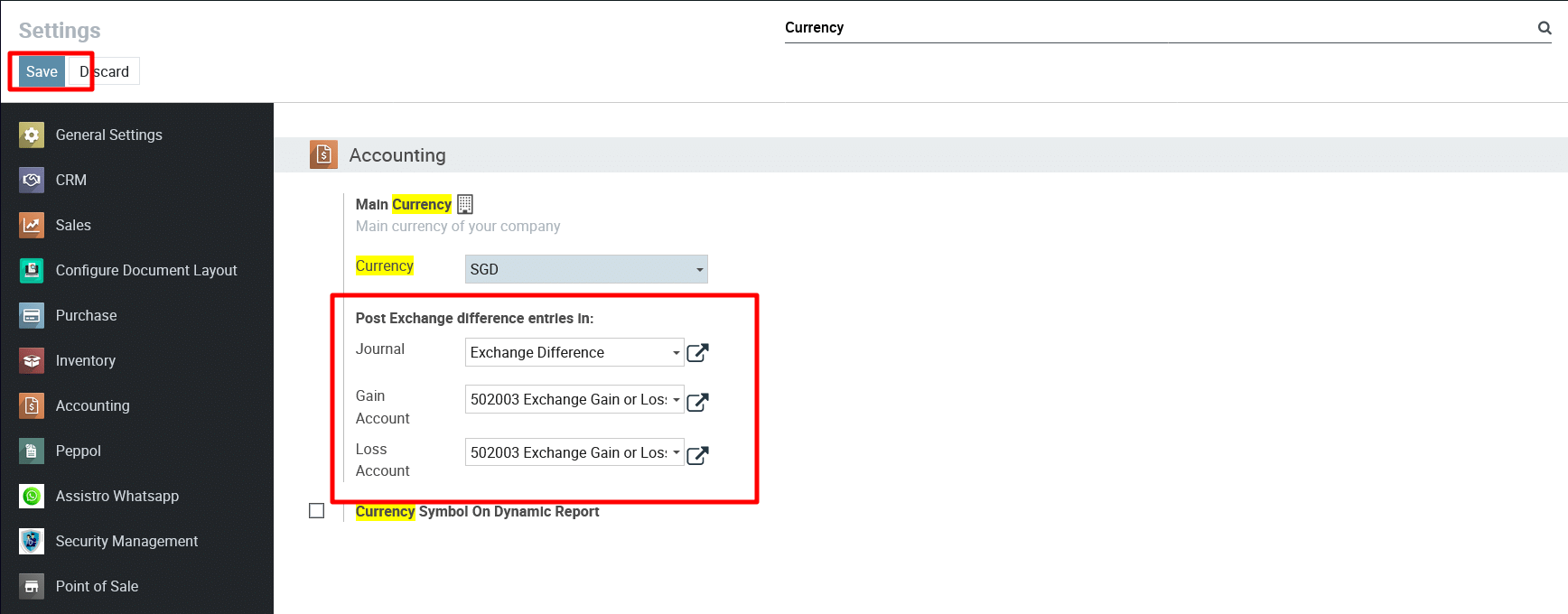
5) Save the settings.
To get more details to how to create Exchange Gain/Loss accounts in Metro’s Chart of Accounts, please do contact us at support@metrogroup.solutions