
Creating a Miscellaneous Entry in Metro ERP Accounting
This guide will walk you through creating a miscellaneous entry in the Metro ERP Accounting module. A miscellaneous entry allows you to record financial transactions that don’t fit neatly into other categories like sales, purchases, or payroll.
Prerequisites
You should have a basic understanding of debits and credits in accounting.
An account should be created for the miscellaneous expense or income you want to record.
Access the Accounting module: You can access the Accounting module from the main dashboard: Click on the Accounting application icon. (Refer below screenshot).
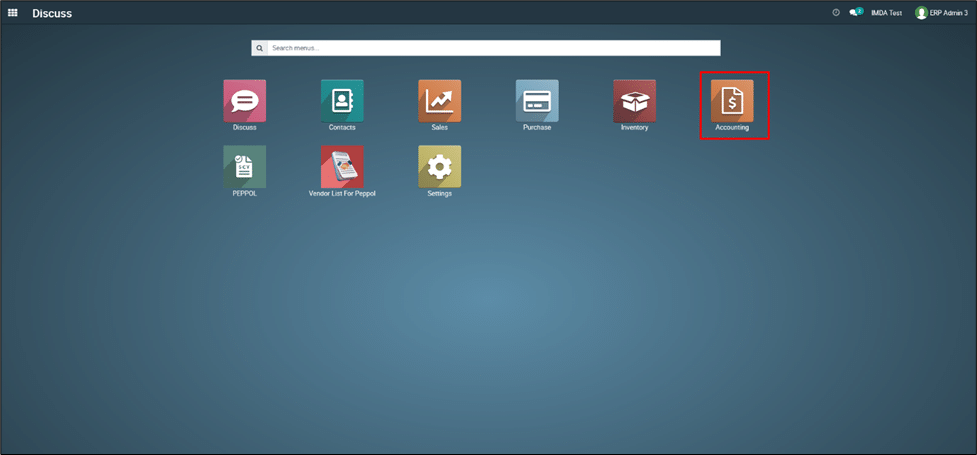
Accessing the General Ledger Module
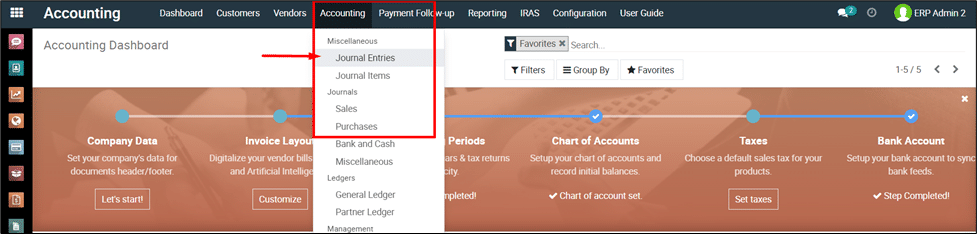
Locate the “Accounting” Menu: Within the Metro ERP accounting dashboard, navigate to the top menu bar and identify the option labelled “Accounting”
Click on the “Accounting” menu. This will reveal a dropdown menu. Select the option “Journal Entries” this will directs you to the general entry functionalities. (Refer below Screenshot)
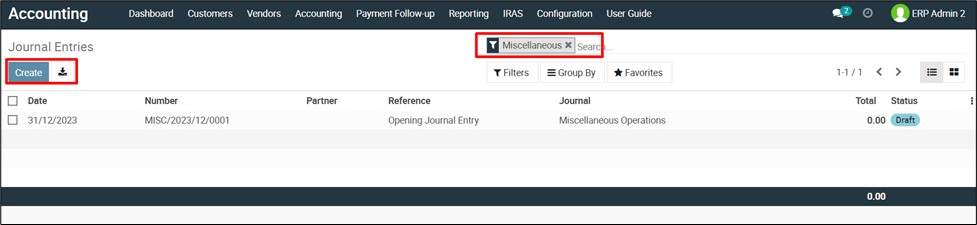
Click the “Create” button to initiate your first miscellaneous entry. (Refer below Screenshot)
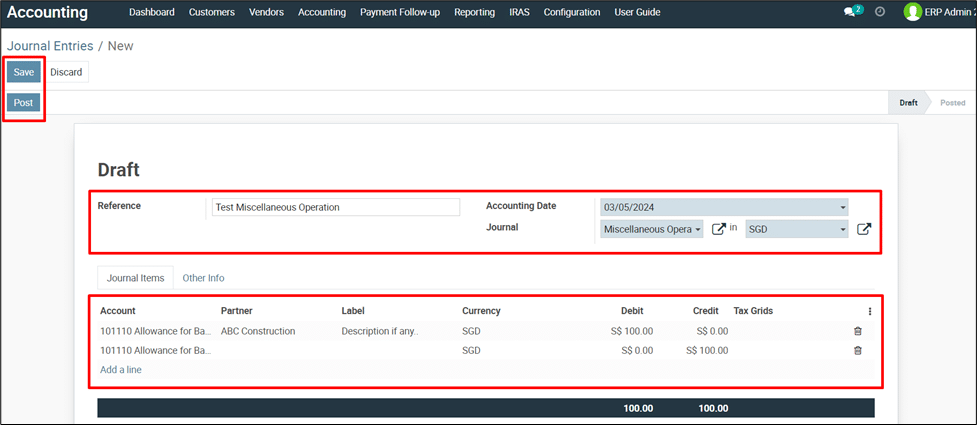
Enter
Transaction Details:
Reference: Assign a unique
reference for this specific transaction.
Accounting
Date:
Select the date the transaction occurred.
Journal: The default option is
“Miscellaneous Operation.” A dropdown menu allows you to select other
options like “Inventory Valuation,” “Exchange Difference,”
or “Cash Basis Tax.”
Add
Transaction Lines:
Click
“Add Line” under the chosen journal item.
Debit
Side:
Select the appropriate debit account, partner, and enter the debit amount.
Credit
Side:
Click “Add Line” again. Choose the credit account, partner, and enter
the credit amount.
Multiple
Lines:
You can add additional lines as needed to account for various debits and
credits within the same journal entry.
Saving
and Posting:
Click
“Save” to record the journal entry without permanently
finalizing it.
Click
“Post” to permanently record the journal entry. Note: Once
posted, the entry cannot be deleted.
We hope this guide has been helpful. If you have any further questions, please refer to our Help Center or contact customer support.
To get more details create a miscellaneous entry in Metro ERP, please do contact us at support@metrogroup.solutions