
1) Log
in to your Metro ERP system using your credentials.
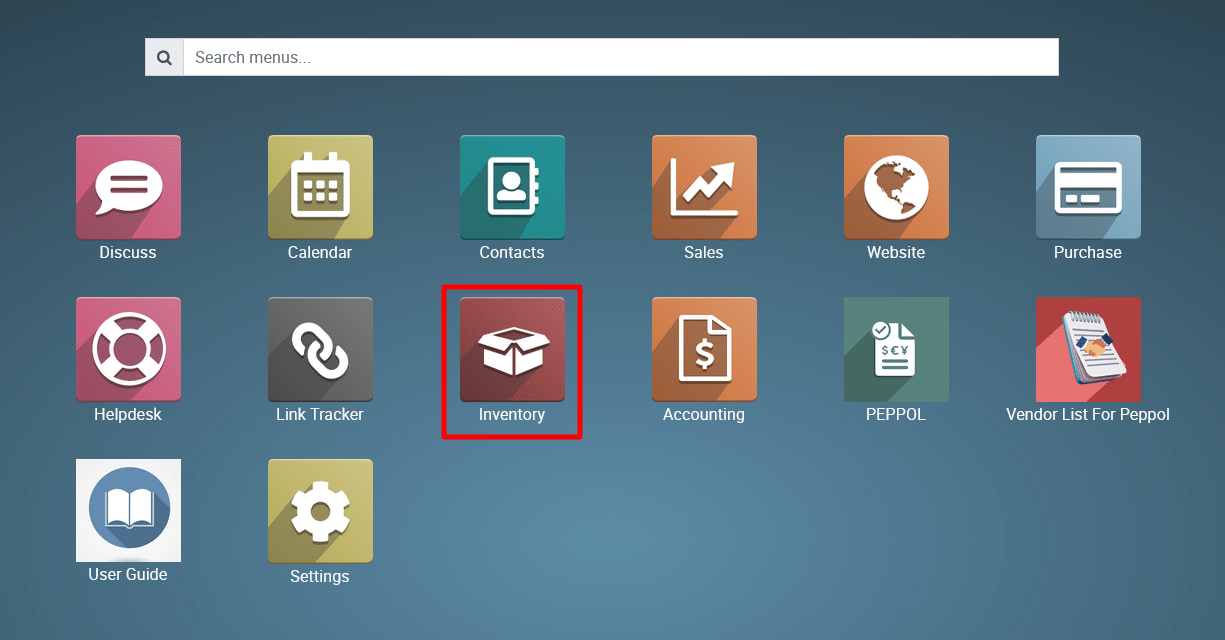
2) Navigate
to the Inventory Module.
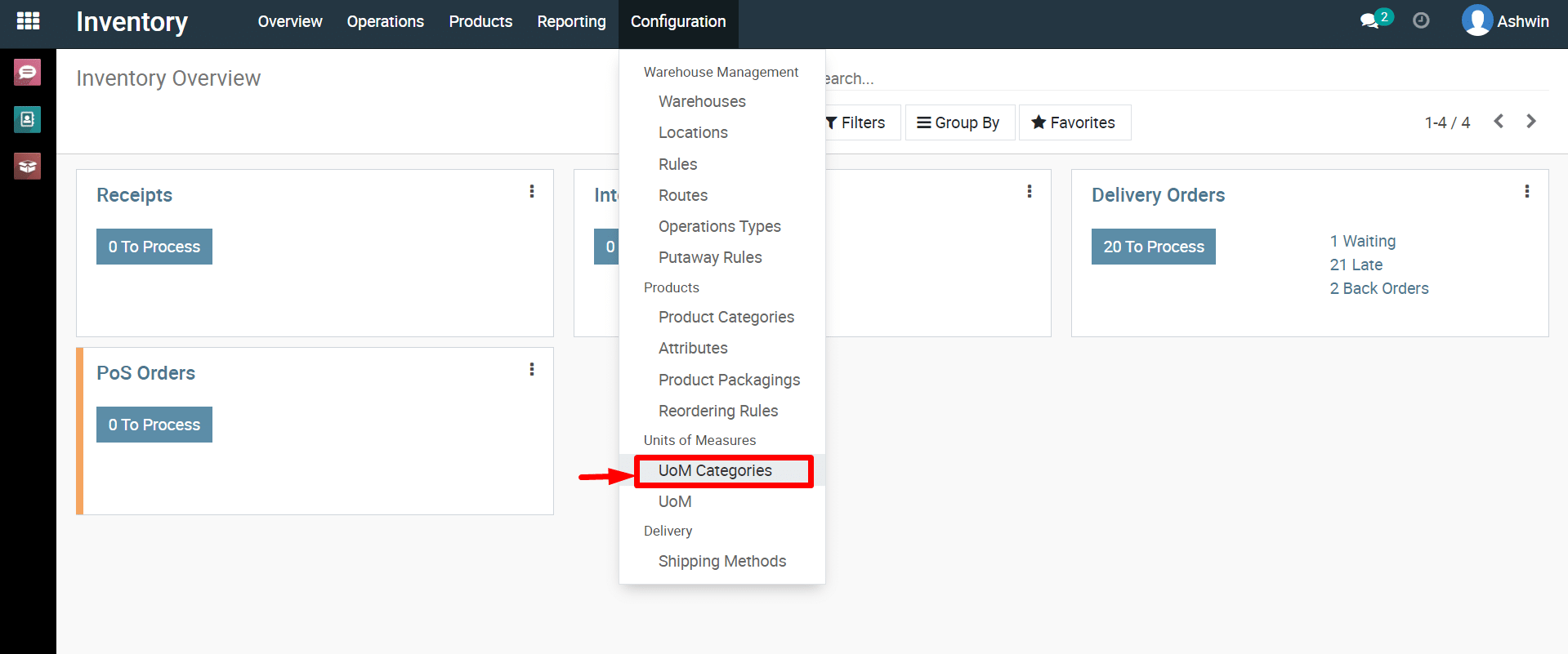
3) Click
on Configuration and then select UoM Categories.
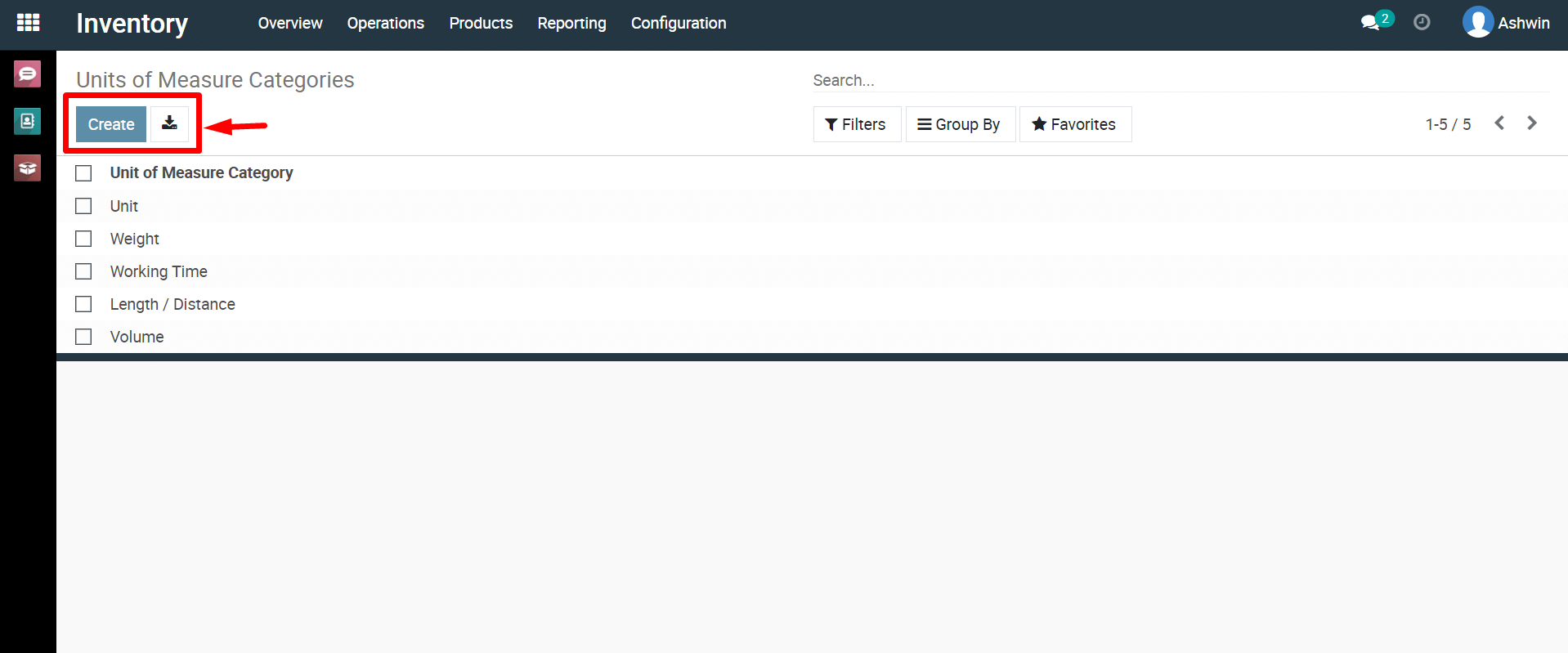
4) Click
on the ‘Create’ button to create a new ‘UoM Category’.
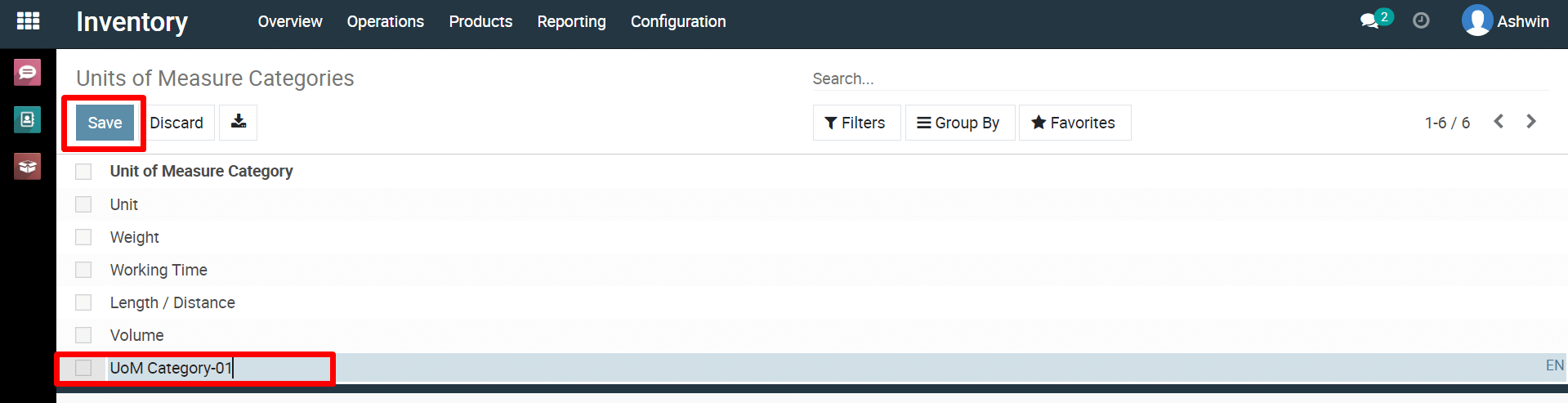
5) Enter
the name for the ‘UoM Category’ and click the ‘Save’ button to save
the new ‘UoM Category’.
To
create new Product “UoM”.
1) Click
on Configuration and then select UoM.
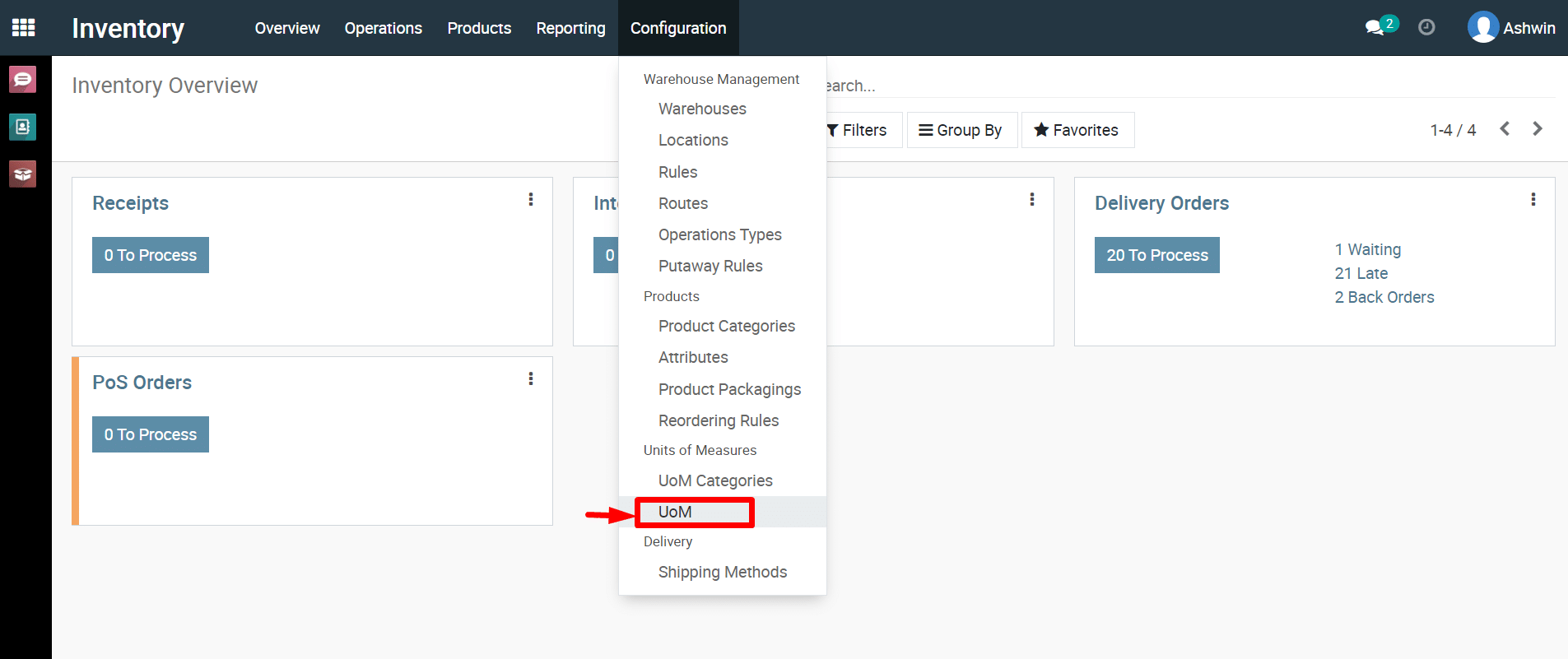
2) Click
on the ‘Create’ button to create a new ‘UoM’.
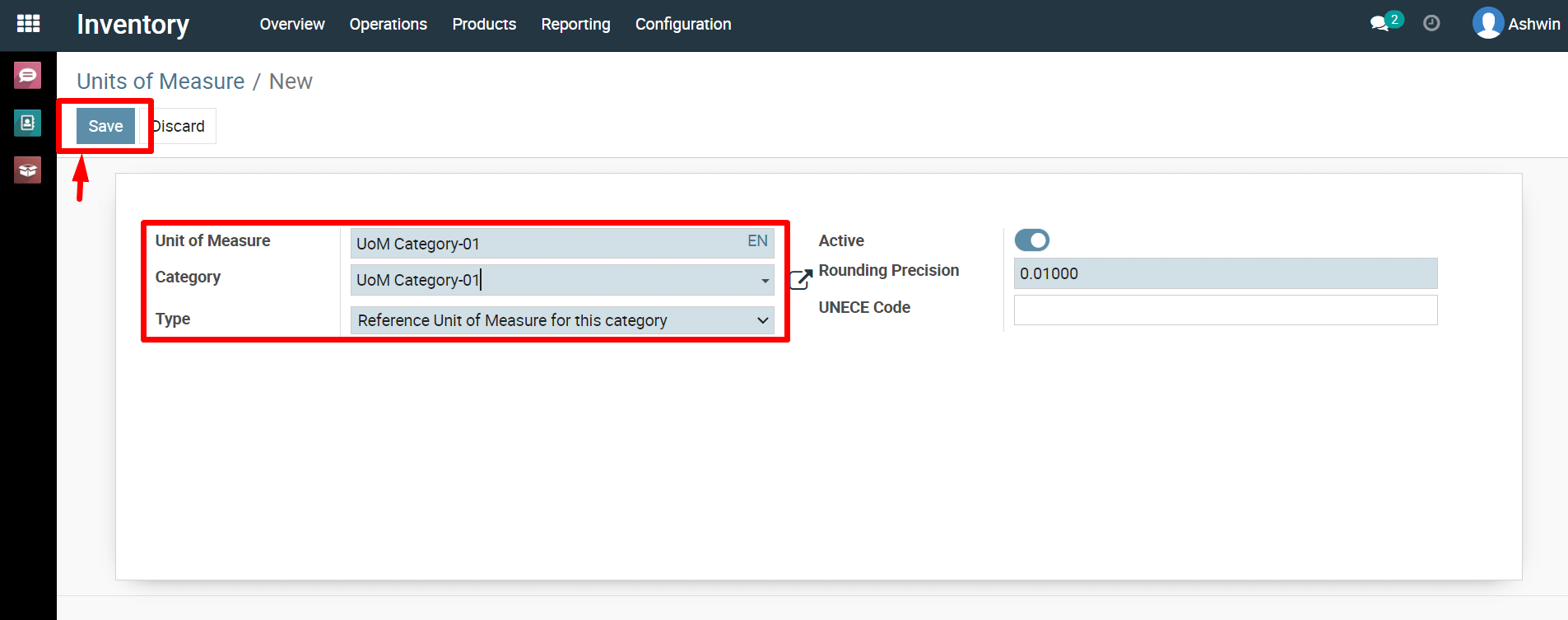
3) Enter
the name for ‘UoM,’ select the ‘UoM Category,’ and then click the
‘Save’ button.
To configure different UOM category and UOM for products, please do contact us at support@metrogroup.solutions