
In Metro, A Delivery Order (DO) is used to record the delivery of products to a customer after confirming a Sales Order. It helps track the quantity of items delivered and updates the inventory accordingly.
Step-by-Step: Modifying a Delivery Order via Sales Order Flow:
1) Go to the “Sales” module by clicking on its icon in the main dashboard or using the application menu.
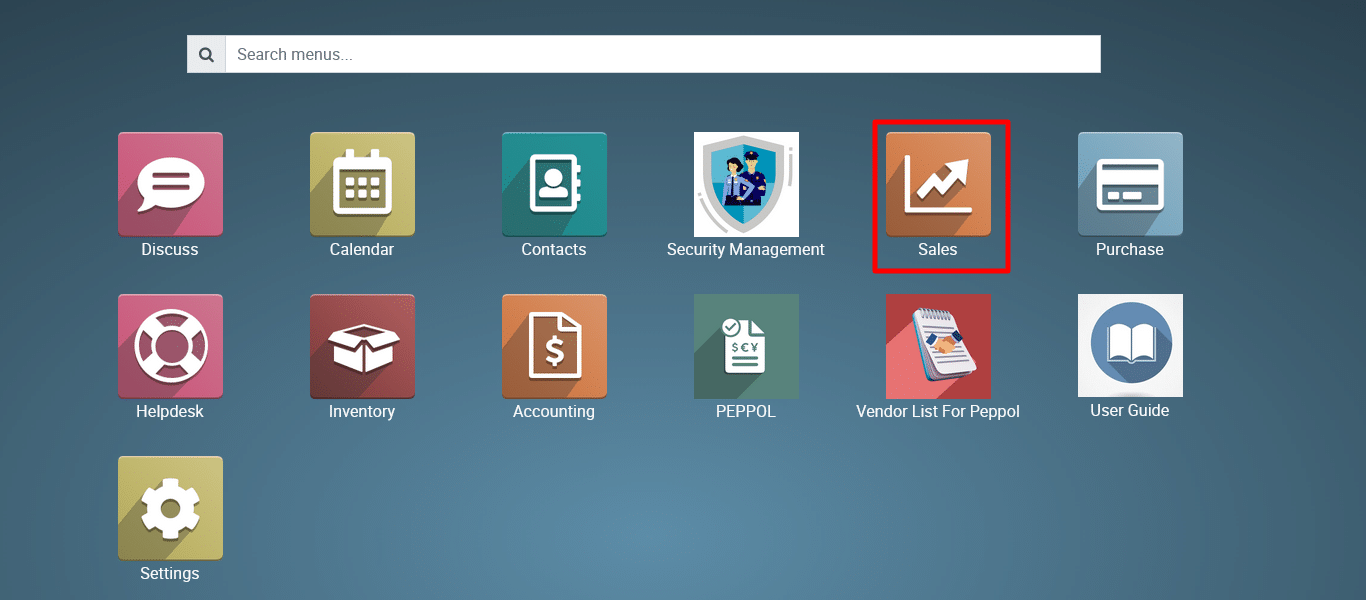
2) Confirm the Quotation
Go to Sales > Quotations. To create a sale quotation from the Metro ERP’s Sales App, follow these steps: Click Here
Open the relevant Quotation.

Click “Confirm Sale”
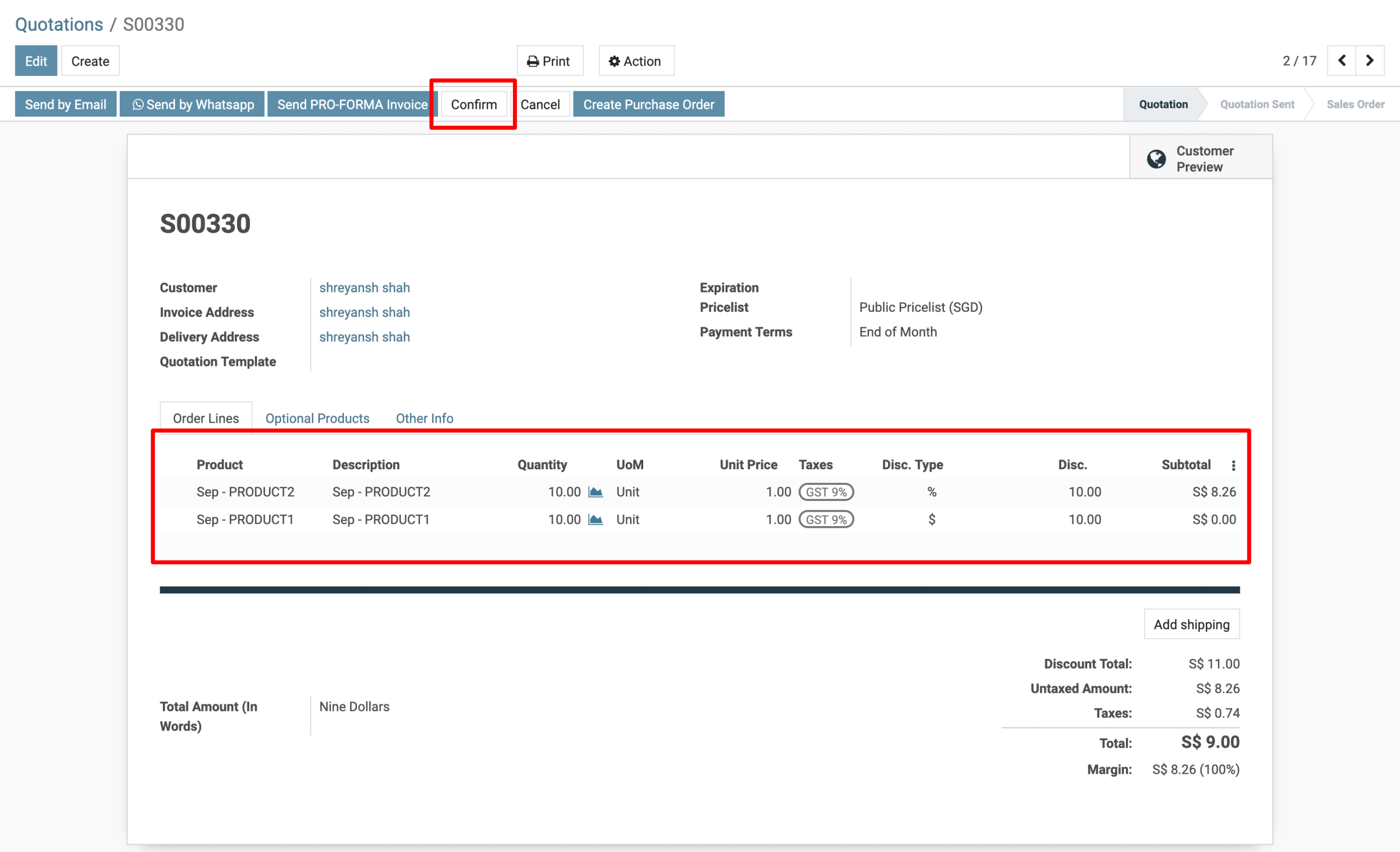
This will turn the Quotation into a Sales Order and trigger a Delivery Order.
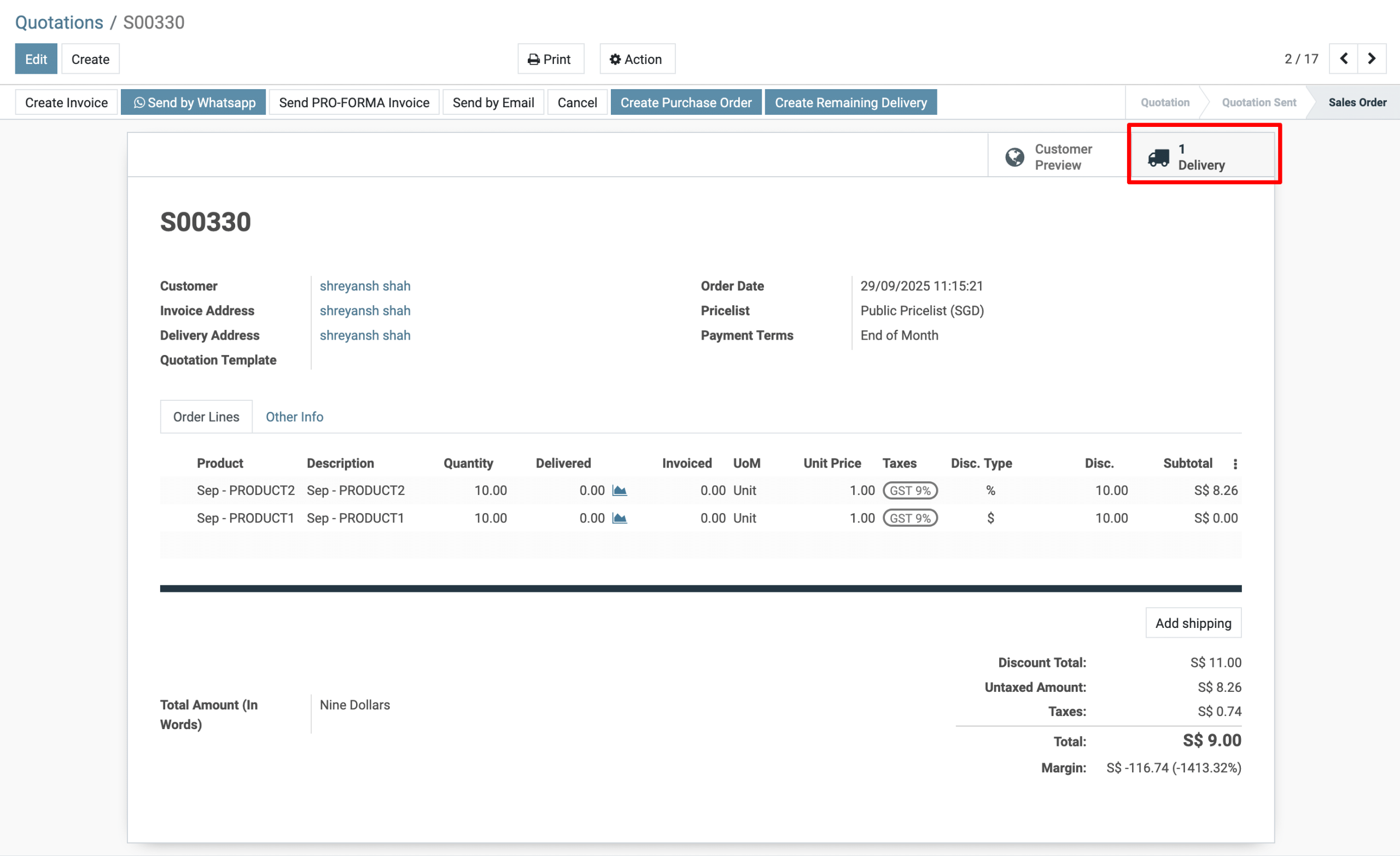
3) Access the Delivery Order
In the Sales Order, find the “Delivery” smart button at the top right.
Metro will automatically update the related Delivery Order with the new details (e.g., products, quantities, scheduled date), unless the delivery is already validated.
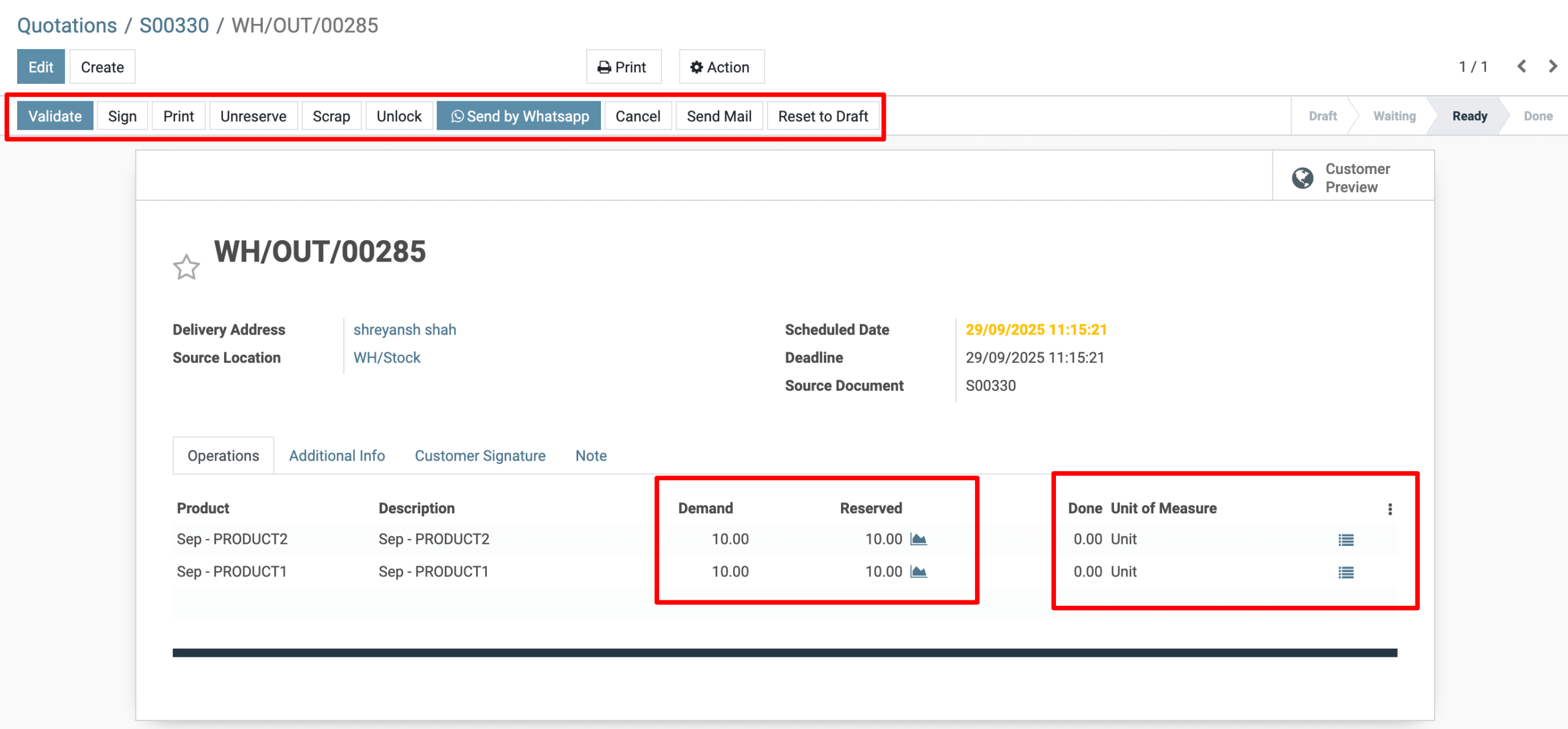
4) View the Delivery order in Ready Stage.
Ensure the delivery has been validated (i.e., marked as delivered).
5) Actions:
Let’s break down the top menu buttons you see:
| Button | Purpose |
|---|---|
| Edit | Allows editing of fields (if permitted in this state). |
| Validate | Finalizes the delivery (marks as done). |
| Sign / Print | For documentation. |
| Unreserve | Releases the reserved stock. Useful if you want to change products or quantity. |
| Scrap | Moves damaged/unsellable items to scrap. |
| Unlock | Unlocks the record if it was locked for any reason (not usually needed here). |
| Send by WhatsApp / Send Mail | For customer communication. |
| Cancel | Cancels the delivery. |
| Reset to Draft | Reverts the delivery to draft state. Useful if you want to reprocess. |
Modifying the Delivery Order (Before Validation)
Since the order is in the “Ready” state and not yet validated, you have full access to make changes
To get more details, how to create a Delivery Order (DO) from a Sales Order in Metro Accounting System, please do contact us at support@metrogroup.solutions