
In Metro, updating company information as an account partner depends on your user access rights. If you have the necessary permissions, you can update company details by following these steps:
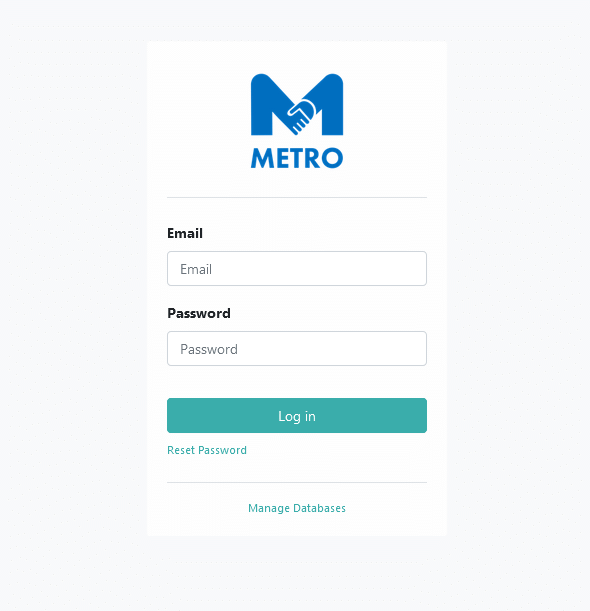
1) First, log in to the system by providing your credentials.
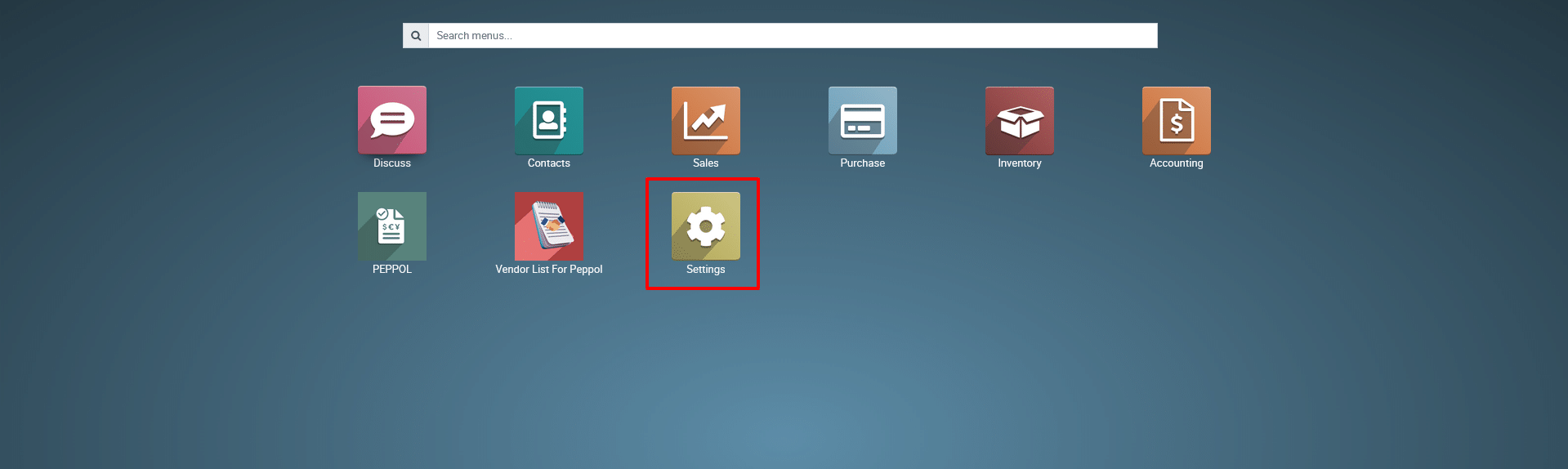
2) Once logged in, Click on Settings app in the main dashboard.
3)
Navigate to the Users & Companies >> Companies from Settings.
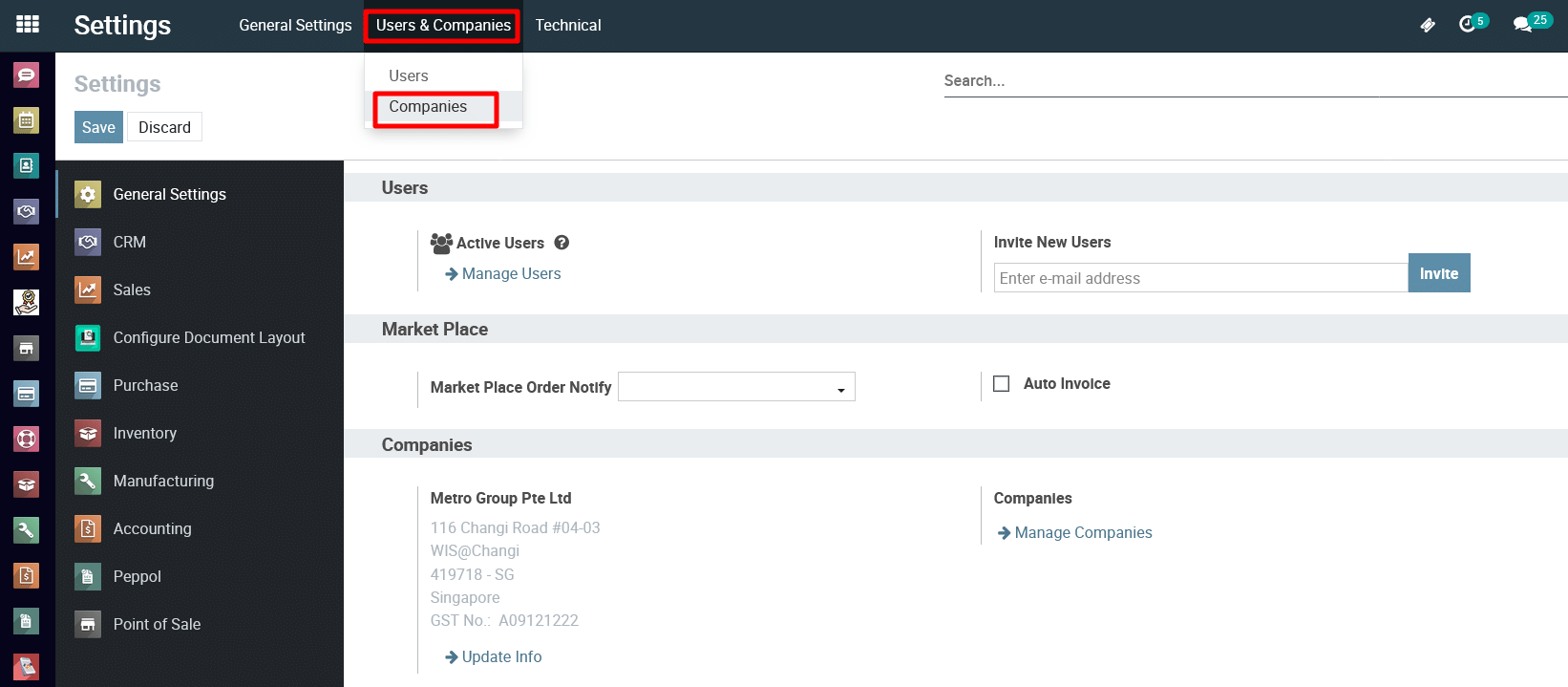
View the Companies Dashboard.

4) Edit the company information and save it..

View and update company details.
Company Information Section:
This section is used to enter company details:
Company Name: A text field to update the name of the new company.
Company Logo: A placeholder for uploading the company’s logo. Clicking it allows you to upload and update an image.
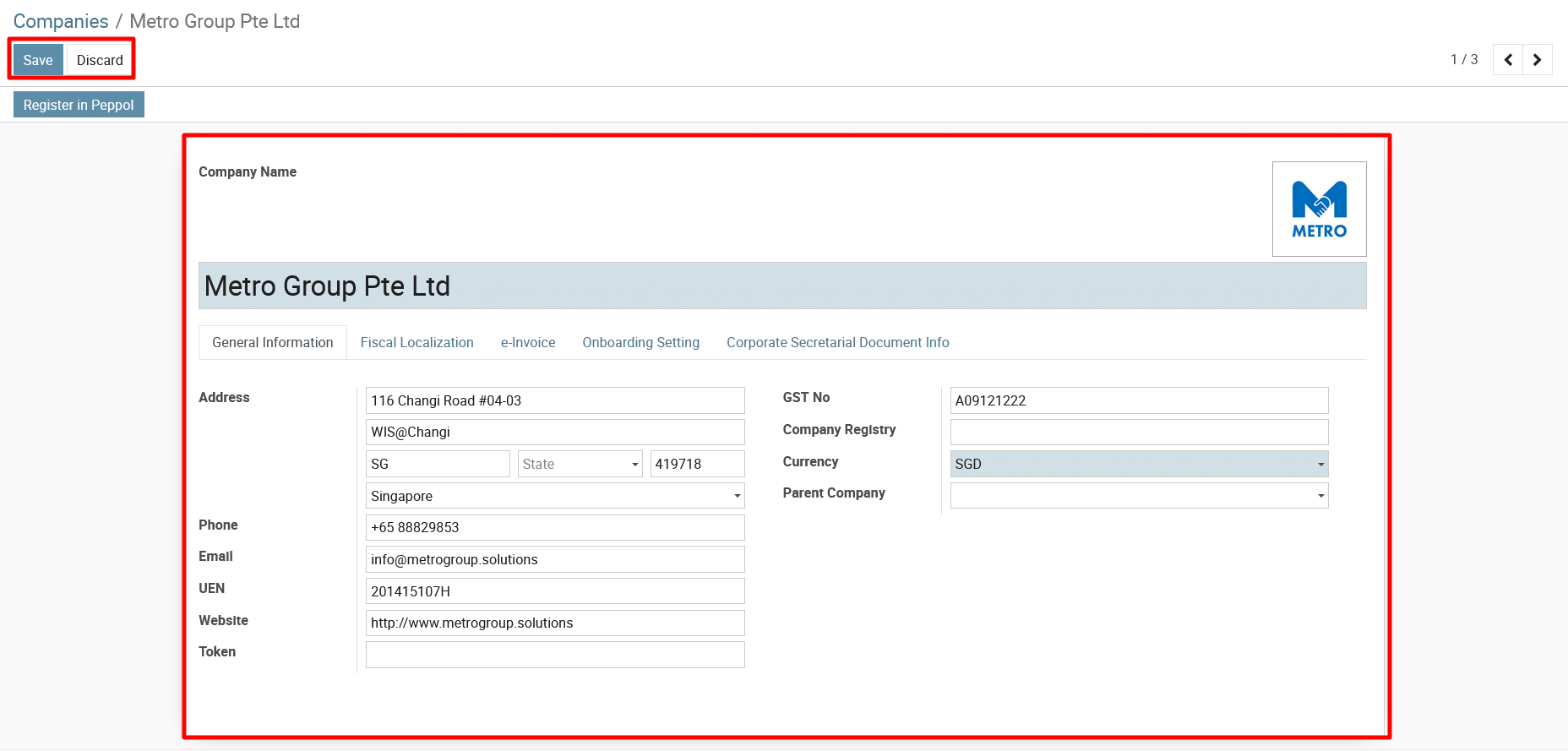
The screenshot appears to display a portion of the company configuration form in Metro ERP. Here’s a detailed explanation of each field and its purpose:
Tabs:
- The tabs at the top (e.g., General Information, Fiscal Localization, e-Invoice, Onboarding Setting, Corporate Secretarial Document Info) represent different sections of the company configuration settings. The currently selected tab is General Information.
Fields in the Form:
-
Address:
- Street: Field for update the primary street address of the company.
- Street 2: Update additional field for a secondary line of the address (e.g., apartment or suite number).
- City: Field for updating the city where the company is located.
- State: Dropdown field for selecting the state or province.
- ZIP: Field for add the postal or ZIP code.
- Country: Dropdown field for selecting the country of the company.
-
Phone:
- Field to updating the company’s primary phone number.
-
Email:
- Field to updating the official email address of the company.
-
Website:
- Field to updating the company’s website URL (e.g., https://www.website.com).
-
Token:
- Field to updating an integration or API token if required for external integrations or services.
-
GST No:
- Field to updating the company’s GST (Goods and Services Tax) number, applicable if the company operates in regions with GST.
-
Company Registry:
- Field to updating the company’s registration number, as provided by the local business registry.
-
Currency:
- Dropdown for updating the default currency used by the company (e.g., SGD for Singapore Dollar).
-
Parent Company:
- Field for specifying the parent company if the organization is part of a larger corporate structure.
Tabs for Additional Settings
- General Information → Default tab that includes basic details like address, phone, and email.
- e-Invoice → Likely related to electronic invoicing settings.
- Onboarding Setting → Possibly contains configurations for onboarding employees or customers.
Action:
“Save” Button → This saves the new company details.
“Discard” Button → This cancels the creation process and discards any entered data.
“Register in Peppol” Button → This is an additional feature that allows registering the company in the Peppol network for e-invoicing.
To get more details on how can I update company information as an account partner, please do contact us at support@metrogroup.solutions