
To generate a Stock Overview Report in Metro ERP, follow these steps:
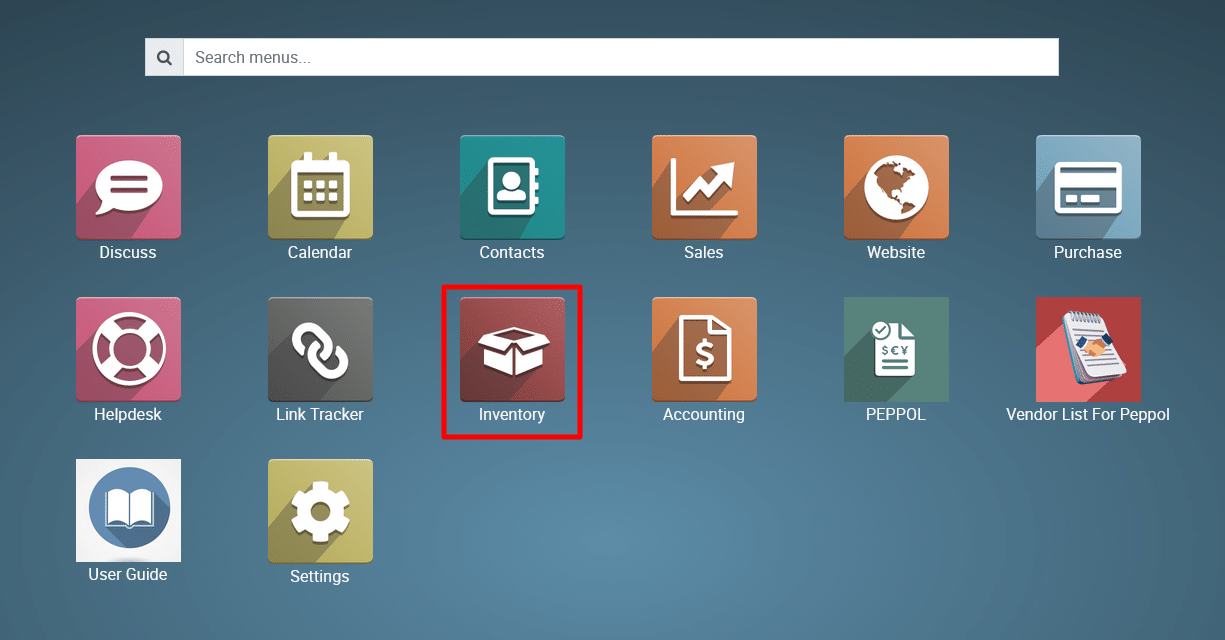
1) Navigate
to the Inventory Module.
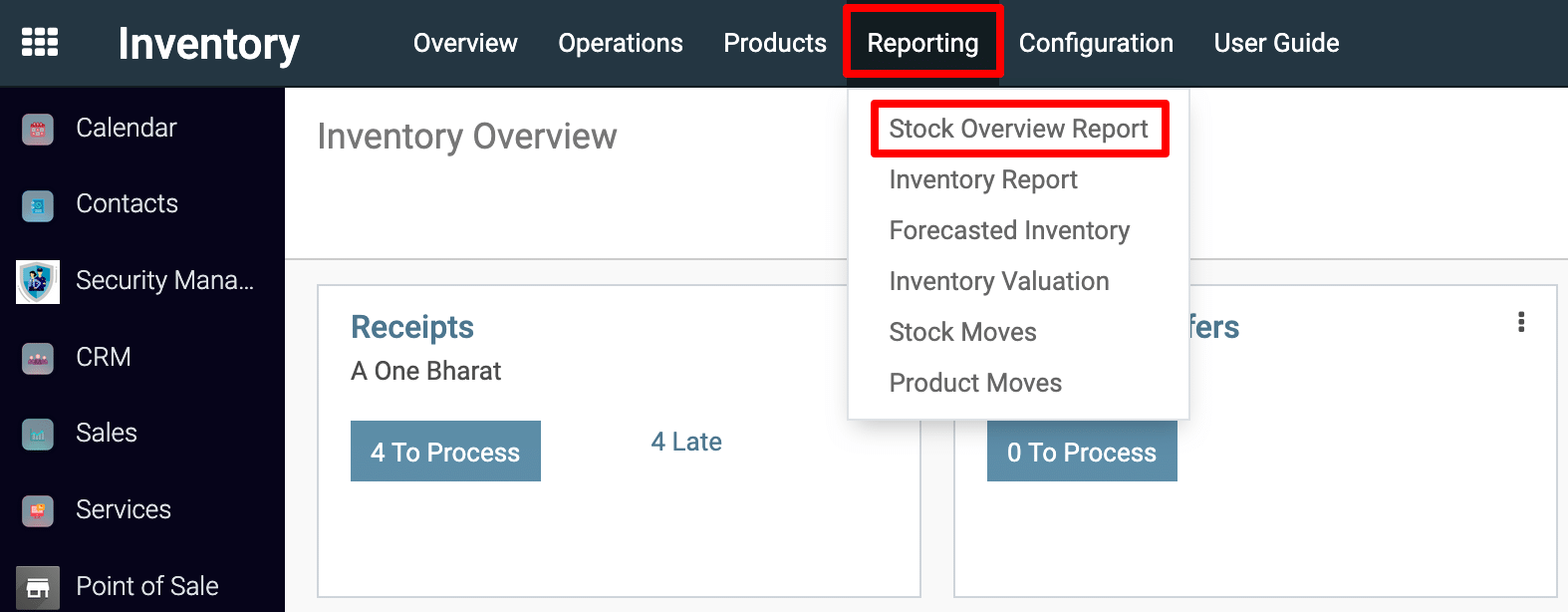
2) Navigate to Reporting Menu
-
At the top menu, select Reporting.
-
From the dropdown, choose Stock Overview.
3) Open the Stock Overview Report Wizard
-
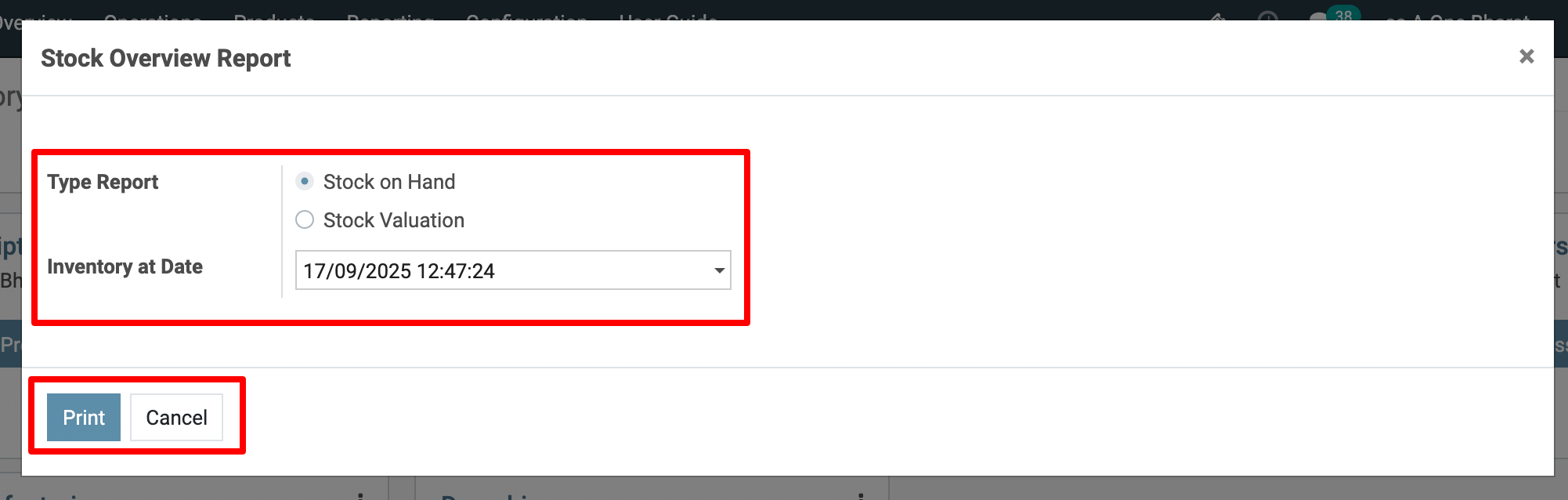
A popup window appears (like in your screenshot).
-
Here you can configure report options.
Select the Report Type
-
Choose between:
-
Stock on Hand → Report will display the available quantities of products.
-
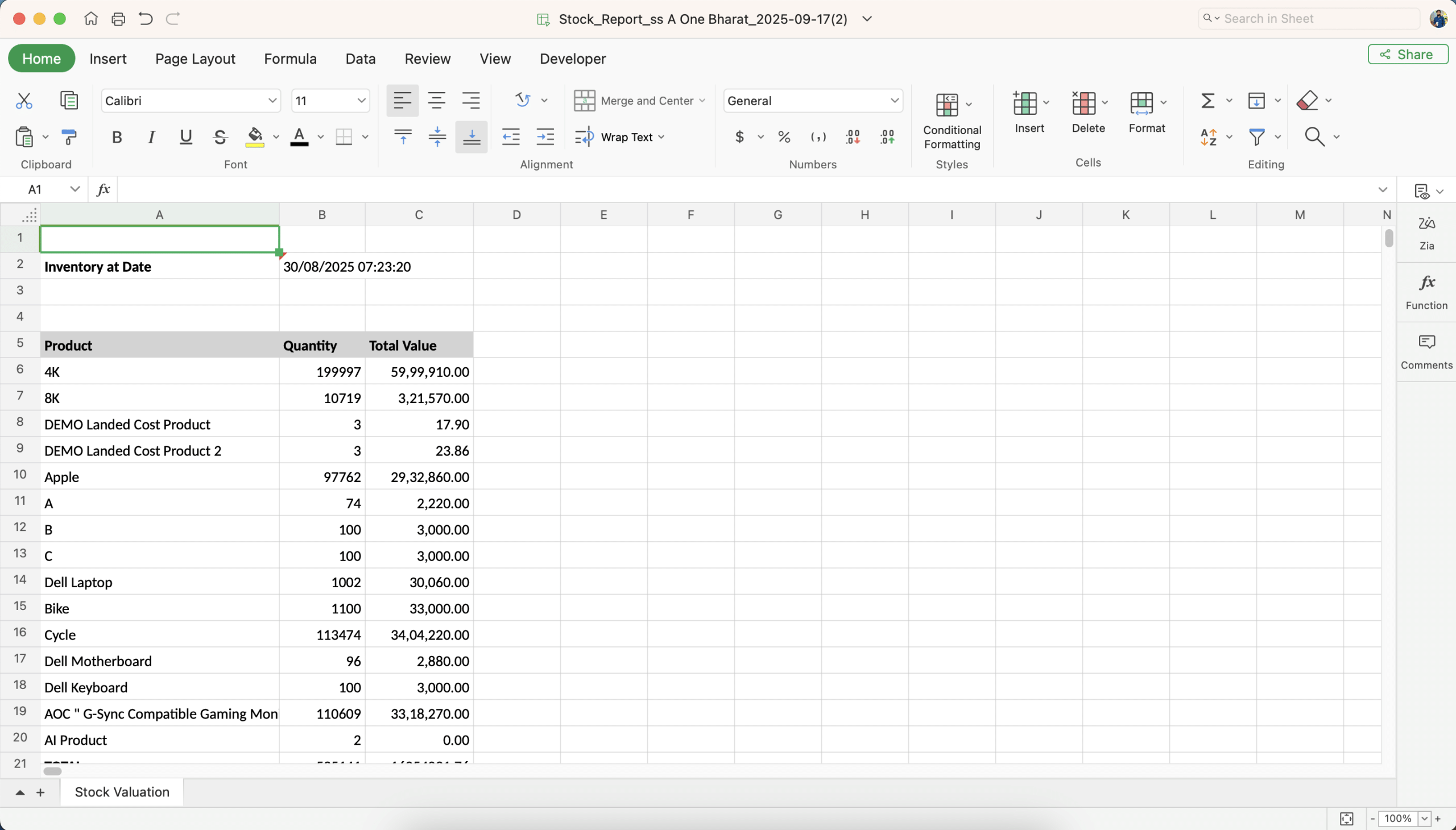
Stock Valuation → Report will display the monetary value of stock, based on cost and valuation method.
-
Set Inventory Date & Time
-
In Inventory at Date, pick the exact date and time for which you want the report.
-
Example: 17/09/2025 12:32:06.
-
This is useful if you want to check historical stock data.
4) Generate Report
-
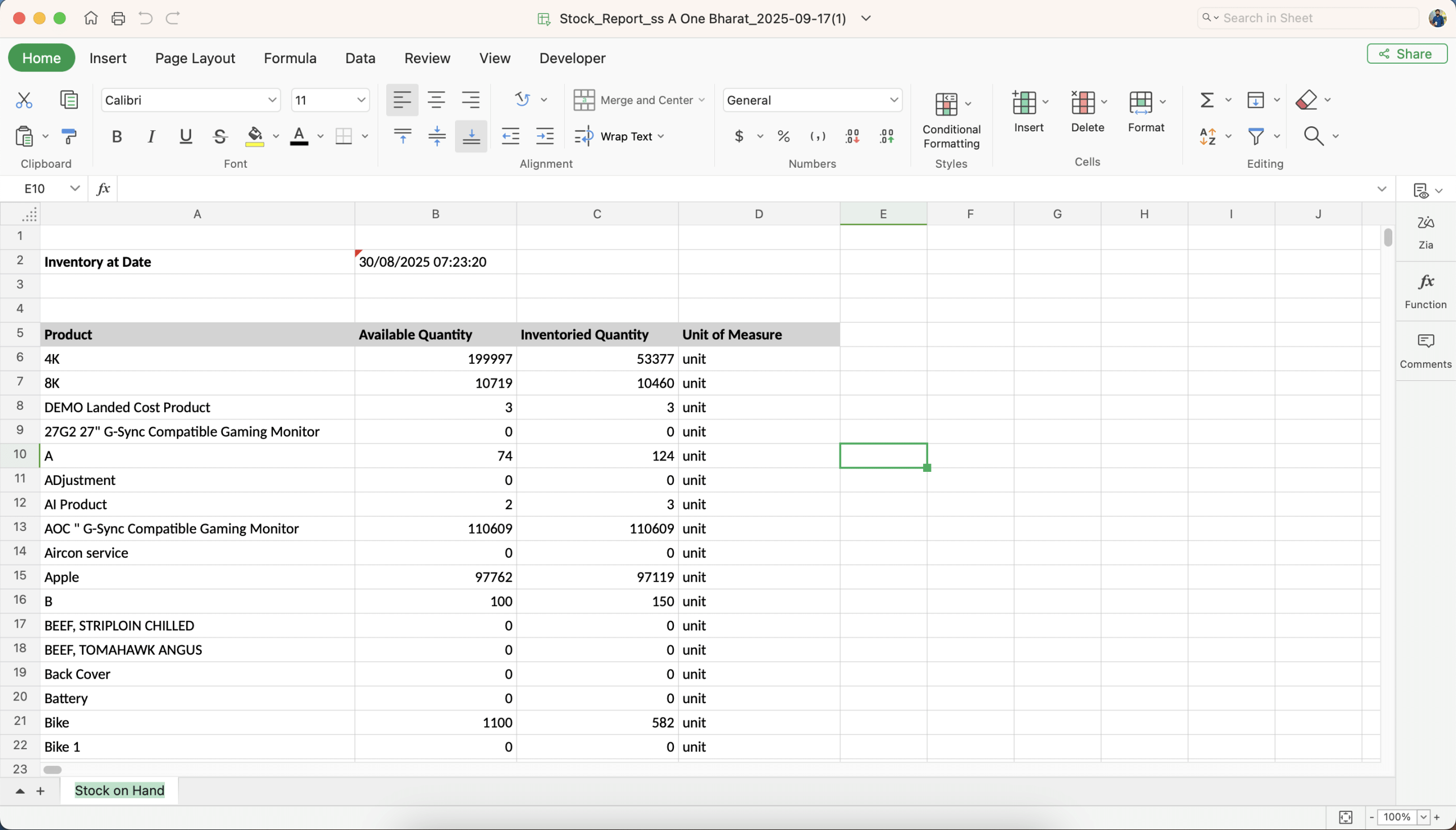
Click Print → Metro generates a PDF report (or Excel if configured) showing stock details as per your selection.
-
If you don’t want to proceed, click Cancel.
Stock on Hand Report:
Stock Valuation Report:
To get more details on how can a user generate a Stock Overview Report in Metro Accounting System, please do contact us at support@metrogroup.solutions