
To get a monthly detail report for a product in Metro ERP, you can follow these steps:
1) Use an Inventory Valuation Report
Metro ERP has built-in inventory reports that can provide the daily balance of products.
Go to the Inventory Module:
Open the Inventory app from your Metro ERP dashboard.
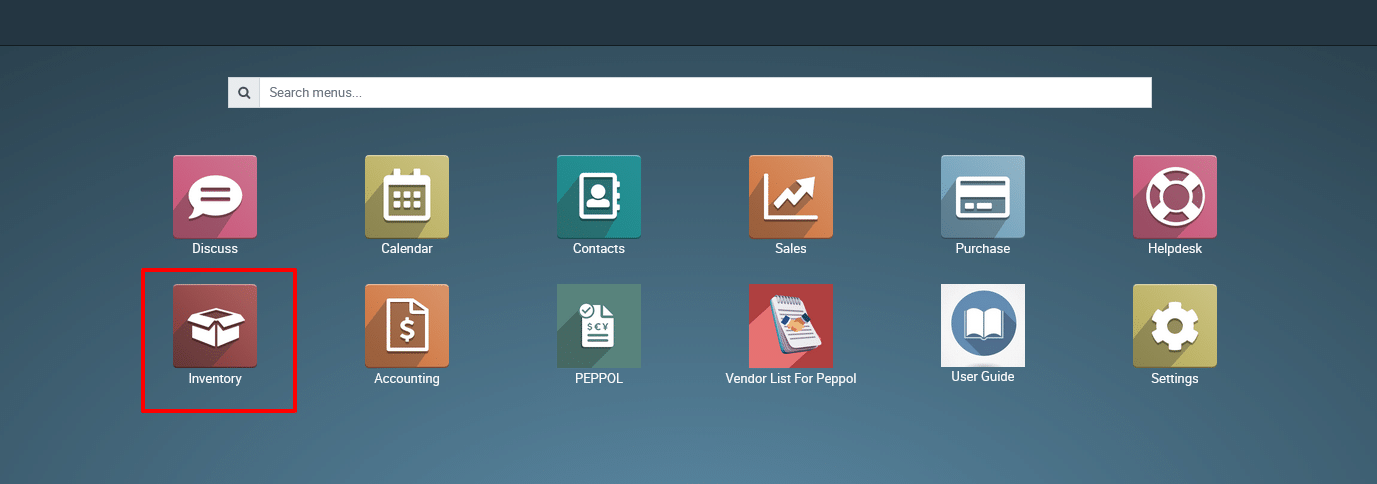
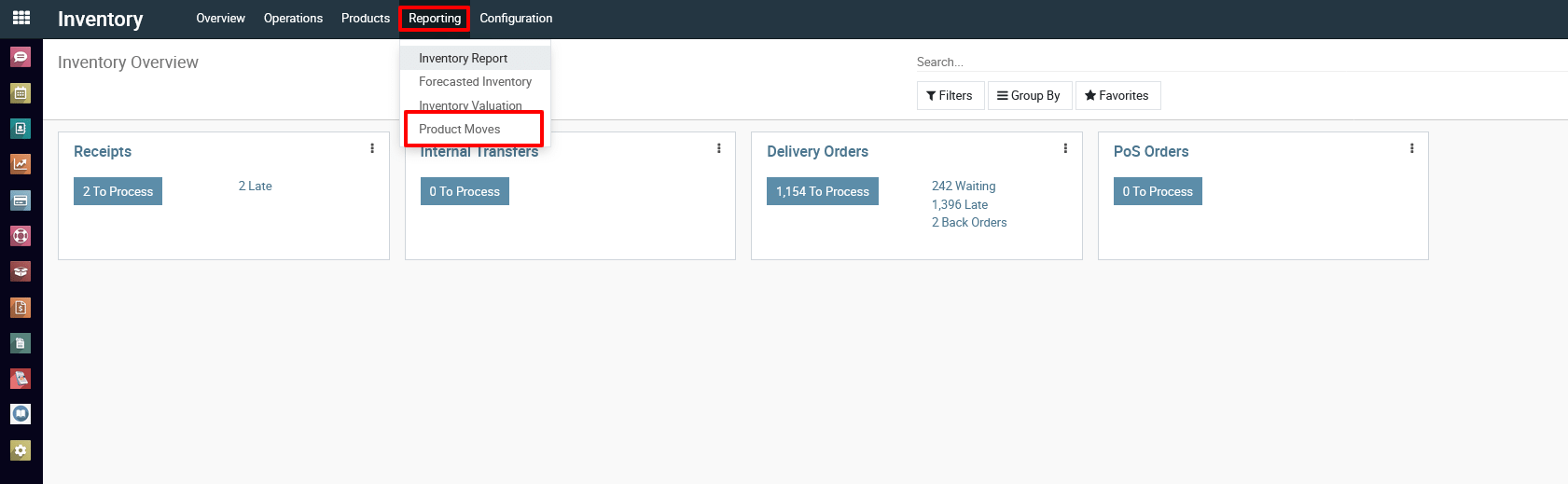
2) Access Reporting:
Click on the “Reporting” menu.
Select “Product Moves” based on the specific details you need.
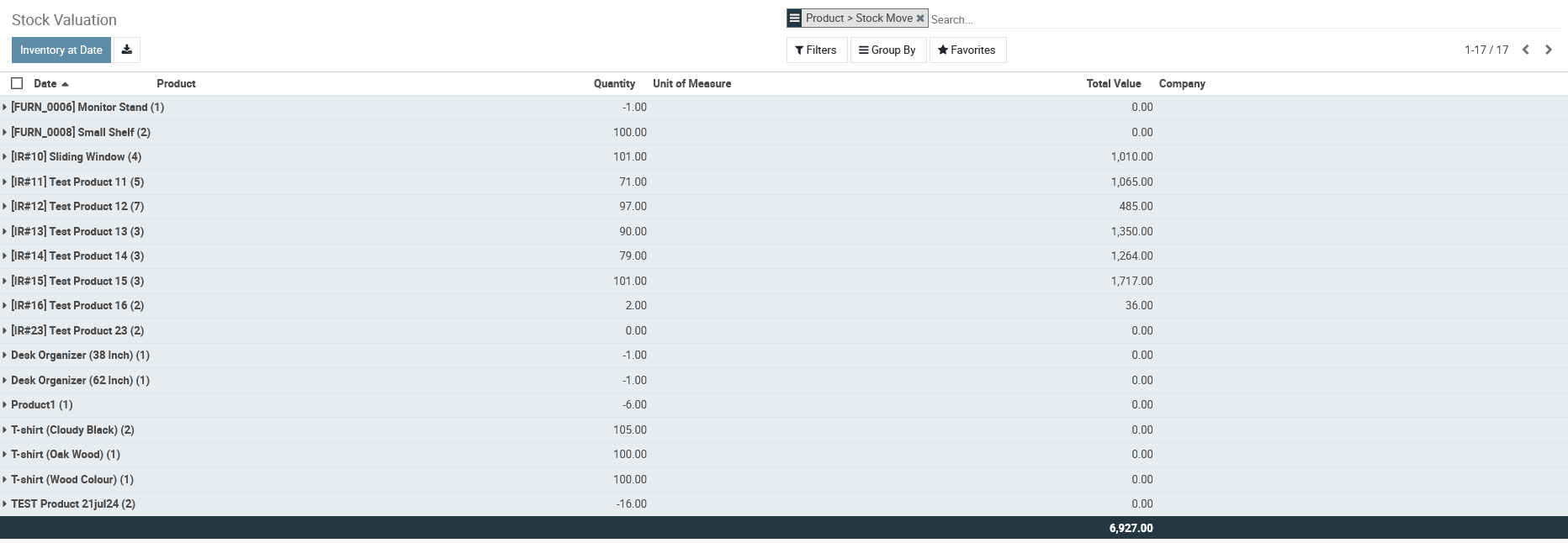
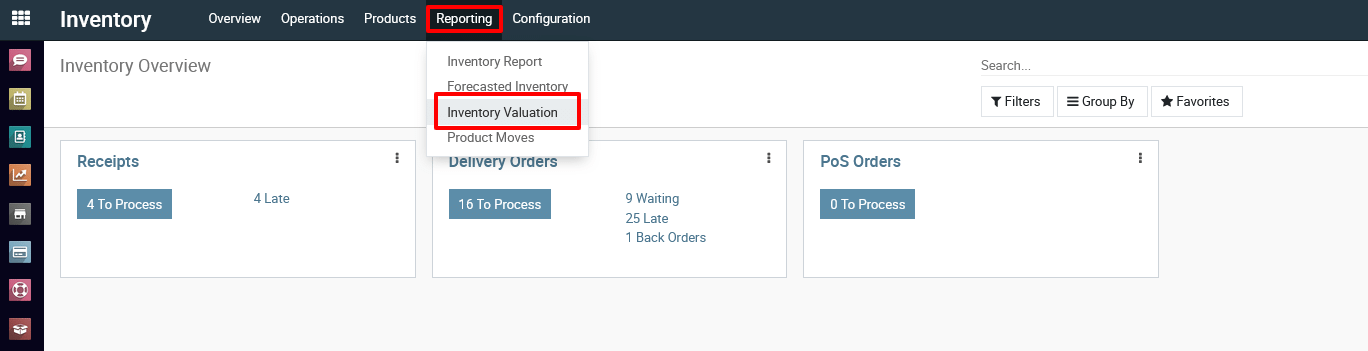
3) Inventory Valuation:
Select the Inventory Valuation report. Set the filter to the date you want to view. You can filter by a specific date or a range to see daily balances.
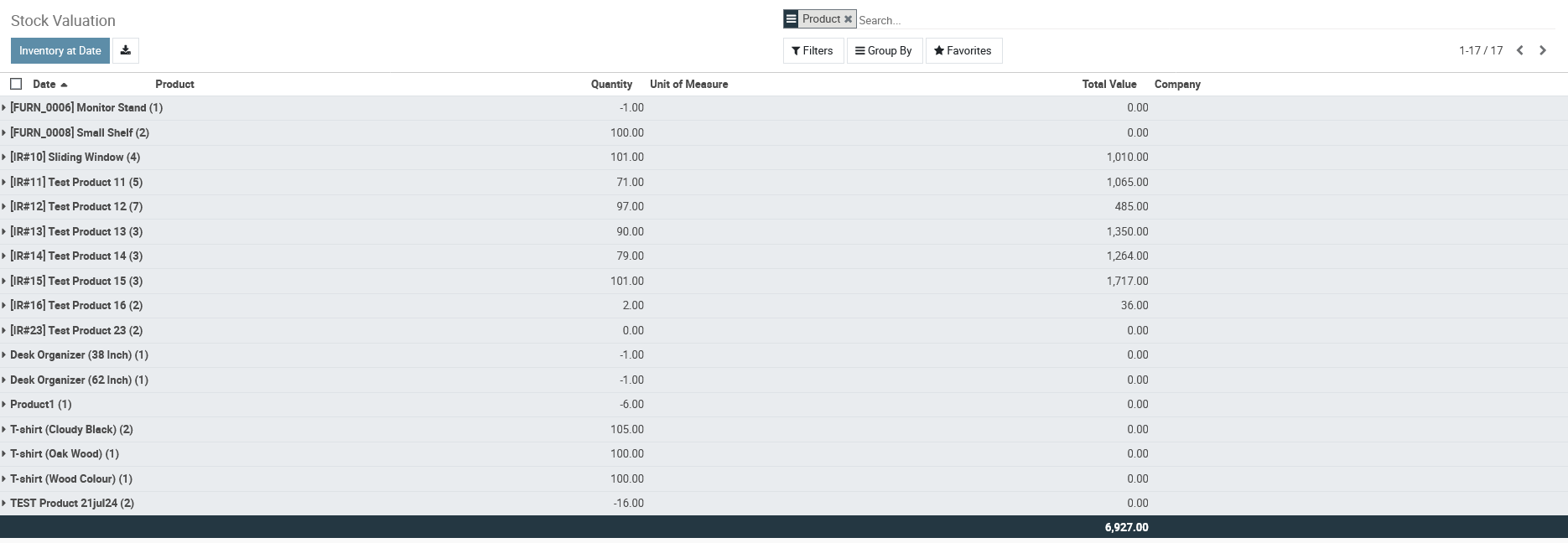
Apply Filters:
- Use the filters to select the specific product(s) you want to analyze.
- Set the date range to the desired month.
Group By and Measures:
- Use the “Group By” option to group the data by month.
- Select the relevant measures, such as quantity, value, etc.
4)
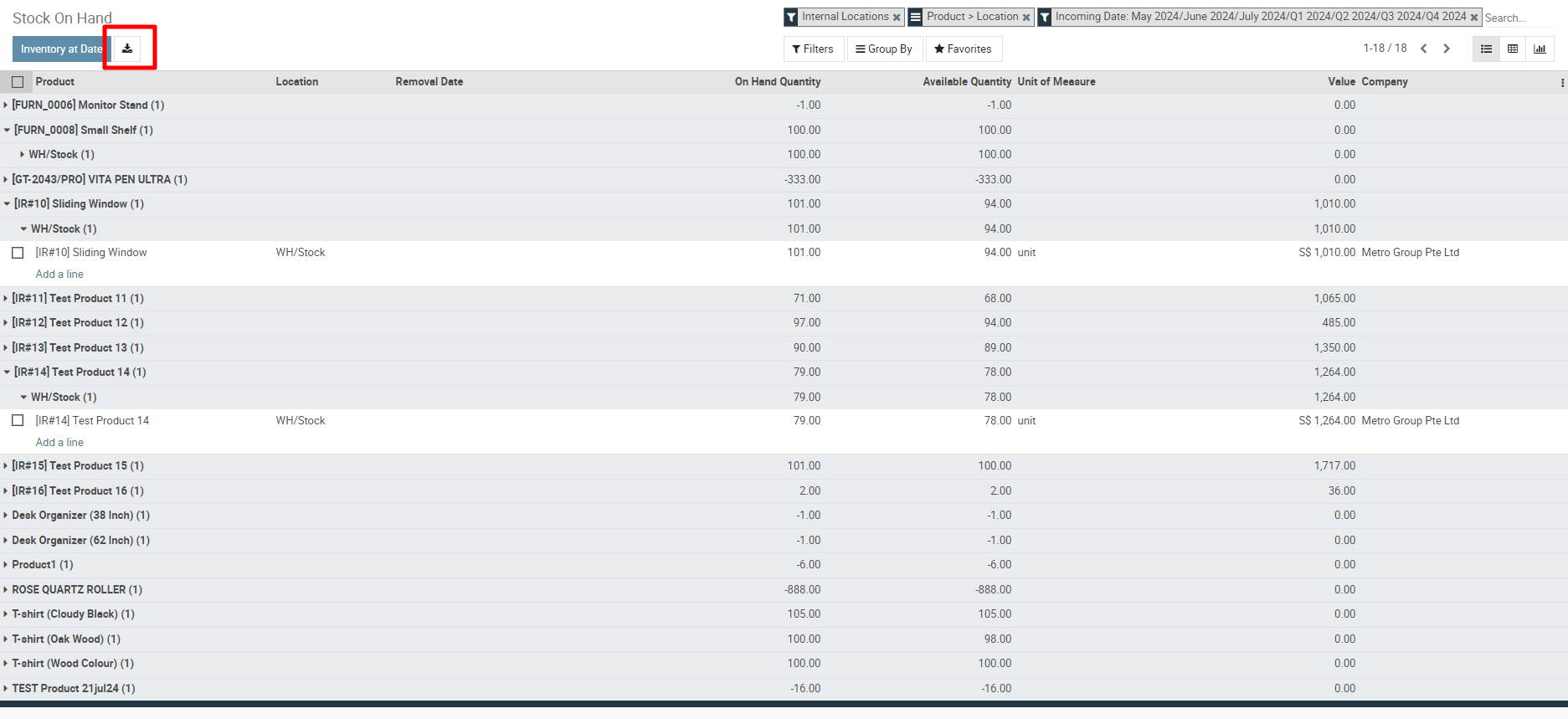
Now you will see a detailed view of the monthly report as per the selected date, and you can download the report by clicking the download icon.
To get a monthly detail report for the product , please do contact us at support@metrogroup.solutions