
To import
products in bulk quantities into the Metro ERP system efficiently, follow these
step-by-step instructions:
Step 1: Prepare Your Excel or
CSV File
Ensure that
your Excel or CSV file is properly formatted and includes all the necessary
information for each product. Include columns for essential details such as
product name, description, quantity, price, and any other relevant attributes.
For
example:

Step 2: Access the Import
Functionality
Log in to
the Metro ERP system with your credentials.
Navigate to
the ‘Inventory’ section
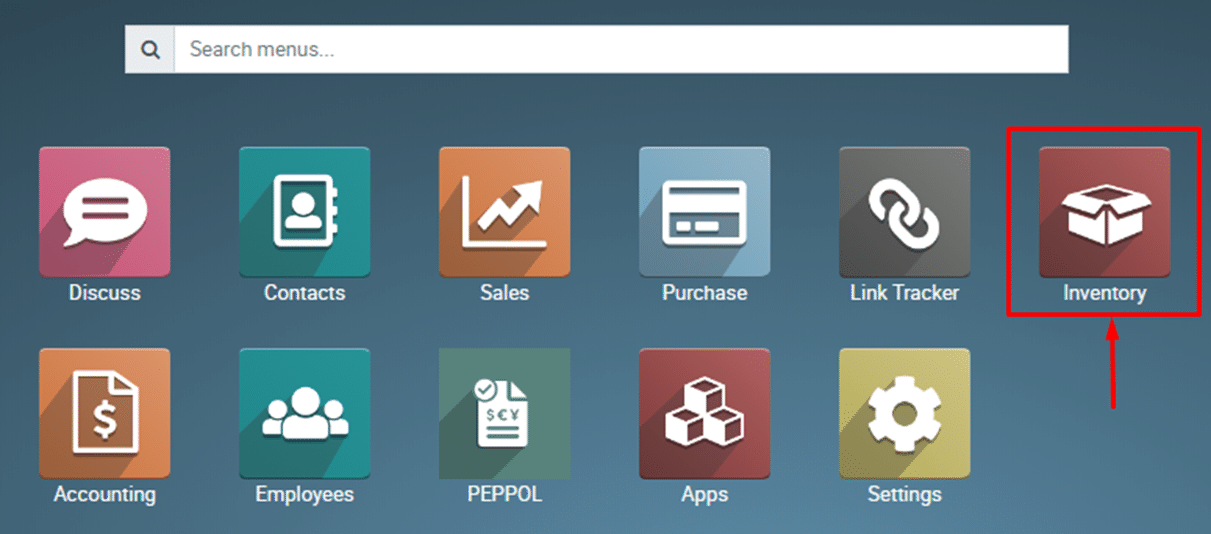
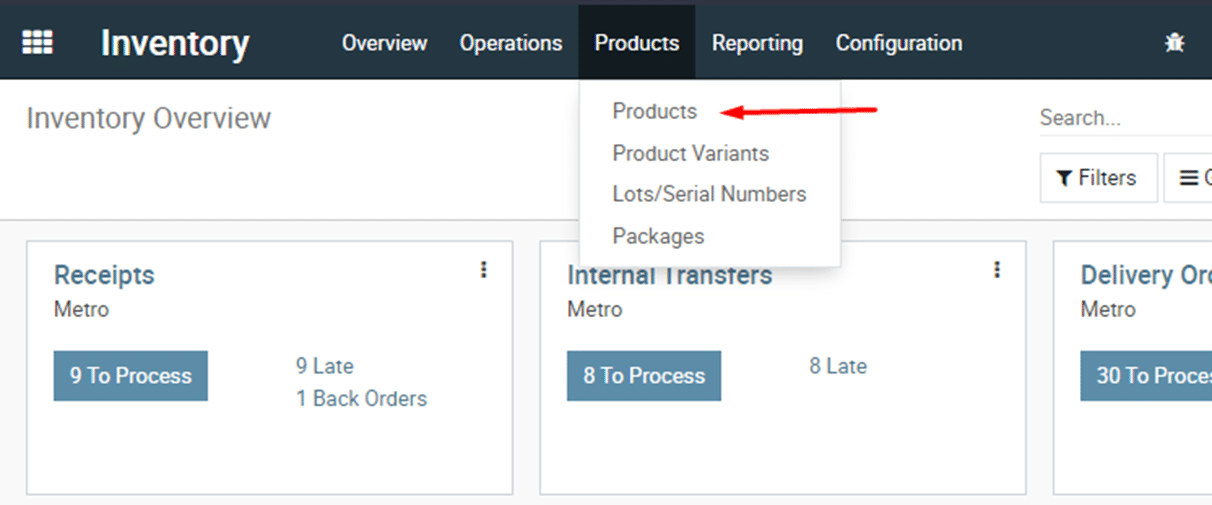
Navigate to
the ‘Products’.
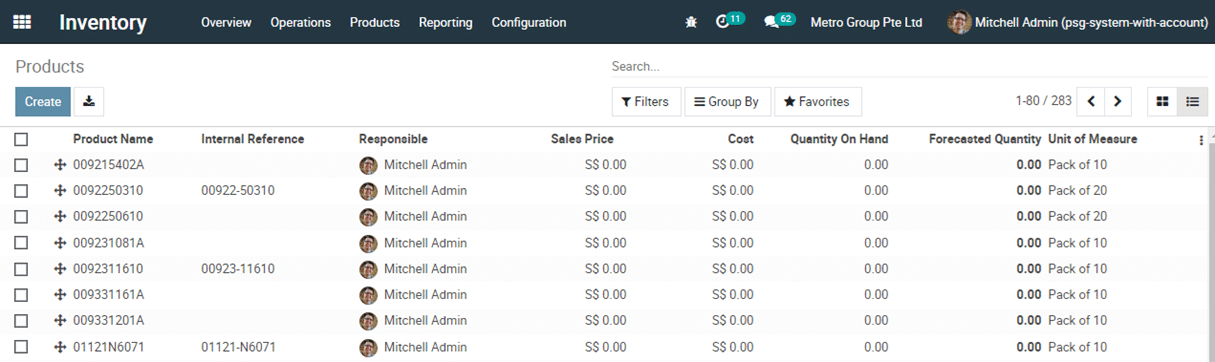
This is a
preview of the product page.
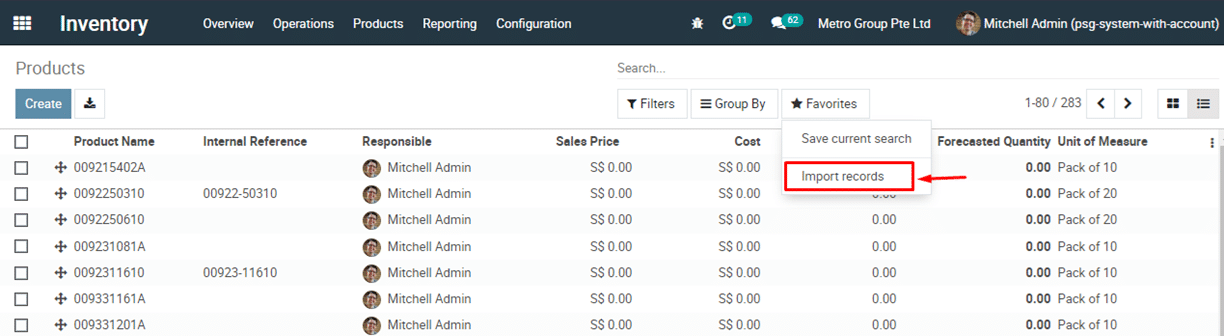
Locate
‘Favorites’ and click on the ‘Import Records’ option.
Step 3: Choose File and Mapping
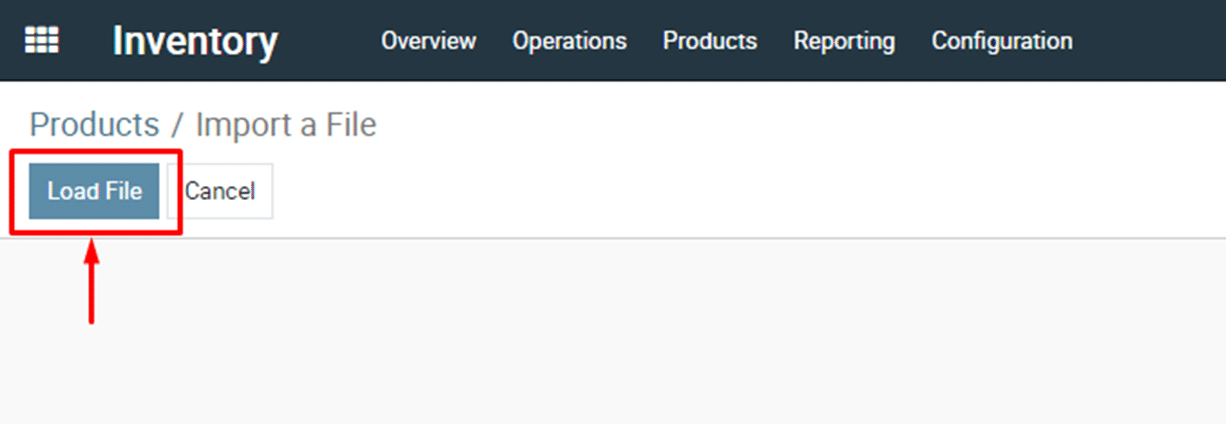
Click on
the ‘Load File’ option and select the Excel or CSV file you prepared in Step 1.
The system
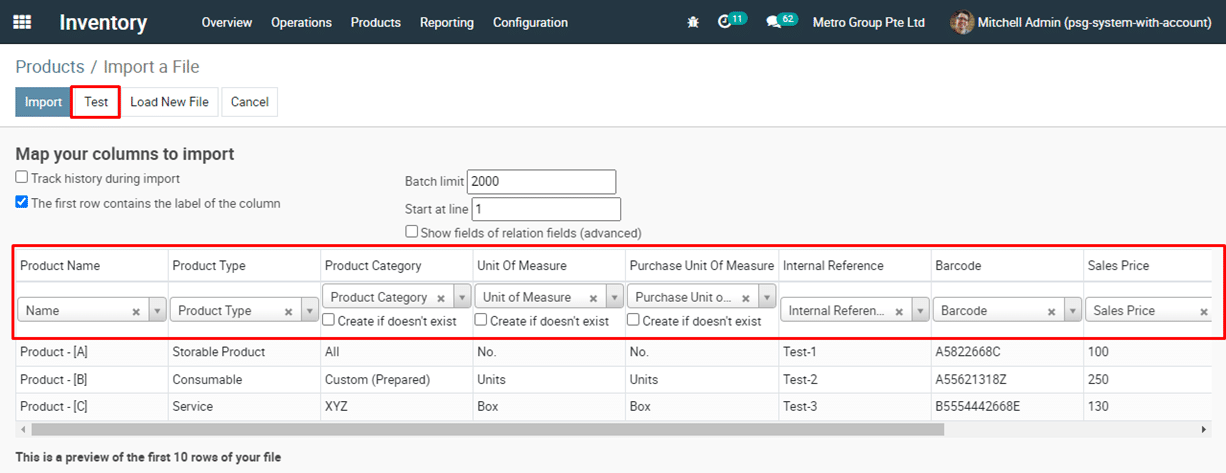
will prompt you to map the columns from your file to the corresponding fields
in the ERP system.
Preview the data to be
imported and verify that all information is accurate.
Click on ‘Test’ to check
whether the data mapping is correct or if there is any issue.
If necessary, make
adjustments or corrections.
Note:
Certain fields such as Product type, Product category, Unit of measure,
Purchase unit of measure, Taxes, etc., need to be created in the ERP system
before importing products. Alternatively, you can check the box below the
‘Mapped’ column for ‘Create if it
doesn’t exist’.
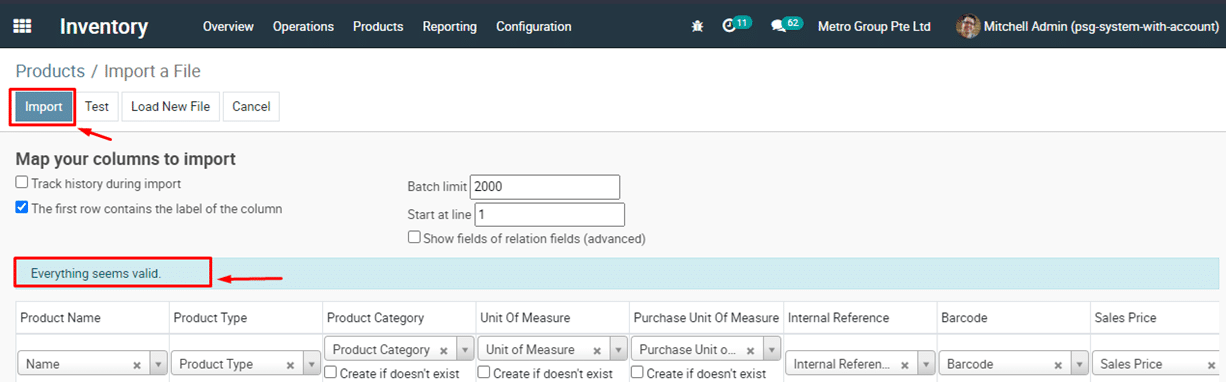
If
everything is correct, and the message ‘Everything seems valid’ will be displayed
as shown in the screenshot below.
Click on ‘Import’ to start the importing process.
Step 4: Post-Import
Verification
After the
import process is complete, cross-verify a sample of imported products to
ensure accuracy.
Check
inventory levels and product details to confirm that all relevant information
has been successfully imported.
Congratulations! You have successfully imported products in bulk
quantities into the Metro ERP system using an Excel or CSV file.
To get more detail to How to update the units of measure (UOM), please do contact us at support@metrogroup.solutions