Companies
that have multiple warehouses have to handle the transfer of products
from one location to another. In some cases, companies may have
various branches in various cities, making it very difficult to
successfully manage product transfers. Companies frequently manage
such circumstances by designating primary warehouses and secondary
warehouses for product distribution. The Metro ERP Transfers feature
facilitates the simple management of product transfers between
locations.
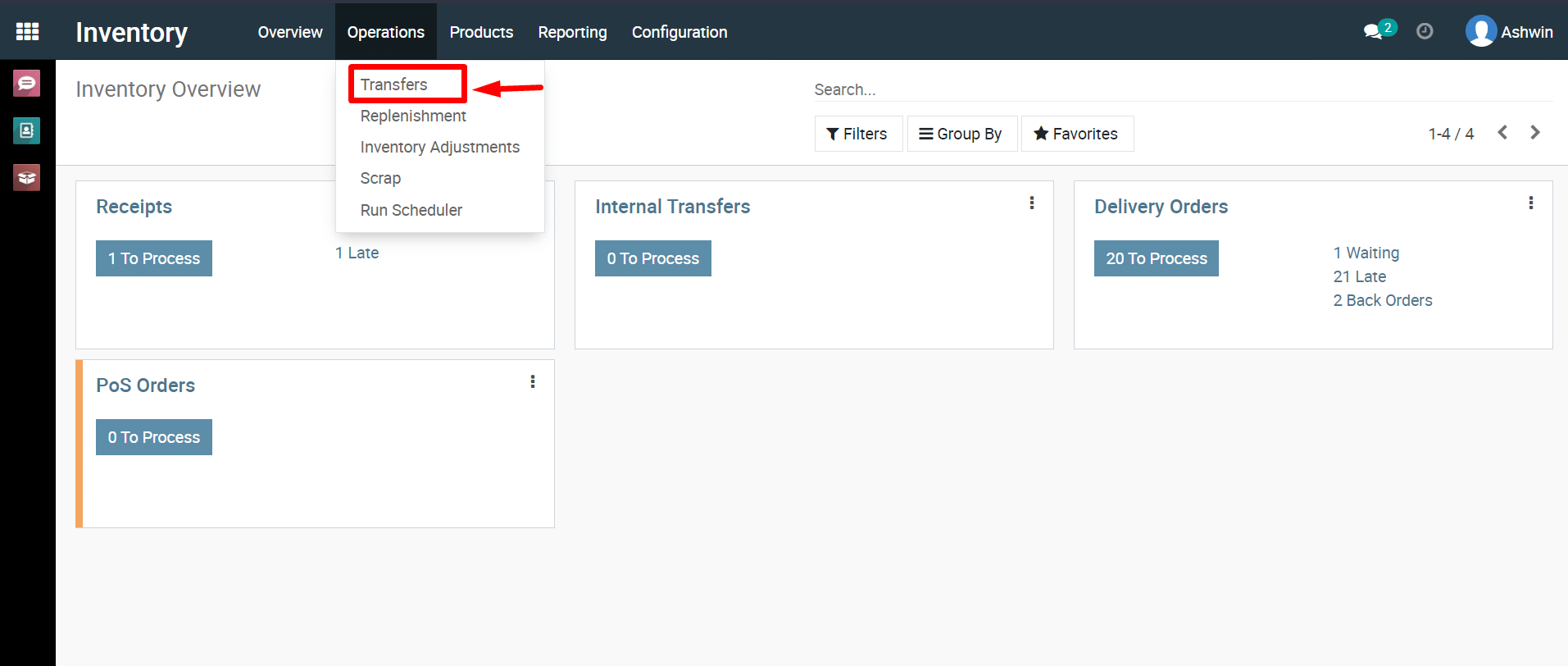
1) Navigate
to the inventory dashboard, select ‘Operations,’ and then click on
‘Transfer’.
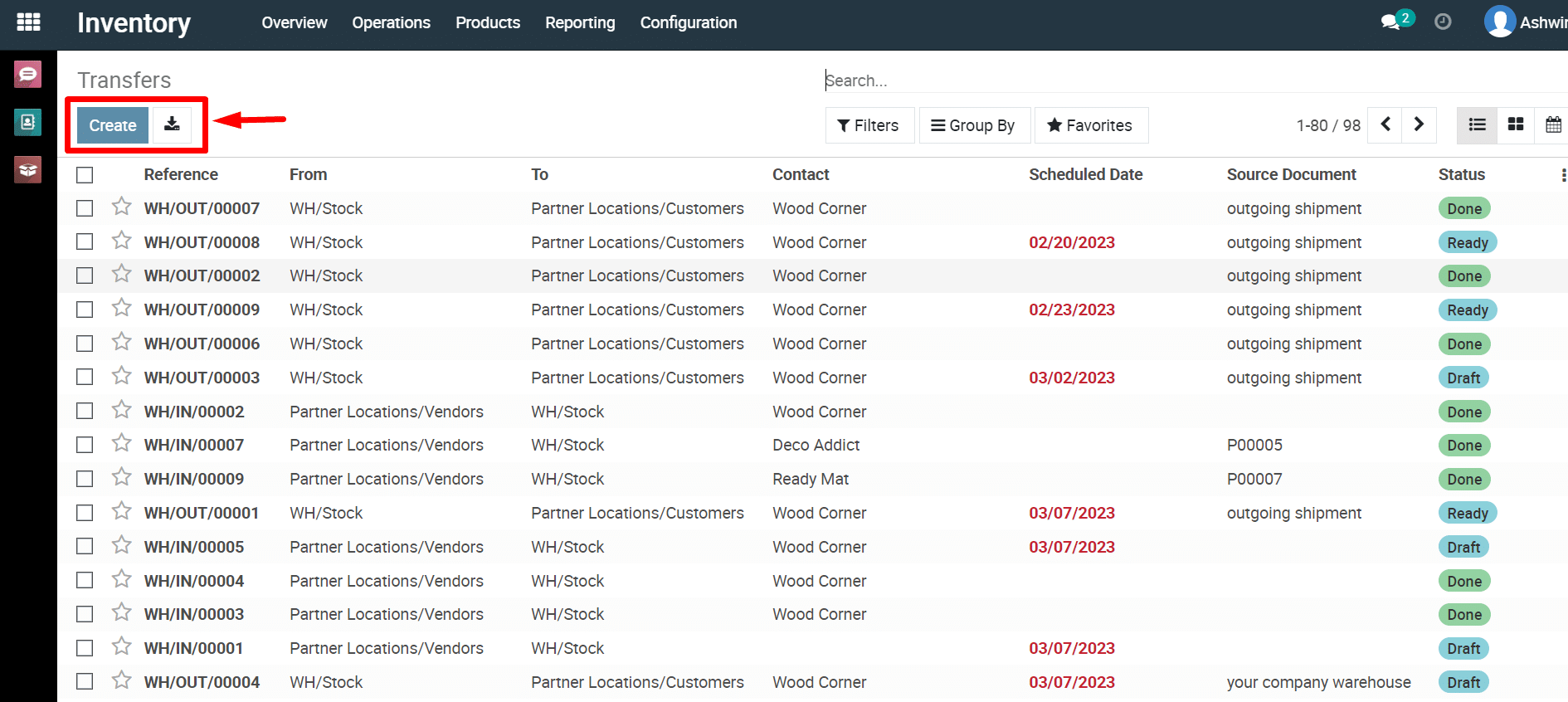
2) Click
on the ‘Create’ button.
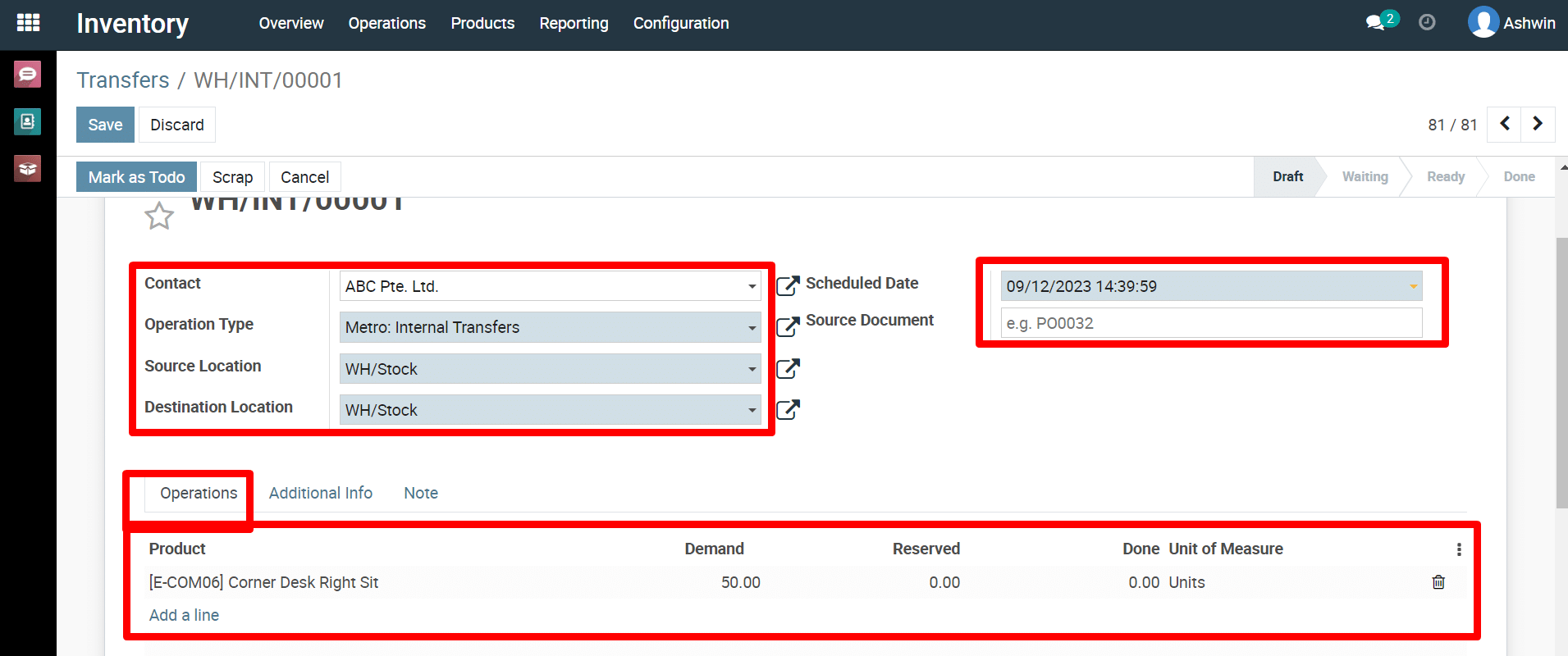
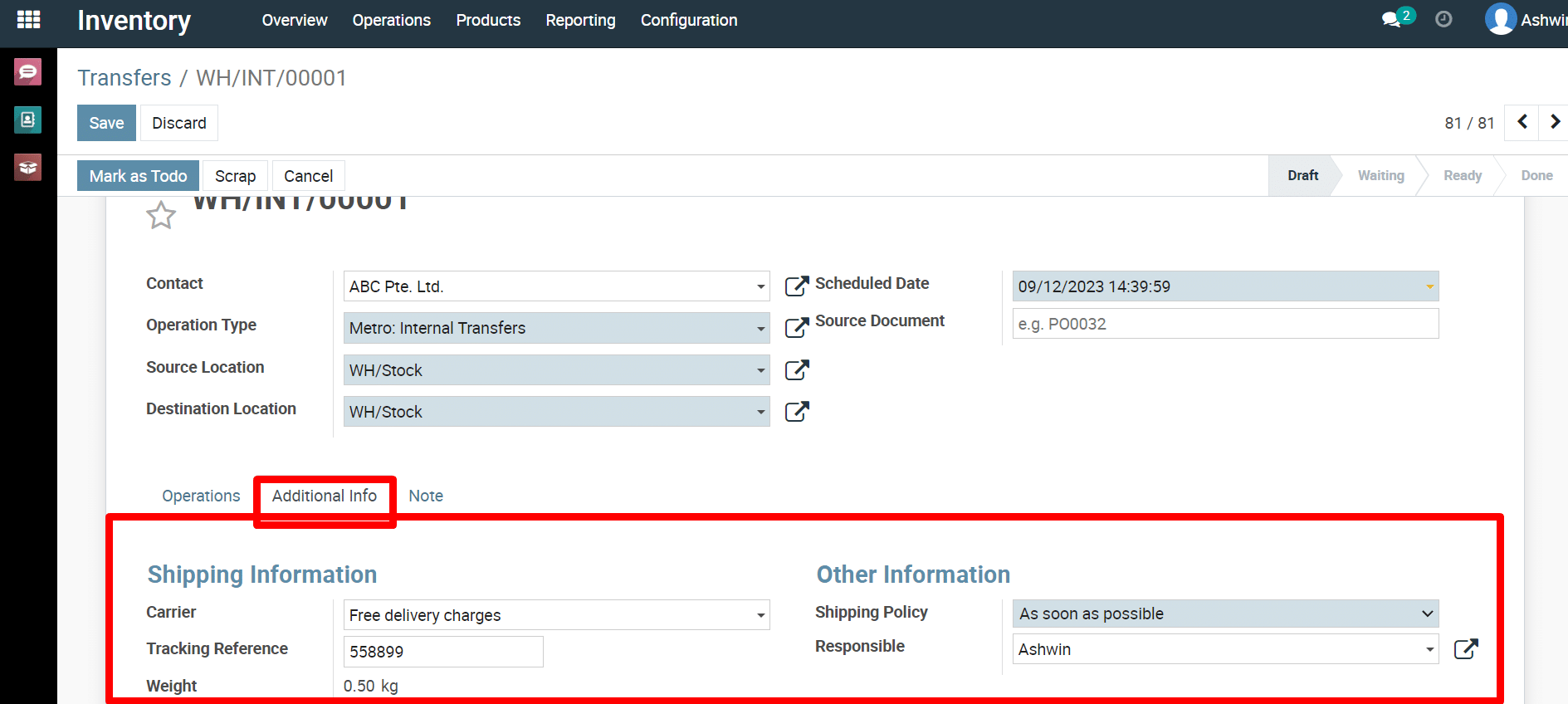
3) Fill
the fields according to your requirements to initiate the product
transfer and then click on the ‘Save’ button.
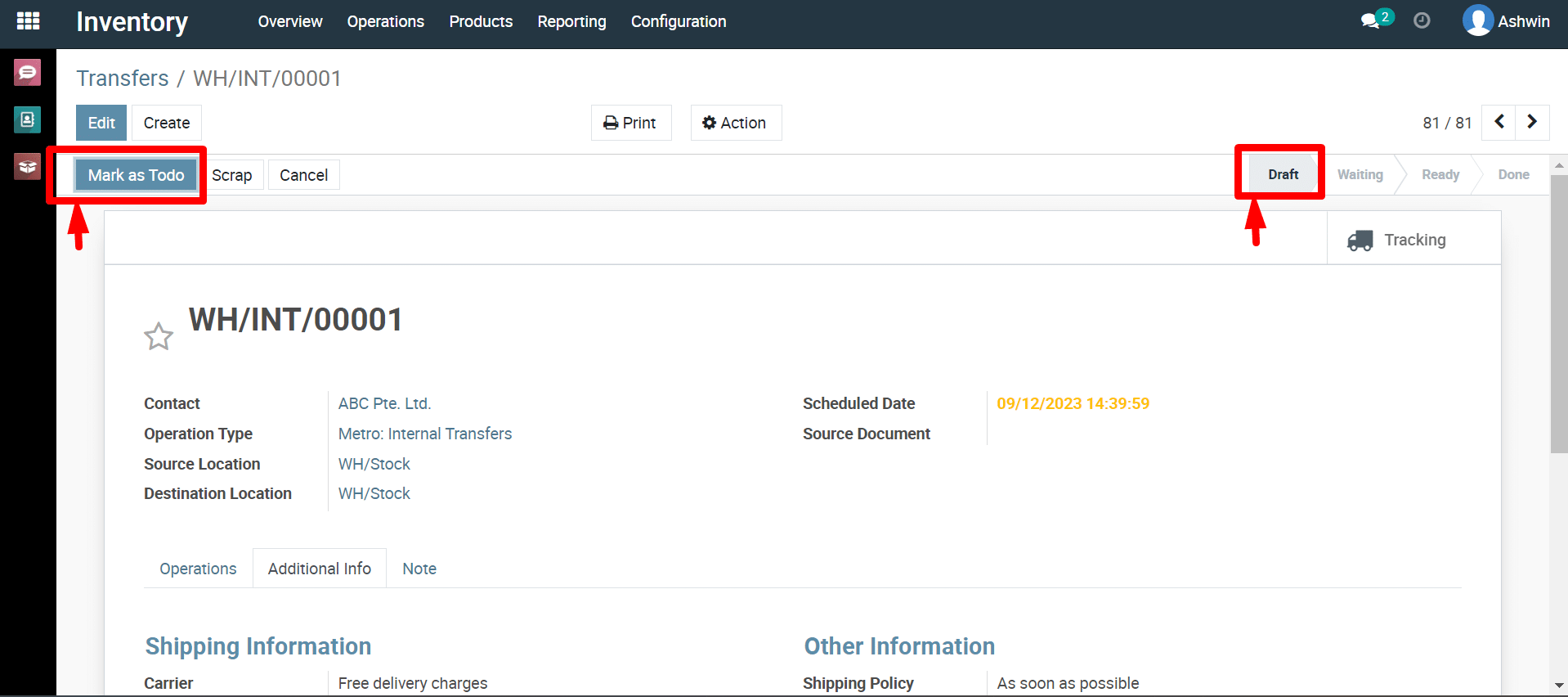
At
present, the transfer is in the Draft stage. When the transfer is in
the Waiting stage, it signifies that it is awaiting the availability
of certain products. If the transfer is prepared for processing, it
will be in the Ready state. To transition the transfer to the Ready
stage, you can select ‘Mark as Do.’
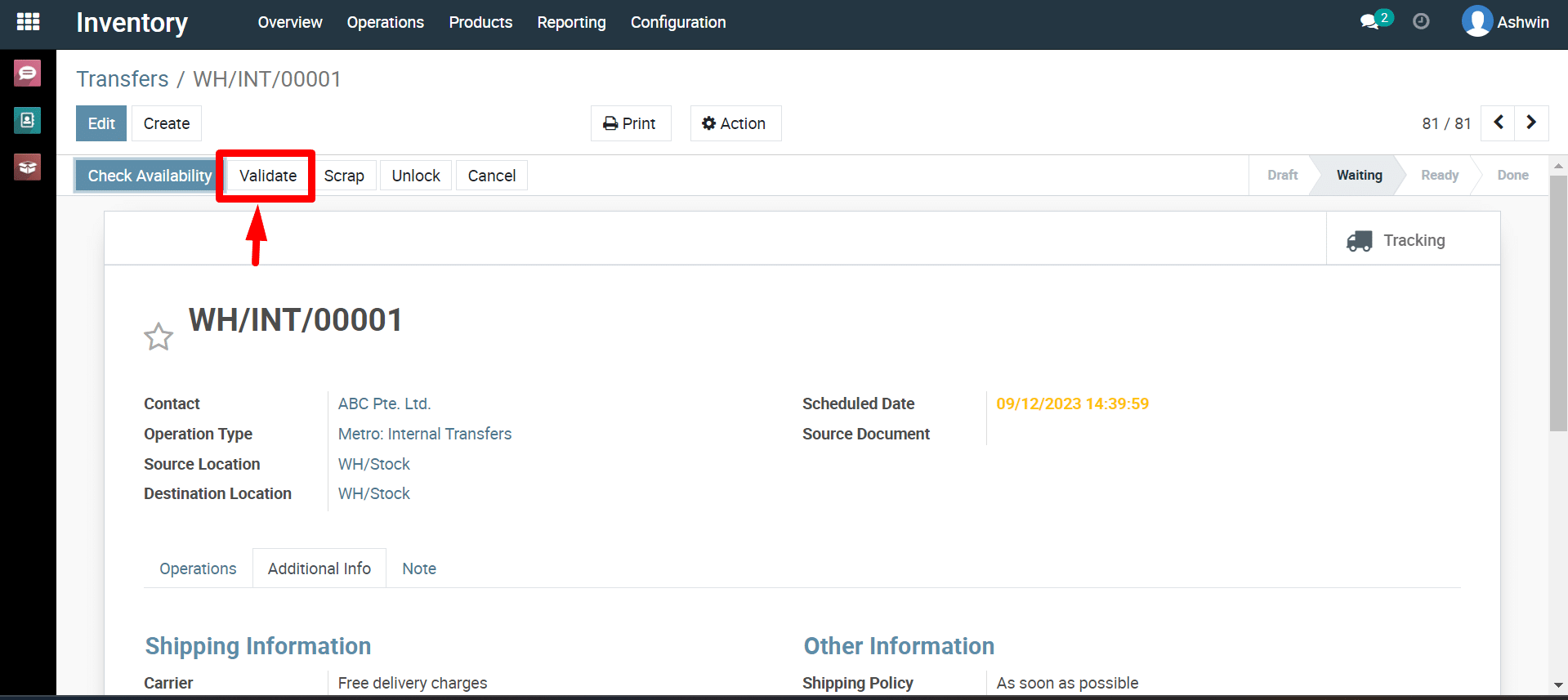
4) Once
you complete the transfer process, you can click the Validate button.