
While
creating invoices one-by-one is perfectly suitable for a small number of
transactions, Metro ERP facilitates importing a bulk of invoices using its
import function, saving you significant time and effort.
Prerequisites for Bulk Invoice Import:
Prepare
your invoice data: Ensure your invoice
information is organized in a digital format suitable for import, such as a CSV
(Comma-Separated Values) file. This file should include all the necessary
invoice details, typically including:
- Partner
/ Customer Name (Note: this will be the same as we updated in the system – Case
sensitive) - Invoice
Date - Payment
Terms or Due date - Invoice
Items (Product/Service Description, Quantity, Unit Price, Tax Information,
etc.) - Currency
- Exchange Rate
Refer Screenshot – Download Sample File: Click Here

Steps for Importing Bulk Invoices
Access
the Import Function:
Navigate to the Accounting Module
-> Customer Invoices -> Favorites -> Import records
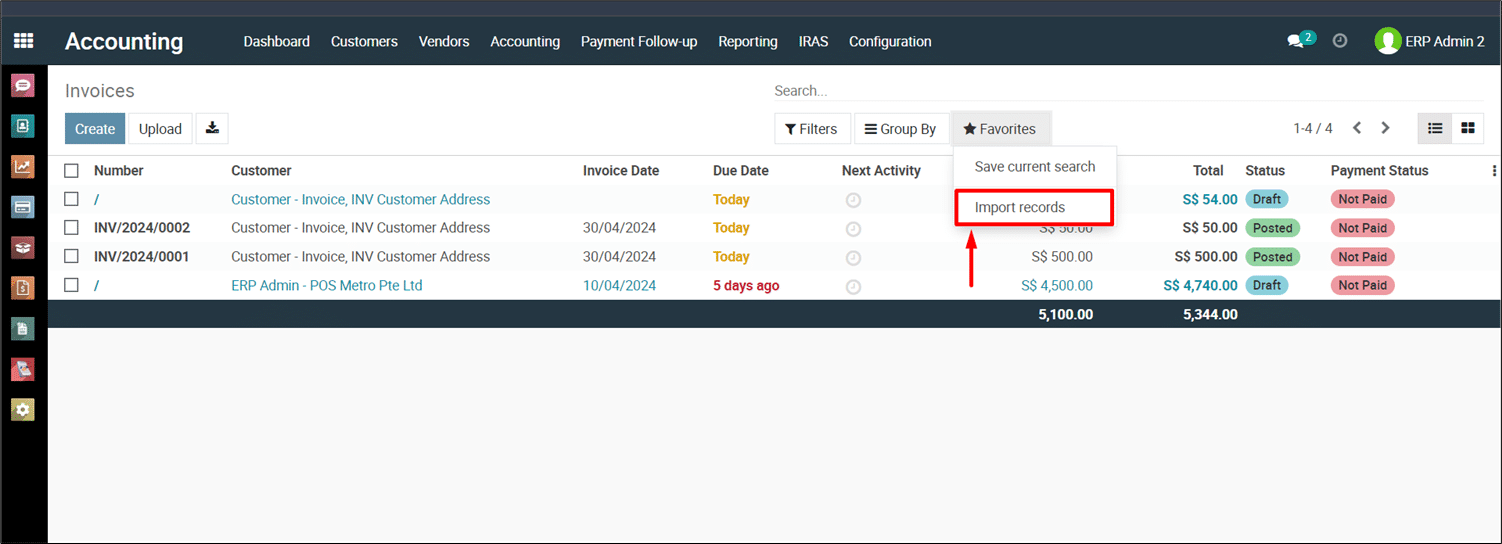
Once
you click on Import records, a window will appear, allowing you to select the
file for import (refer to the screenshot below).
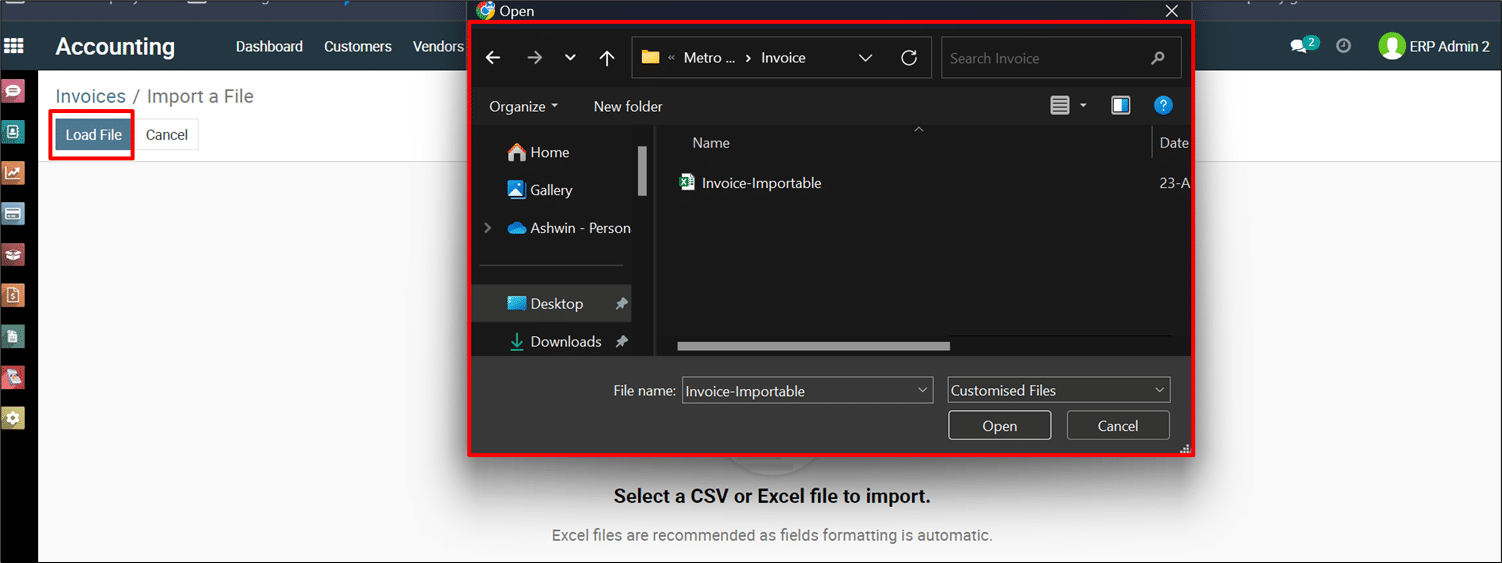
Then,
click on “Load File” and navigate to the location where you saved
your file on your local storage.
Map Data Fields: Metro ERP prompts you to map the data fields from your import file
to the corresponding fields within the software. This ensures the system
correctly imports and assigns your data to the appropriate invoice fields.

Initiate the Import Process: Once you’ve selected your file and mapped the data fields, follow the on-screen instructions to initiate the import process. Metro ERP provides options to preview or validate your data before finalizing the import. (Click on Test button to validate the data.)
When everything seems valid, it will show the message as per below screenshot.

Review Imported Invoices: After the import is complete, it’s recommended to review the imported invoices within Metro ERP to ensure the data was imported correctly.
To get more details Import Bulk Invoices in Metro ERP, please do contact us at support@metrogroup.solutions