
In MetroERP, Order Lines are shown in a list (tree) view, and Metro allows you to enable/disable columns dynamically from the UI.
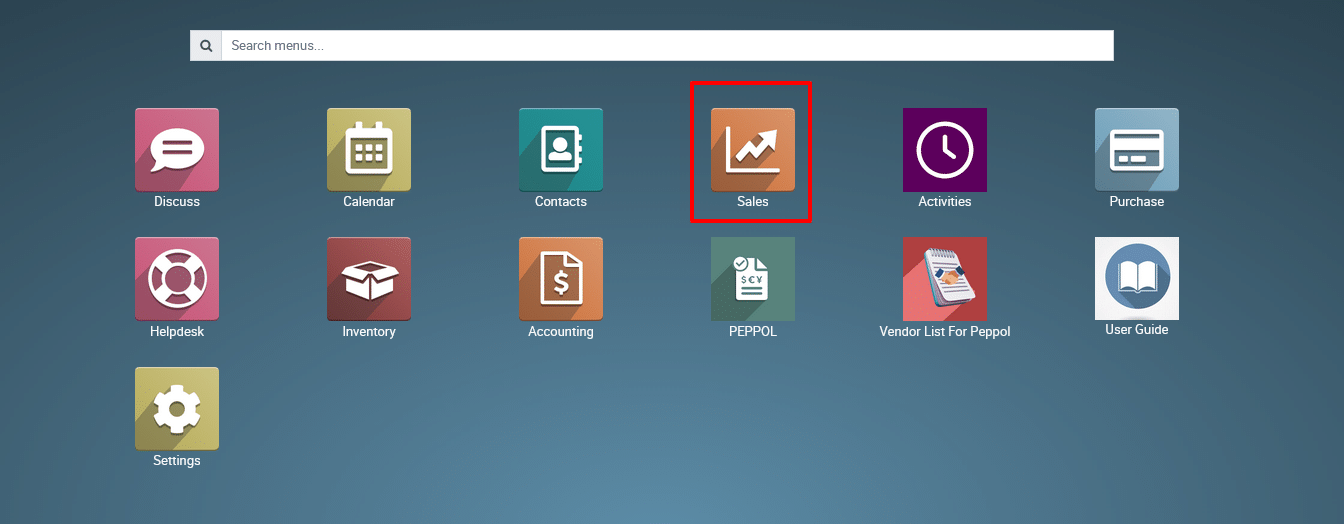
1) Go to the “Sales” module by clicking on its icon in the main dashboard or using the application menu.
2) Navigate to Sales > Order > Quotations.

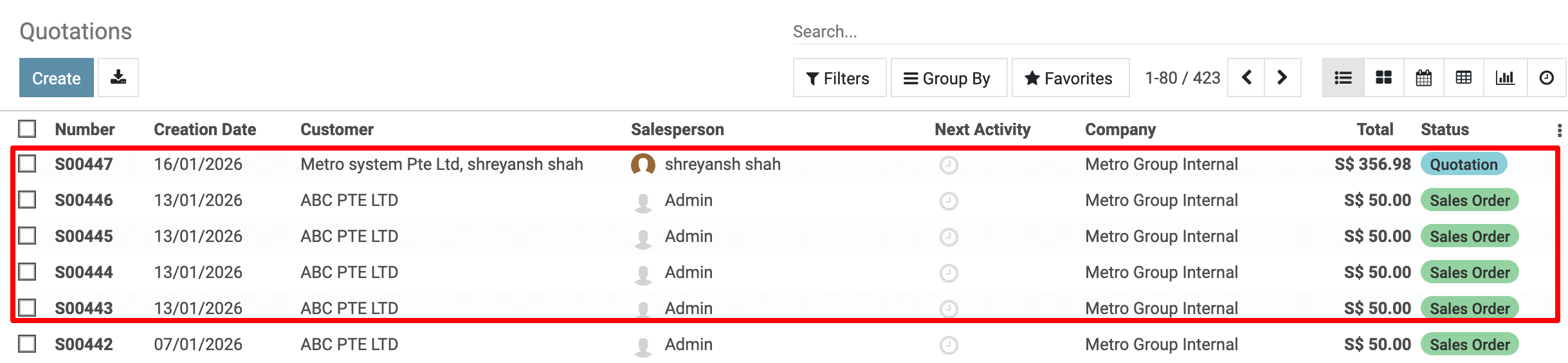
3) Click and View the Quotation.
Go to Order Lines
On the right side of the Order Lines header, click the three vertical dots (⋮) (highlighted in your screenshot).
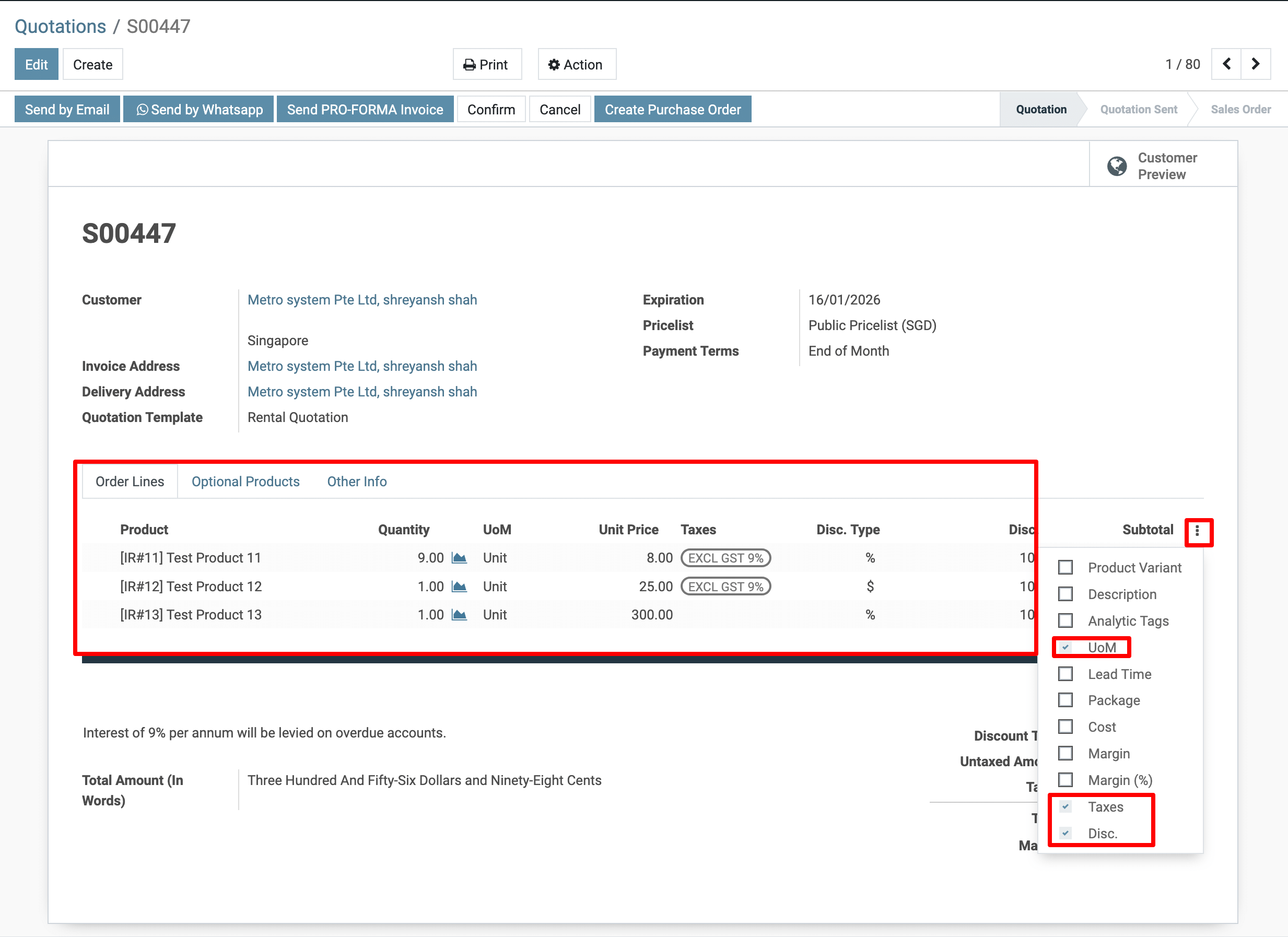
Select the Column to Display.
-
A dropdown list will appear with available columns such as:
-
Product Variant
-
Description
-
Analytic Tags
-
UoM
-
Lead Time
-
Package
-
Cost
-
Margin
-
Margin (%)
-
Taxes
-
Disc.
-
-
✅ Tick the checkbox for the column you want to show
(example: UoM, Taxes, Disc.)
The selected column will immediately appear in the Order Line grid.
4) Go to Order Lines
On the right side of the Order Lines header, click the three vertical dots (⋮) (highlighted in your screenshot).
✅ Tick the checkbox for the column you want to show ” Description “
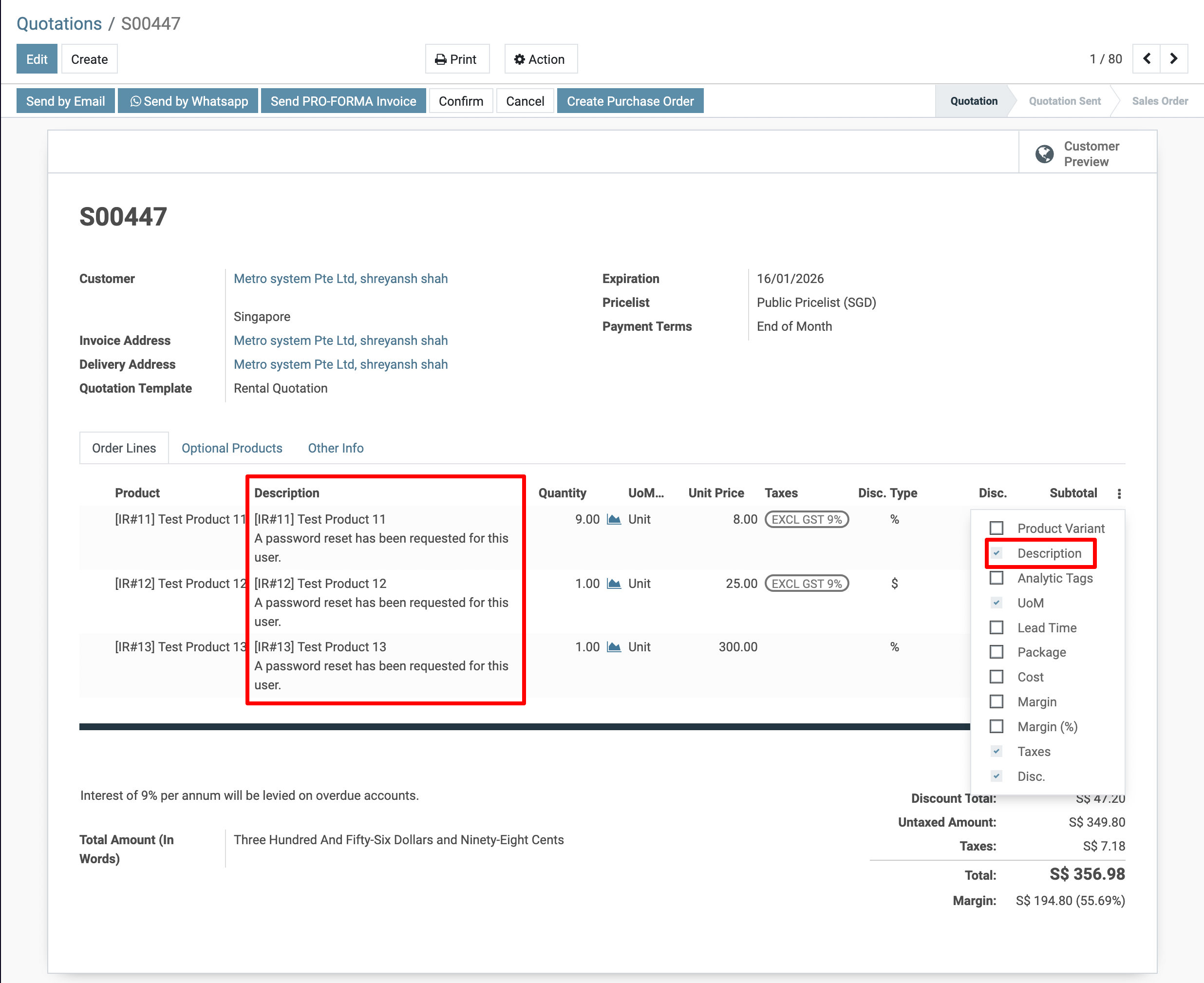
The selected column will immediately appear in the Order Line grid.
To get more details how can I Enable and display a Column that is not Showing in the Order Line in MetroERP, please do contact us at support@metrogroup.solutions