
In Metro, creating and sending a Direct Invoice to a customer such as a Ministry/Agency is basically the same as creating a normal customer invoice — only the Business Partner (the ministry/agency) and the delivery method are different.
Below are step-by-step instructions to create and send a Direct Invoice.
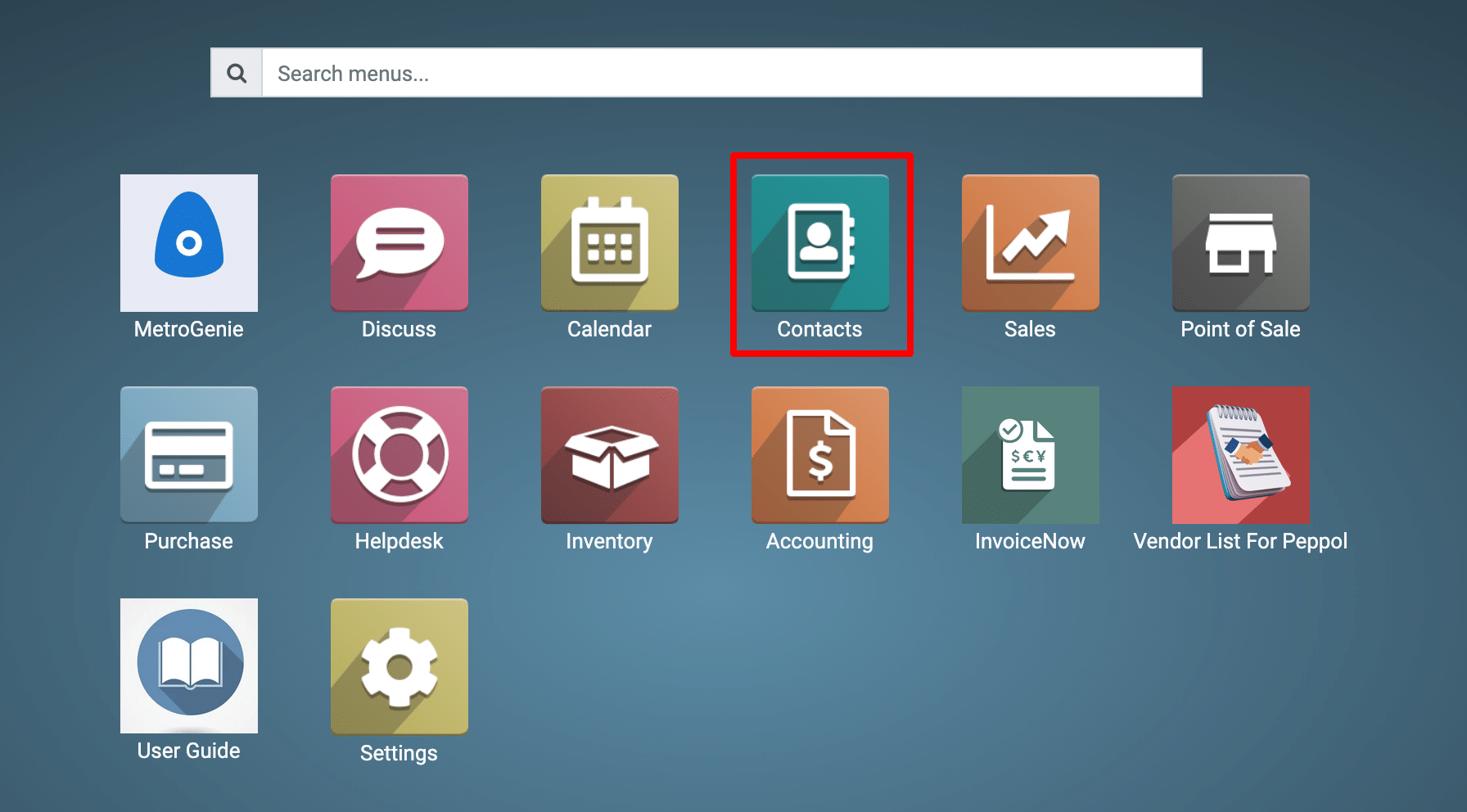
1) Go to the Contact application
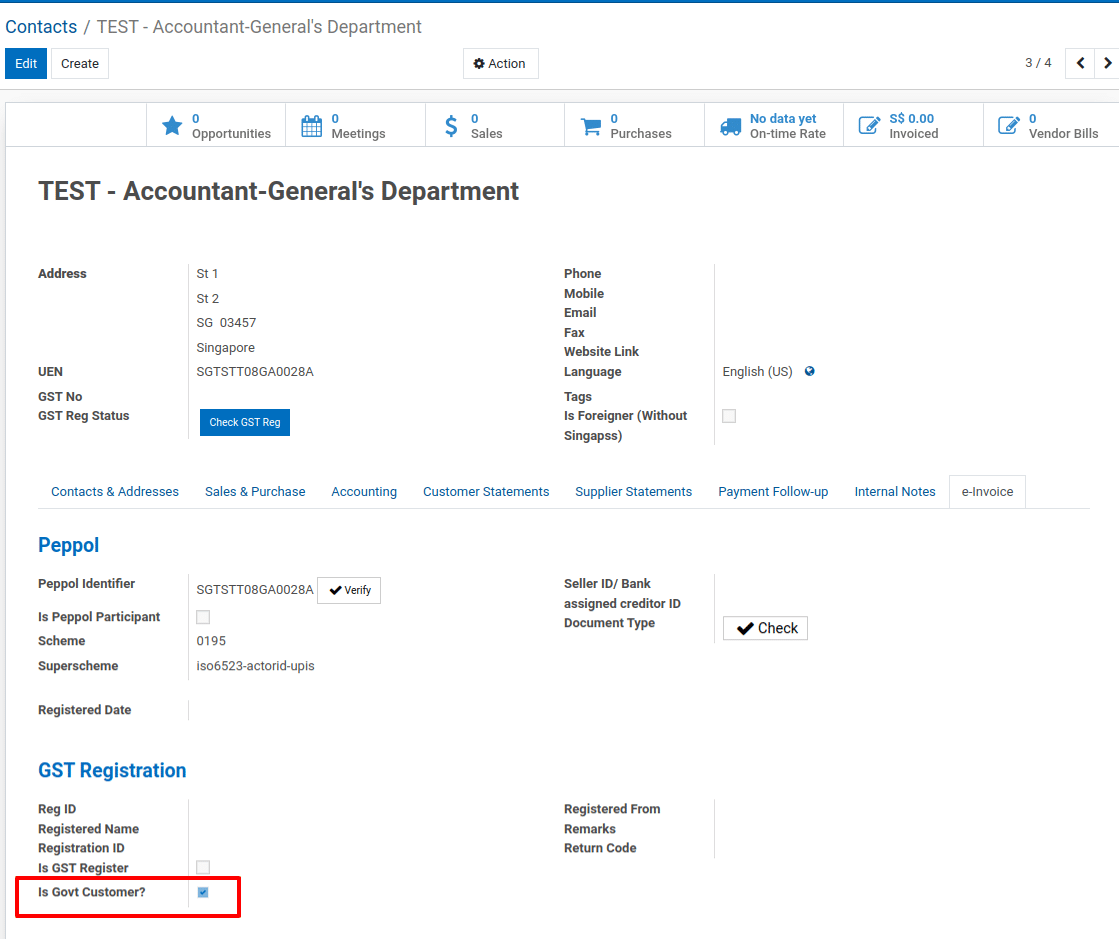
2) View Contact details with Is Govt Customer? checkbox.
“Is Govt Customer?” is a special flag used in your Metro system (usually via localization or custom module) to identify that this contact is a Government / Ministry / Statutory Body.
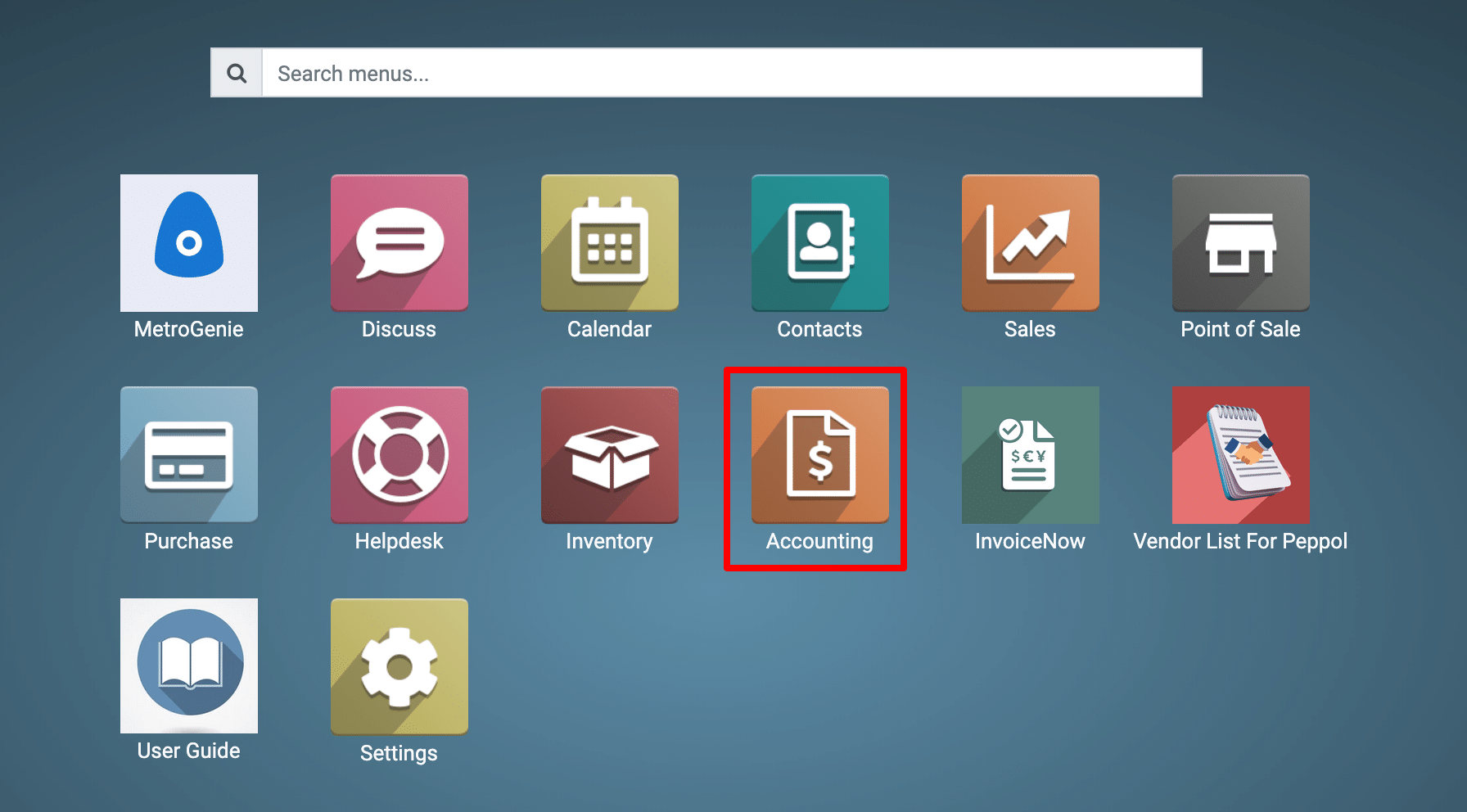
3) Go to the Accounting application by clicking on its icon in the main dashboard or by using the application menu.
4) Go to Accounting → Customers → Invoices → Create
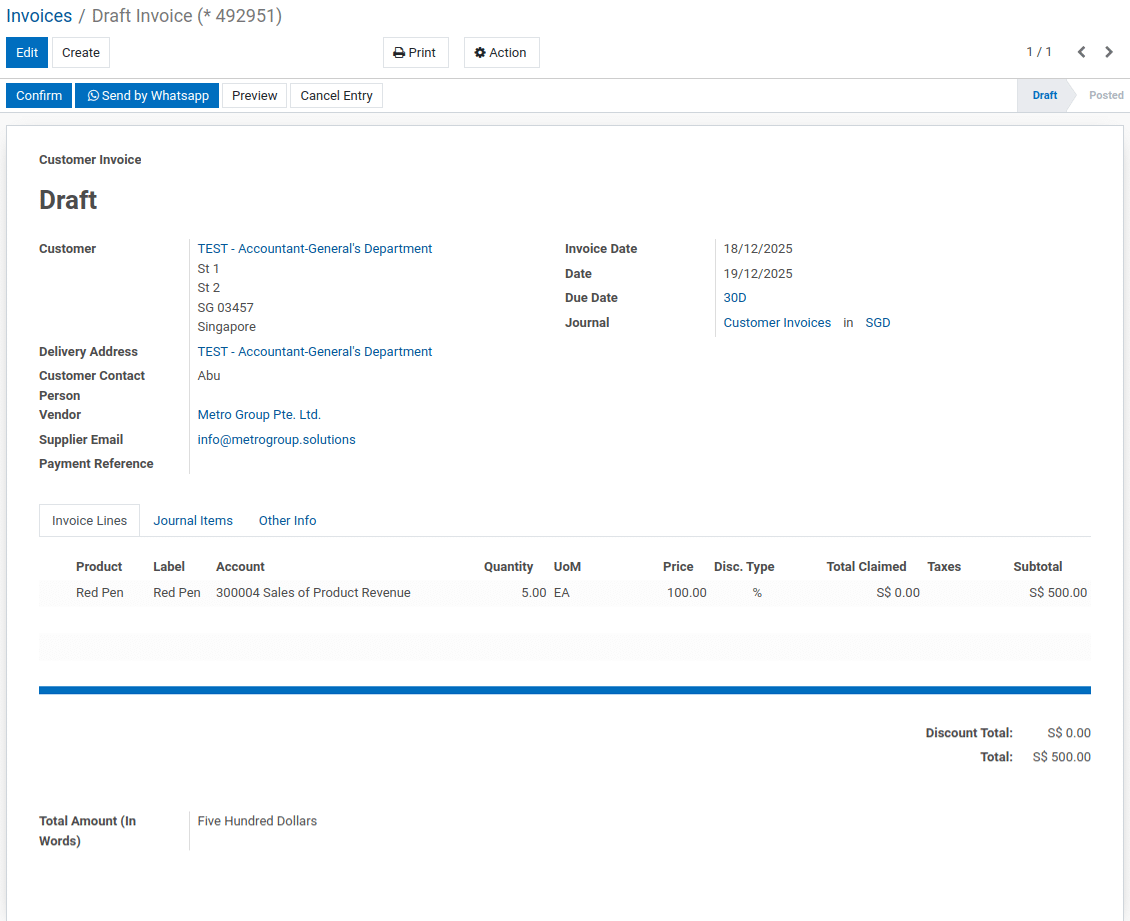
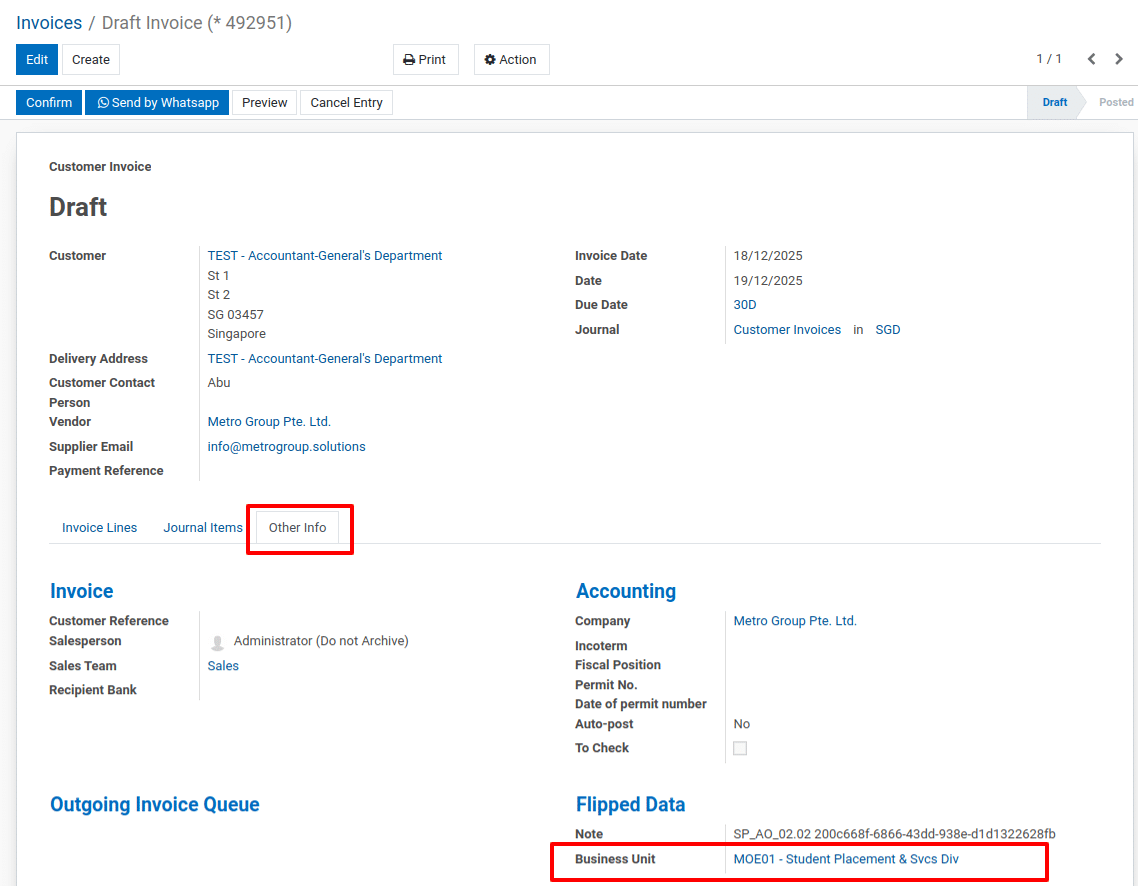
The process of selection of Ministries / Statutory Boards and corresponding Sub-Business Unit in the solution.
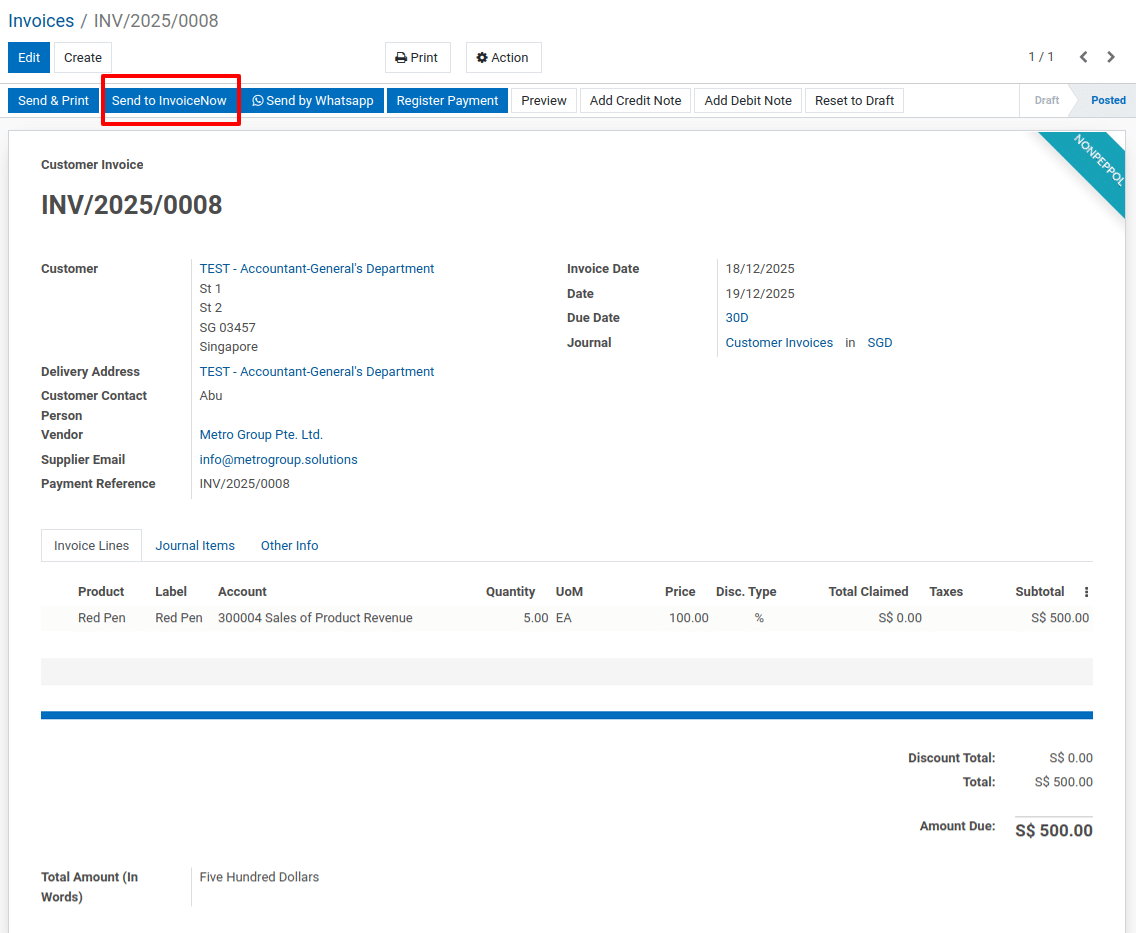
5) The Send to InvoiceNow button means this invoice can be sent through PEPPOL/InvoiceNow.
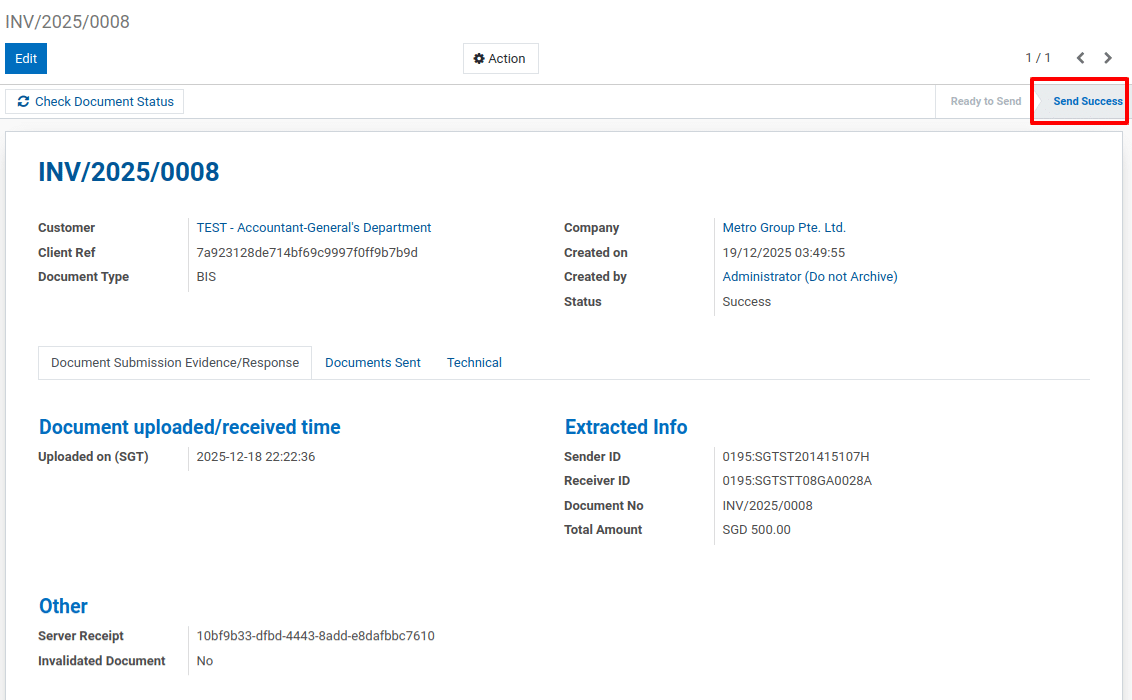
View Send Success.
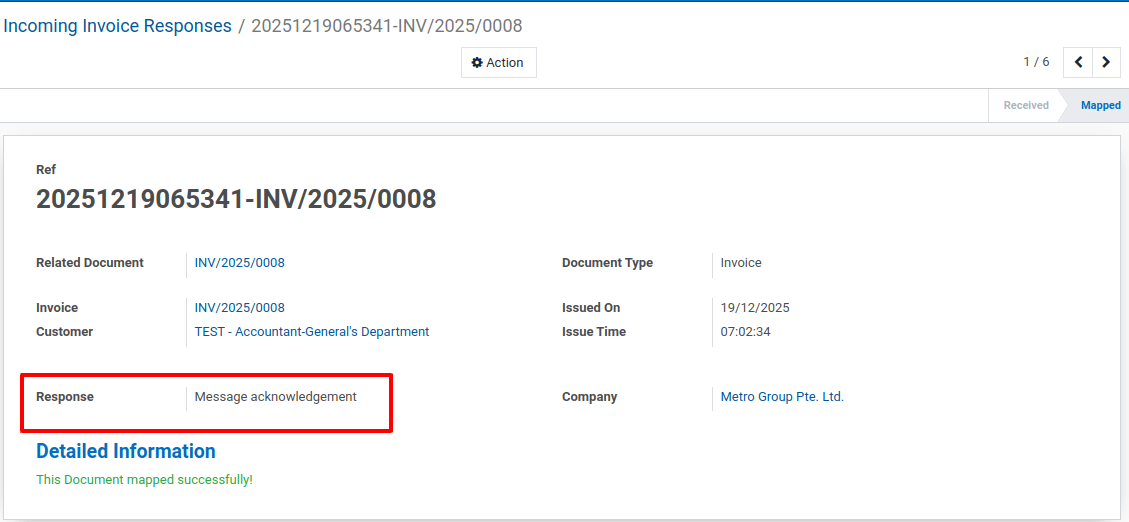
View Response.
To get more details how to create & send Direct Invoice to Ministry/Agency, please do contact us at support@metrogroup.solutions