
Steps to Create & Send a Peppol Purchase Credit Note to GST InvoiceNow in system:
Here’s the step-by-step process (as shown in your screenshots):
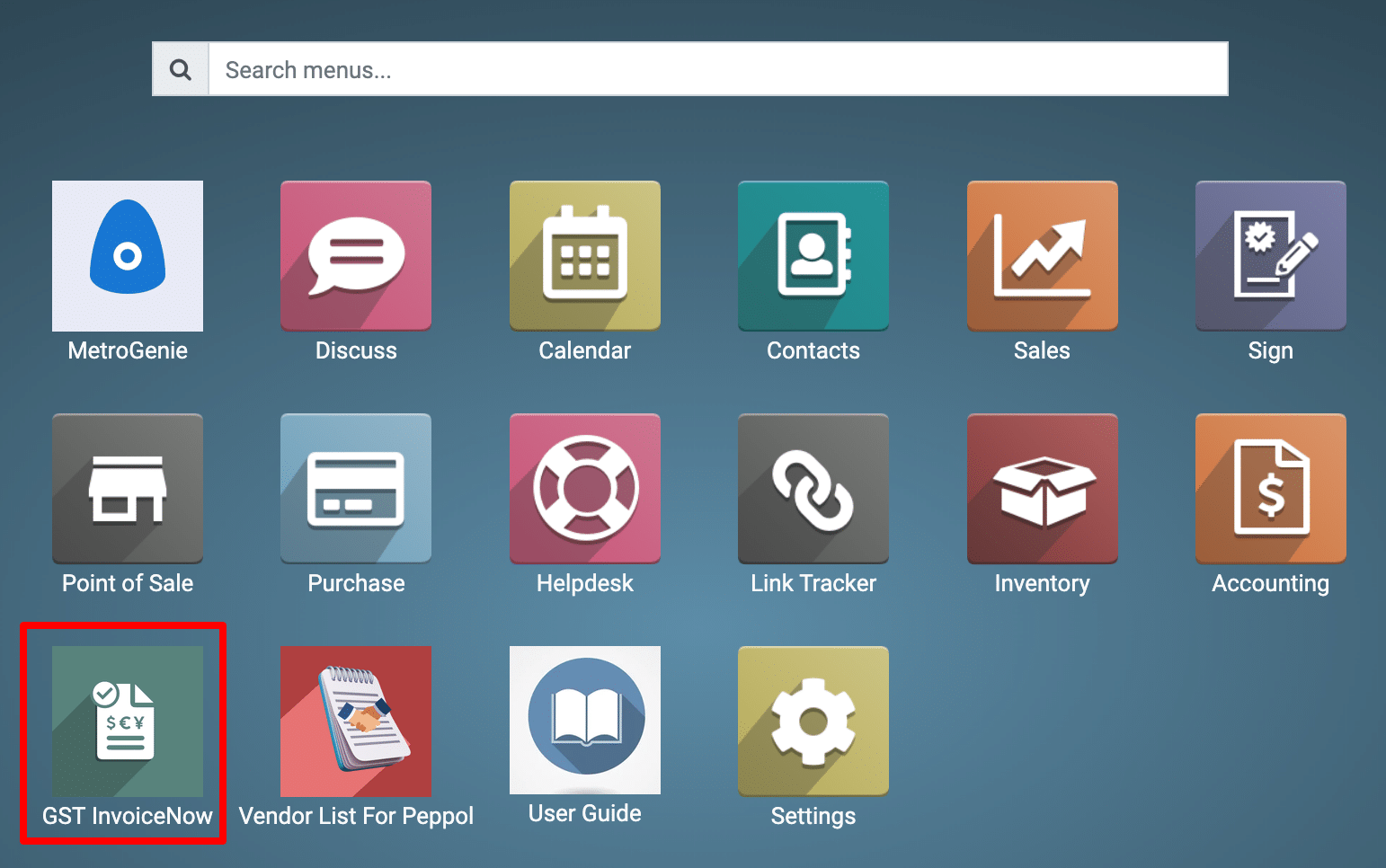
1) Go to the Peppol application by clicking on its icon in the main dashboard or by using the application menu.
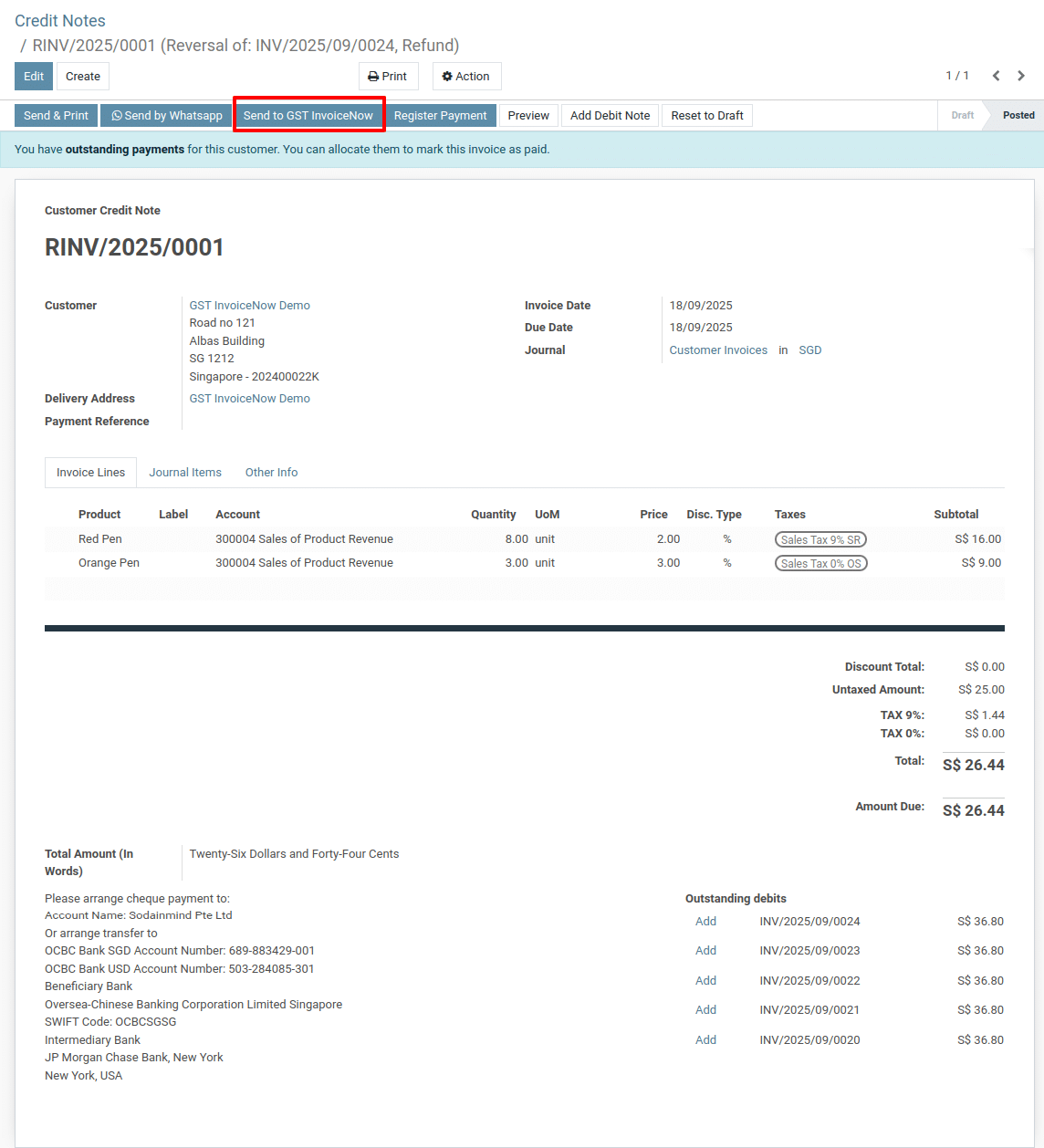
2) Customer Credit Note
-
This button exports the credit note as a Peppol BIS 3.0 XML (Singapore’s InvoiceNow standard, based on Peppol).
-
Once clicked, the credit note is pushed to the Peppol Access Point for delivery to the recipient (GST InvoiceNow in your case).
3) Incoming Credit Note (from Supplier)
-
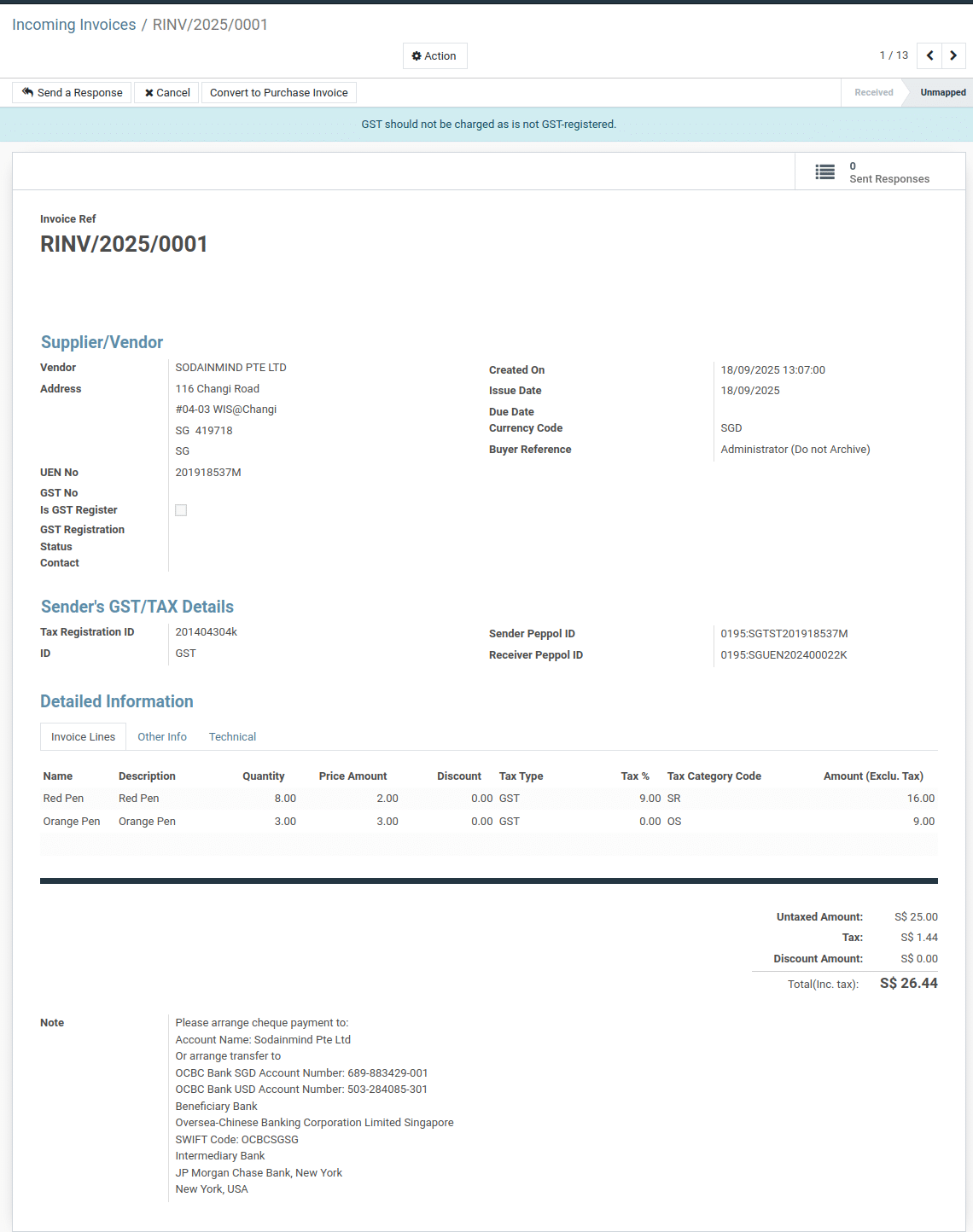
You received a Peppol Purchase Credit Note (from vendor SODAINMIND PTE LTD).
-
The Supplier Peppol ID and Receiver Peppol ID are shown at the bottom → confirming Peppol routing info.
-
Status shows: Doc Type = Credit Notes.
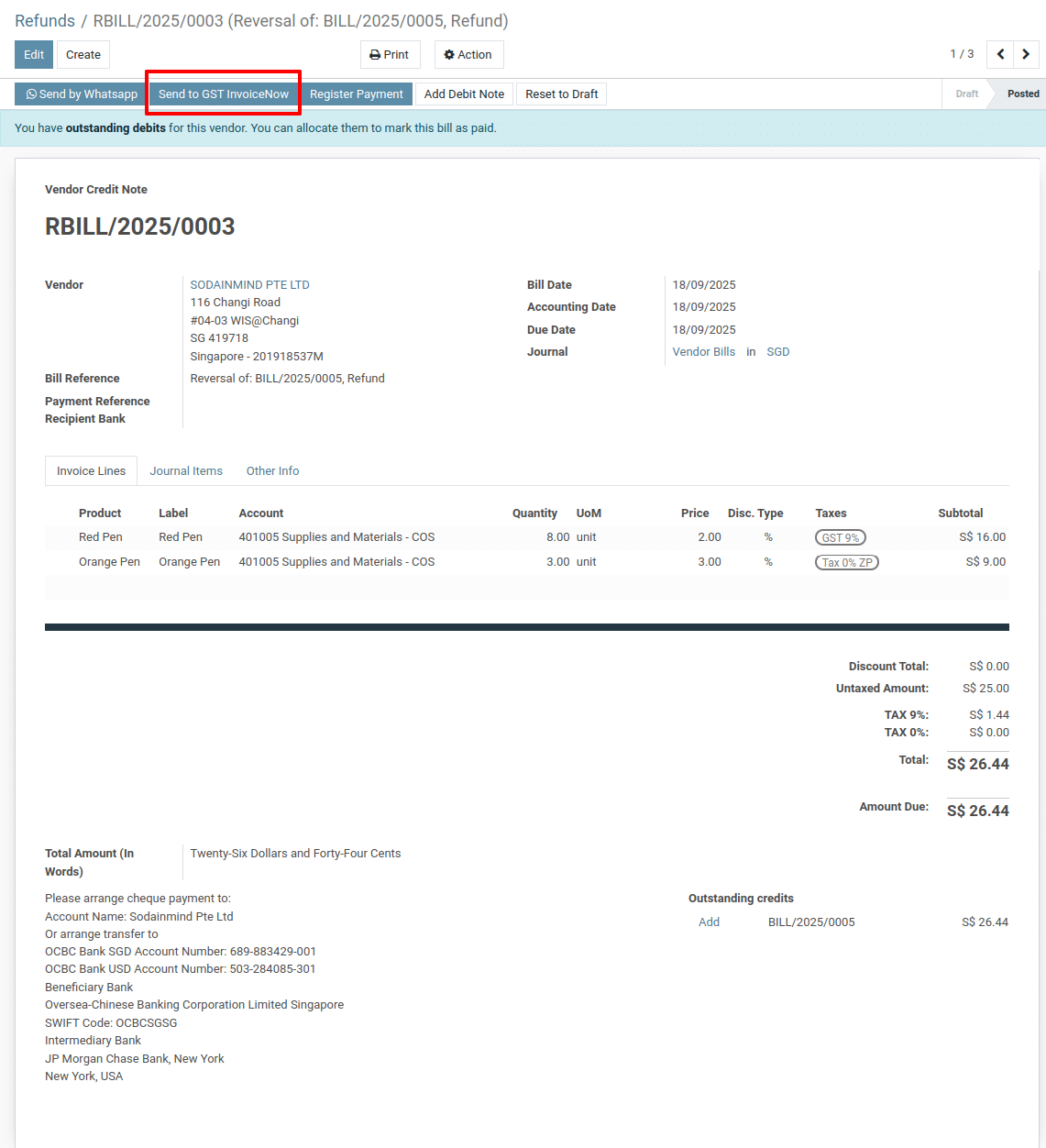
4) Vendor Bill
-
Sales: this button sends the vendor bill through InvoiceNow/Peppol.
-
This means even purchase invoices can be submitted back to GST InvoiceNow / Access Point for compliance tracking.
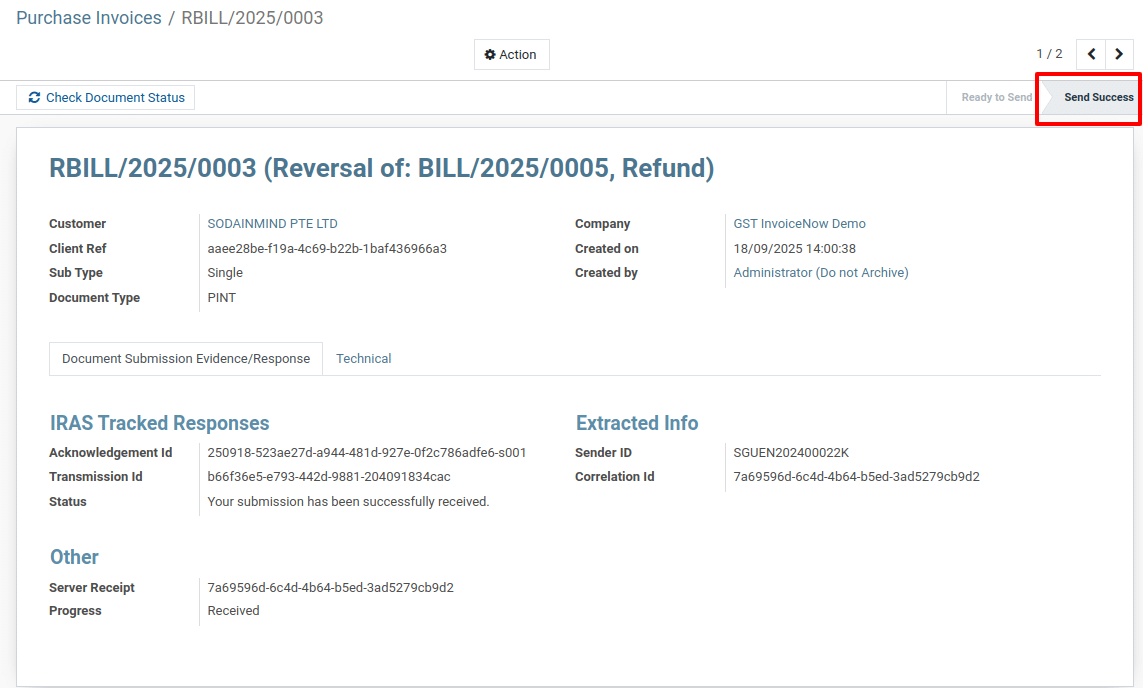
5) Peppol Submission Tracking
-
Status: “Send Success”
-
Confirms that the Bill (or Credit Note) was successfully submitted via Peppol.
-
IRAS Tracked Responses
-
Shows Acknowledgement ID and Transmission ID from the Access Point.
-
Confirms that IRAS (Singapore tax authority) received the document successfully.
-
Extracted Info
-
Displays the Sender ID and Correlation ID for traceability.
To get more details how to ccreate & send a Peppol Purchase Credit Note to GST InvoiceNow in Metro Accounting System, please do contact us at support@metrogroup.solutions